Welcome to msendpoint.com, where we simplify technical configurations for IT admins. Today, we’ll guide you on how to configure Favorites in Microsoft Edge and Google Chrome using Intune. Deploy Chrome via Intune This step-by-step guide will save you time while efficiently managing browser settings for your organization.
Why Configure Favorites via Intune?
Favorites are essential for quick access to frequently used websites. By using Intune, you can centrally manage browser favorites across your organization, ensuring consistency, productivity, and compliance.
Setting Up Favorites on Microsoft Edge
Step 1: Create a Policy in Intune
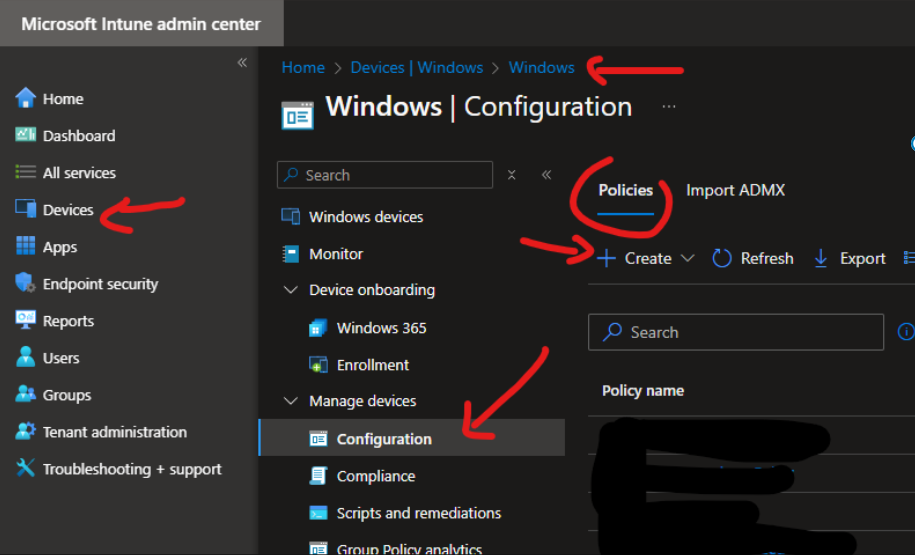
1. Navigate to Intune Portal > Devices > Windows Configuration > Create.
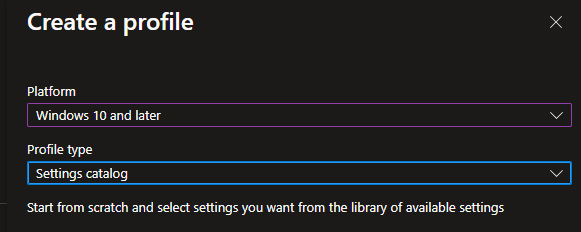
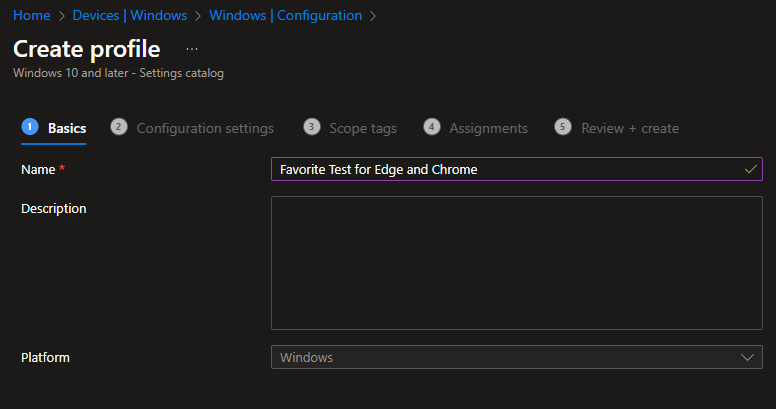
2. Choose the Settings Catalog and name the policy, for example: “Favorite Test for Edge and Chrome.”
Step 2: Add Browser Settings
1. Under the policy settings, click Add Settings.
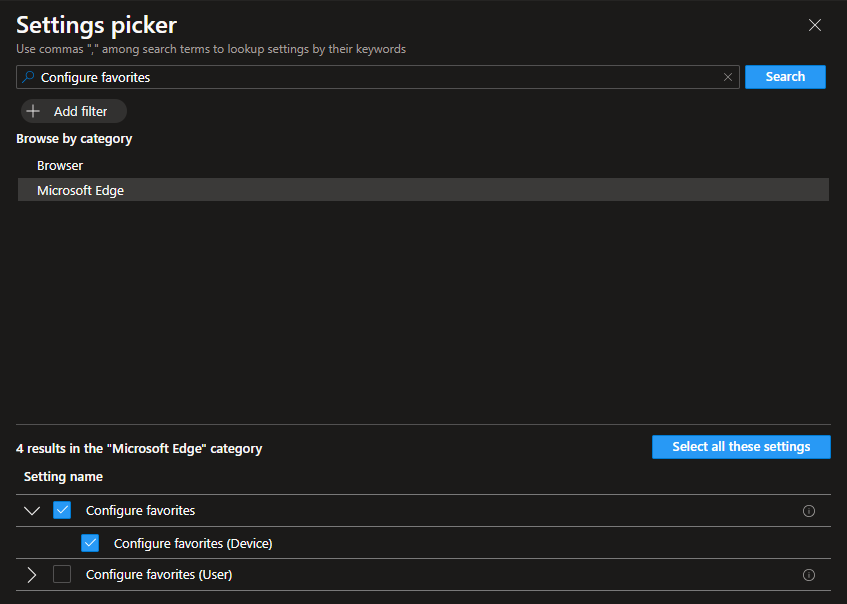
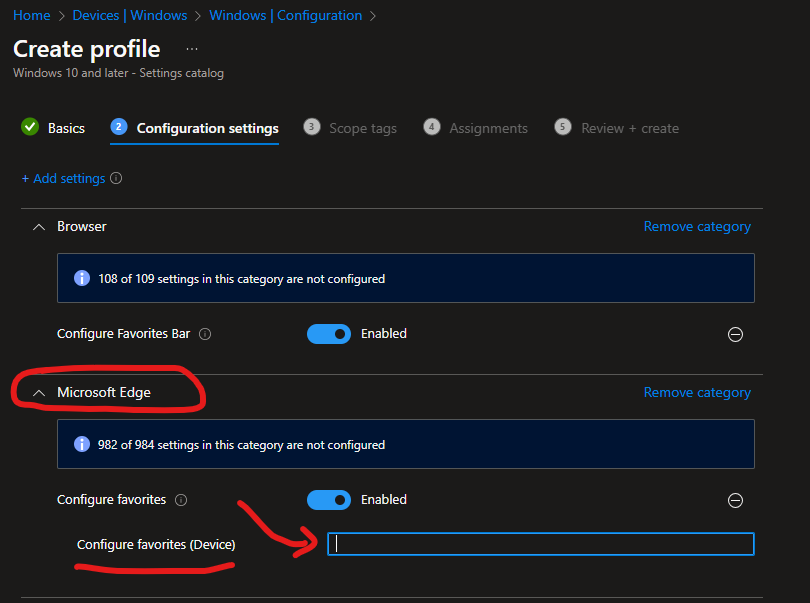
2. Search for “Configure favorites” and enable the following options:
- Browser – Configure Favorites Bar
- Microsoft Edge – Configure Favorites (Device)

then add the XML code under the box bellow:
Step 3: Configure the Favorites XML Format
To customize the Favorites bar, use this XML format as an exemple:
[
  {
    "toplevel_name": "My Managed Favorites"
  },
  {
    "name": "msendpoint",
    "url": "https://www.msendpoint.com"
  },
  {
    "name": "Bing",
    "url": "https://bing.com"
  },
  {
    "children": [
      {
        "name": "Microsoft Edge Insiders",
        "url": "https://www.microsoftedgeinsider.com"
      },
      {
        "name": "Microsoft Edge",
        "url": "https://www.microsoft.com/windows/microsoft-edge"
      }
    ],
    "name": "Microsoft Edge Links"
  }
]
This XML file defines the structure of the Favorites bar. You can also modify the root folder name using the key « toplevel_name ».
Step 4: Deploy the Policy
1. Assign the policy to a group of test devices.
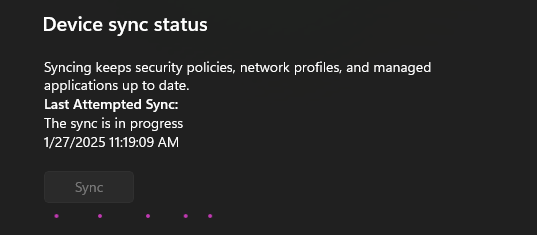
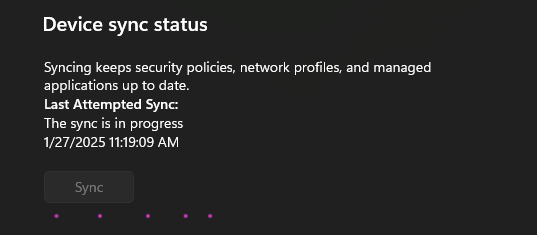
2. Sync the devices through Intune or directly from the device by navigating to Accounts > Access work or school and clicking Sync.
Step 5: Validate the Policy on Edge
1. Open edge://policy in Microsoft Edge.
2. Check for the Managed Favorites policy.
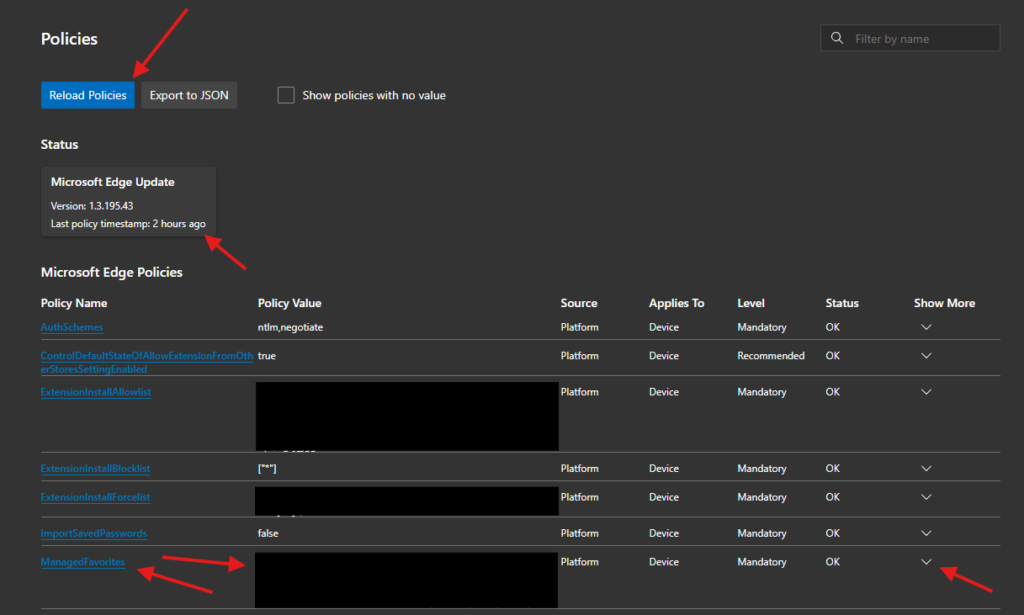
3. If it doesn’t appear, reload the policy and restart the browser.
Setting Up Favorites on Google Chrome
Step 1: Add Chrome Settings to the Same Policy
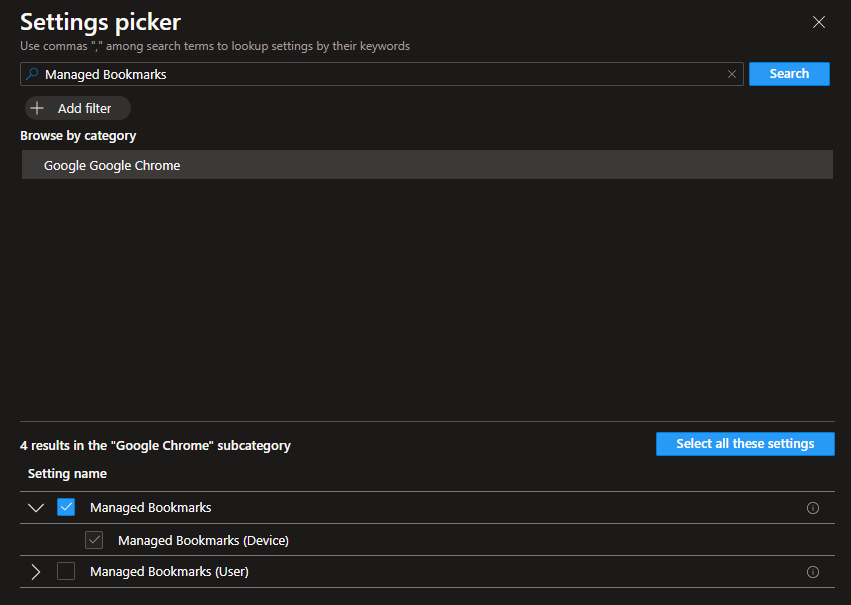
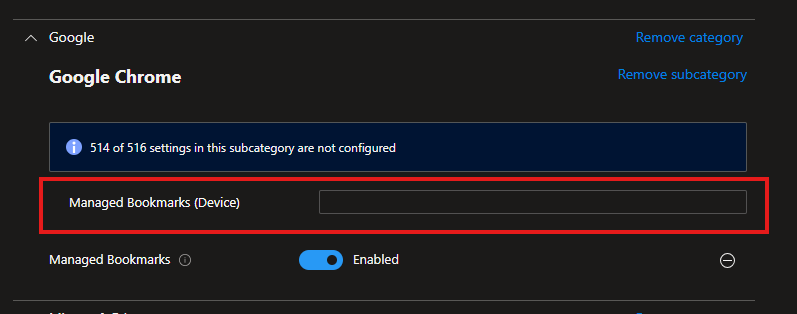
1. Search for “Managed Bookmarks” in the Settings Catalog.
2. Select Google Chrome – Managed Bookmarks (Device).
Step 2: Use the Same XML Format
Copy the same XML format used for Microsoft Edge and apply it to the Managed Bookmarks setting for Chrome.
Step 3: Deploy and Sync
1. Assign the policy to your test devices.
2. Sync the devices via Intune or directly from the device.
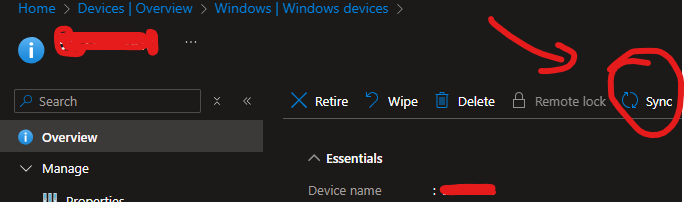
or from the device directly under Settings > accounts > Access work or school > “the name of your organization and hit sync as in the screen bellow
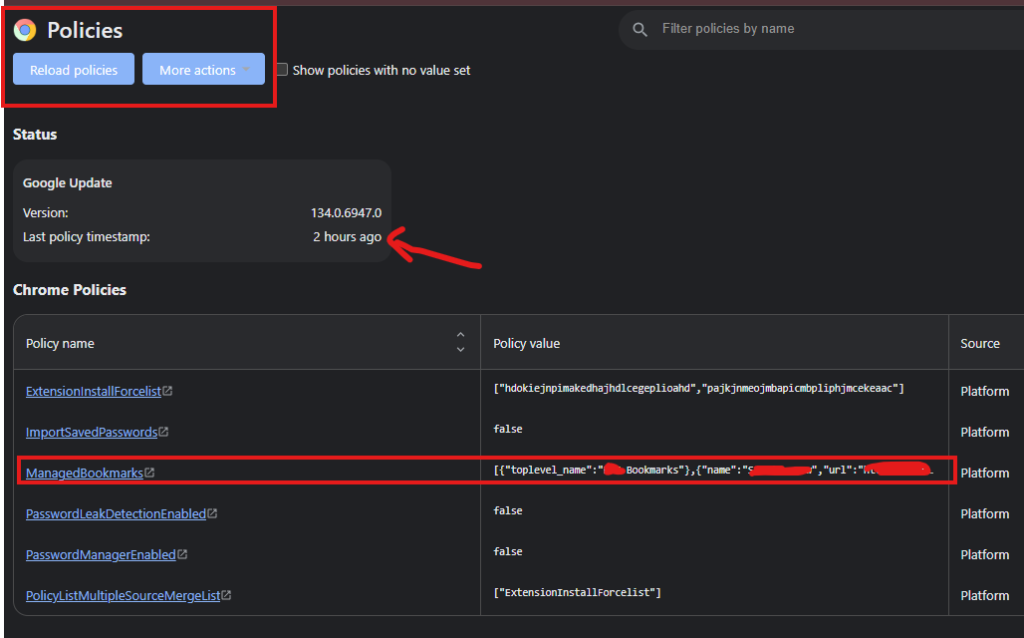
3. Visit chrome://policy in Chrome to validate the applied policies.
Step 4: Reload Chrome Policy
1. Click Reload Policies in Chrome.
2. Restart the browser to apply the new configurations.
Conclusion
By following this guide, you can configure Favorites in Edge and Chrome for your organization in just a few minutes. These simple steps ensure centralized browser management and a consistent user experience.
If you have any questions or would like to share your experience, leave a comment! For more technical guides, stay tuned to msendpoint.com.