Hey there! 👋 If you’ve ever managed to book a conference room for a standing weekly meeting in Microsoft Outlook or Microsoft Teams, only to have the entire series get canceled because of one single conflict, you know the pain.
This default behavior in Outlook room booking is a common headache. The system is designed to be all-or-nothing: if one occurrence in your recurring meeting has a conflict, the entire series is declined.
But what if you only wanted the conflicted instances to be blocked? What if you could tell Outlook to « book what’s available »?
Good news: it is possible to change this behavior – and you can do it right from Azure Cloud Shell!
In this guide, we’ll show you exactly how to diagnose and fix the recurring meeting room booking issue using Cloud Shell PowerShell commands.
Why Does Outlook Cancel the Entire Recurring Meeting Series?
This « all-or-nothing » approach is a default setting on the room mailbox in Microsoft Exchange. It’s designed to prevent potential booking chaos, but in practice, it often causes more problems than it solves.
The setting is controlled by two key parameters:
ConflictPercentageAllowedMaximumConflictInstances
By adjusting these, you can instruct the room resource to be more flexible and only decline the specific dates that are truly unavailable.
🔍 First: Check Your Current Room Settings in Cloud Shell
Pro Tip: Skip the local PowerShell setup and use Azure Cloud Shell instead! It comes with the Exchange Online PowerShell module pre-installed, so you can get straight to work.
Option 1: Launch Azure Cloud Shell
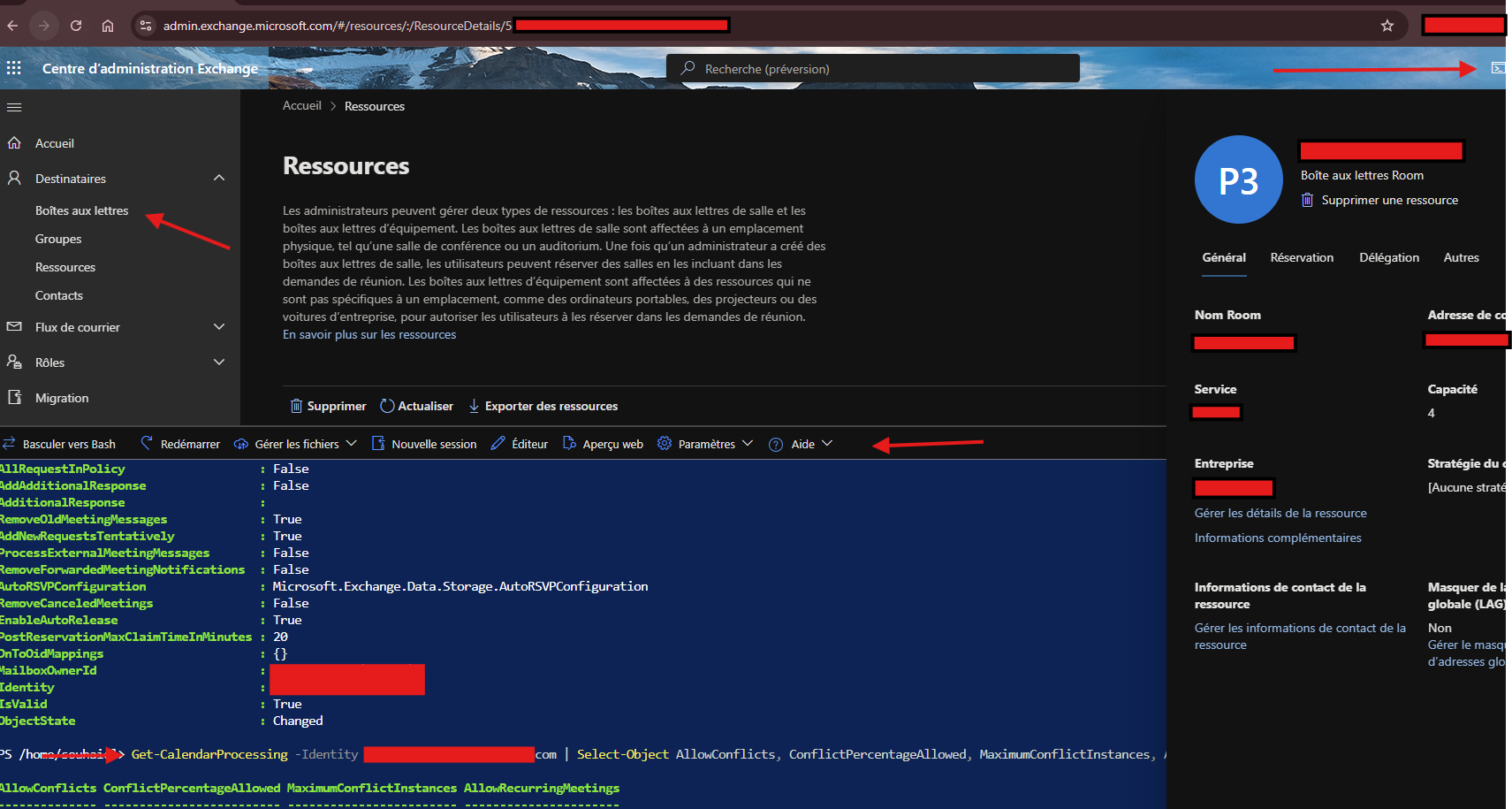
- Navigate to the Azure Portal
- Click the Cloud Shell icon in the top navigation bar
- Select « PowerShell » as your environment
- Run
Connect-ExchangeOnlineto authenticate
How to View All Current Settings
Once connected in Cloud Shell, run this command to see everything:
Get-CalendarProcessing -Identity room-1@domain.com | Format-ListThis command shows you everything about how the room handles meetings, including:
AllowConflicts(the double-booking guard)BookingWindowInDays(how far ahead people can book)AllowRecurringMeetings(whether it accepts recurring series at all)ConflictPercentageAllowed(the key setting for our fix)MaximumConflictInstances(the other key setting)AutomateProcessing(should be AutoAccept)ScheduleOnlyDuringWorkHours(self-explanatory)
Quick Check for Just the Important Stuff
If you just want the conflict-related settings, run this instead:
Get-CalendarProcessing -Identity room-1@domain.com | Select-Object AllowConflicts, ConflictPercentageAllowed, MaximumConflictInstances, AllowRecurringMeetings🛠️ How to Change Room Booking Behavior via Cloud Shell
Now for the main event! Based on your goal to allow recurring meetings to be booked even if some instances conflict, here’s the recommended configuration.
Step 1: Connect in Cloud Shell
# Launch Azure Cloud Shell and run:
Connect-ExchangeOnline
Cloud Shell Benefit: No need to install modules locally – everything’s ready to go! 🚀
Step 2: Update the Calendar Processing Settings
Run this command right in your Cloud Shell session (replace the room email with your actual room address):
Set-CalendarProcessing -Identity room-1@domain.com `
  -ConflictPercentageAllowed 25 `
  -MaximumConflictInstances 10
What this means in human terms:
ConflictPercentageAllowed 25: « Hey room, it’s cool if up to 25% of the meetings in this series have conflicts. Just book the ones that are free. »MaximumConflictInstances 10: « And honestly, as long as there are fewer than 10 conflicts in the whole series, we’re good. »
Real example: If someone books a 20-week recurring meeting, up to 5 conflicted instances (25%) would be allowed. But if there were 11 conflicts? The whole series gets rejected. It’s the perfect balance of flexible but not too flexible.
🛡️ Pro Tips & Best Practices (Cloud Shell Edition)
While you’re in Cloud Shell, make sure these settings are optimized too:
# Prevent double-booking (keep this as False)
Set-CalendarProcessing -Identity room-1.5@domain.com -AllowConflicts $false

# Ensure recurring meetings are allowed (should be True)
Set-CalendarProcessing -Identity room-2.5@domain.com -AllowRecurringMeetings $true

# Verify automation is on (should be AutoAccept)
Set-CalendarProcessing -Identity room-3.5@domain.com -AutomateProcessing AutoAccept
⚡ Quick One-Liner for Multiple Rooms in Cloud Shell
Working with multiple rooms? Use this Cloud Shell pattern:
$rooms = @("room1@domain.com", "room2@domain.com", "room3@domain.com")
$rooms | ForEach-Object {
    Set-CalendarProcessing -Identity $_ -ConflictPercentageAllowed 25 -MaximumConflictInstances 10
    Write-Host "Updated $_ successfully!" -ForegroundColor Green
}
🐛 Testing & Troubleshooting: Verify Your Changes Worked
So you’ve made the changes… but how do you know they actually work? Here’s how to test and troubleshoot like a pro.
✅ Step 1: Verify Your Settings Stuck
First, confirm the changes applied correctly:
Get-CalendarProcessing -Identity room-1@domain.com | Select-Object Identity, ConflictPercentageAllowed, MaximumConflictInstances, AllowRecurringMeetings, AllowConflictsYou should see your new values reflected in the output.
🧪 Step 2: Test with a Real Meeting
Create a test recurring meeting with intentional conflicts:
- Book the room for a weekly meeting spanning several months
- Manually create a conflict for one of the future instances
- Watch what happens – the series should continue except for the conflicted date!
🔍 Step 3: Deep Dive Troubleshooting with Calendar Diagnostics
If you’re still having issues, it’s time to bring out the big guns. Forget about Set-MailboxCalendarConfiguration – that doesn’t support diagnostic logging. Instead, use these powerful Exchange Online cmdlets:
Option A: Find Calendar Items During a Specific Period
# Check what calendar items exist in your test period
Get-CalendarDiagnosticObjects -Identity room-1@domain.com -StartDate "2025-02-01" -EndDate "2025-02-28"
This lists all calendar items during the specified date range, helping you identify problematic meetings.
Option B: Get Detailed Processing Logs
Once you have a meeting’s GlobalObjectId from the previous command:
# Get detailed logs for a specific problematic meeting
Get-CalendarDiagnosticLog -Identity room-3@domain.com -StartDate "2024-02-01" -EndDate "2024-02-28" | Where-Object {$_.ItemSubject -like "*Test Meeting*"}
This reveals the room’s decision-making process, showing:
- Whether meetings were accepted or declined
- Exact conflict details
- Any processing errors
- Timestamps of all actions
⚠️ Important Notes:
- These cmdlets require Exchange Online admin privileges
- You might need Mailbox Audit Logging enabled
- Replace dates with your actual testing period
💡 When to Use Calendar Diagnostics
- Recurring meetings are still being declined unexpectedly
- You need to prove the fix is working to stakeholders
- You’re preparing for an audit or compliance review
- Users report inconsistent room booking behavior
Need help interpreting calendar diagnostic logs or have other Microsoft 365 challenges? Explore more expert guides on the MSEndpoint Blog or contact us for personalized support!
Tags: #OutlookTips #AzureCloudShell #PowerShell #MicrosoftTeams #RoomBooking #Office365 #ITAdmin #MSEndpoint #Troubleshooting #CalendarDiagnostics