Why Hiding Meeting Titles on Teams Rooms Actually Matters
Privacy in the modern workplace is no longer an afterthought — it's a compliance requirement. When a Microsoft Teams Room display shows a meeting title like "Q3 Redundancy Planning" or "Board M&A Discussion" on a screen visible from a corridor or open-plan office, you have a tangible information security problem. The HideMeetingName setting in the Microsoft Teams Rooms Pro Management portal exists precisely to address this — but the implementation path for Logitech Android AOSP devices has a few quirks that catch administrators off guard.
This guide walks you through the full end-to-end process: from understanding what the setting actually controls at the platform level, to applying it correctly through the Pro Management portal, to verifying the job completed successfully. I'll also cover the edge cases and production gotchas that the official documentation glosses over.
Understanding the Setting Under the Hood
Before clicking anything in the portal, it helps to understand what HideMeetingName: true actually does. On Logitech Android AOSP devices — such as the Rally Bar, Rally Bar Mini, and Tap IP — the Teams Rooms application runs in a locked-down AOSP environment. The meeting calendar data is pulled from Exchange Online or the Teams calendar service and rendered locally by the MTR app.
When HideMeetingName is enabled, the app still retrieves the full meeting object (it needs the join URL, organizer info, and attendee list), but it suppresses the Subject field before rendering it to the display panel and the room console. The room still joins the correct meeting — the privacy control is purely presentational. This is an important distinction: you are not blocking calendar access, you are masking the display output.
On Windows-based MTR systems, the equivalent is controlled via the SkypeSettings.xml configuration file using the <HideMeetingName>true</HideMeetingName> node. Android AOSP devices don't use that XML file — they receive their configuration exclusively through the Pro Management portal or via OEM-specific MDM channels. This is why the portal is the only supported path for Logitech AOSP units.
Prerequisites
- Microsoft Teams Rooms Pro license assigned to each room account. The Pro Management portal and remote device settings are not available on the Basic license tier.
- Global Administrator or Teams Rooms Administrator role in the tenant, or at minimum the Teams Rooms Managed Service Administrator built-in role scoped to the relevant rooms.
- Logitech Android AOSP devices enrolled and checking in to the Pro Management portal. Devices must show a Healthy or at worst Non-urgent status for settings jobs to be accepted.
- An understanding of your organization's maintenance windows — pushing settings to an active room mid-meeting will trigger a soft restart of the MTR app on Android, which attendees will notice.
Step-by-Step: Hiding Meeting Names via Pro Management Portal
Step 1 — Access the Pro Management Portal
Navigate to https://portal.rooms.microsoft.com/ and authenticate with your administrator credentials. Ensure you land on the correct tenant if you manage multiple tenants — the portal does not make tenant switching as obvious as the Intune or Entra portals do.
Step 2 — Filter for Android AOSP Devices
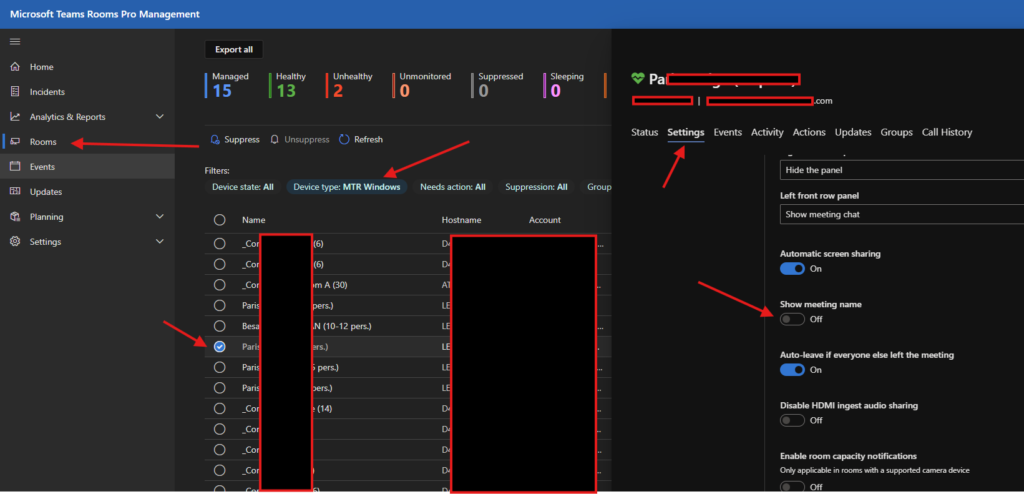
From the left navigation pane, select Rooms. This lists all enrolled MTR devices across all platforms. To narrow down to your Logitech Android AOSP units, apply a device type filter. This is where the original documentation often confuses administrators — you want to filter for MTR Android, not MTR Windows. Logitech AOSP devices enumerate as Android in the portal regardless of the AOSP distinction at the OS level.
Production gotcha: If your Logitech devices are not appearing under the Android filter, check that the room resource account has been signed into the device and that the device is running a supported firmware version. Devices on very old firmware may not report their platform type correctly to the portal.
Step 3 — Select the Target Room
From the filtered list, click on the specific room you want to configure — for example, "Meeting Room 1". As of the time of writing, this setting must be applied room by room. There is no bulk-apply mechanism for HideMeetingName in the Pro Management portal. If you manage dozens of rooms, this is genuinely painful — see the automation section below for a partial workaround.
Step 4 — Navigate to Settings and Toggle HideMeetingName
Within the room detail view, select the Settings tab. Scroll to find the Show meeting name toggle. Set this to Off (which maps to HideMeetingName: true in the backend job payload). Do not confuse this with the "Show meeting details" toggle, which is a separate control governing attendee list visibility.
 Step 5 — Apply the Setting
Click Apply. The portal will present two scheduling options:
- Apply Now — Pushes the configuration immediately. If the room is idle, the MTR app restarts silently. If a meeting is in progress, the restart may interrupt the session briefly. Use this only during off-hours or confirmed idle periods.
- Apply under maintenance mode — Queues the change for the next configured maintenance window. This is the recommended approach for production environments. The maintenance window is configured separately under the room's Maintenance settings.
Select your preferred option and click Submit. The portal creates an asynchronous settings job in the backend — you will not see the result immediately on this screen.
Verifying the Configuration Job Succeeded
This is a step many guides skip entirely, which leads to administrators assuming success when the job has silently failed. After submitting, navigate to the Activity tab for the room and locate the Device settings job history section.
A successful job will show a status of Completed (or Terminé if your portal language is set to French) with a payload entry confirming HideMeetingName: true. A real-world example from a production tenant looks like this:
Device Settings Job
Job ID: 877253d5-fb79-4d48-9b3c-6cb1bed5ce**
Status: Completed
Submitted: Wednesday, August 13, 2025 10:18 AM GMT+2
Submitted by: Admin User
Settings: HideMeetingName: true
Reason: Success

History:
10:19:12 AM GMT+2 — Managed Rooms Service: Response received from device
10:18:58 AM GMT+2 — Admin User: Scheduled immediately
If the job status shows Failed or remains in Pending for more than 15 minutes, check the following:
- The device is online and the Teams Rooms app is signed in and running.
- The room resource account has an active Pro license — a recently changed or expired license can cause the management channel to drop.
- The device firmware is current. Some older Logitech firmware builds acknowledge the job but do not apply the setting correctly.
Automating Across Multiple Rooms with Graph API
The portal's one-at-a-time limitation is a real operational pain point at scale. While there is no native bulk UI, the Microsoft Graph Places API and the Teams Rooms Pro Management REST API do offer programmatic access. The following PowerShell snippet demonstrates how you might query room details — note that write-back for device settings through Graph is still maturing and may require the Pro Management API directly depending on your tenant's API access tier:
# Connect to Microsoft Graph
Connect-MgGraph -Scopes "Place.Read.All"

# Retrieve all room resources
$rooms = Get-MgPlaceAsRoom -All

foreach ($room in $rooms) {
    Write-Host "Room: $($room.DisplayName) | Email: $($room.EmailAddress)"
    # Use Pro Management API to apply HideMeetingName per room
    # API endpoint: POST https://portal.rooms.microsoft.com/api/v1/rooms/{roomId}/settings
    # Body: { "hideMeetingName": true }
    # Note: Requires bearer token scoped to the Pro Management portal
}
Important caveat: The Pro Management portal API is not a fully published public API with stable versioning guarantees. Use it with caution in production automation and build in error handling and retry logic. Monitor for breaking changes after major Teams Rooms app updates.
Edge Cases and Tradeoffs
Hiding meeting names is not universally the right choice for every room. Consider these tradeoffs before rolling it out broadly:
- Wayfinding impact: In large campuses where employees use the room display to confirm they're in the right room, hiding the meeting name can increase meeting start delays as attendees double-check via their phone calendars.
- Reception and lobby rooms: For rooms with displays visible to visitors, hiding names is almost always the right call. For internal rooms used by the same team daily, it may add friction without meaningful privacy benefit.
- Mixed device fleets: If you have both Windows MTR and Android AOSP units, you'll need to apply the setting via two separate mechanisms — the XML config file approach for Windows and the portal for Android. Keeping these in sync manually is error-prone; document your room inventory clearly.
- Reversibility: The setting is fully reversible. Toggle Show meeting name back to On and re-apply through the portal. The job history will log both the disable and re-enable events, giving you a clear audit trail.
Security and Compliance Perspective
From an information security standpoint, HideMeetingName is a low-cost, high-value control for organizations handling sensitive discussions. It won't protect against a determined insider threat, but it significantly reduces incidental data exposure — the kind that happens when a visitor in a reception area glances at a screen showing "Acquisition Target Review: Contoso Ltd."
For organizations subject to regulations like GDPR, ISO 27001, or sector-specific frameworks, this control can be cited as part of a physical access and information visibility policy. Document it in your security baseline alongside screen lock timeouts and room display dimming settings.
Summary
Hiding meeting titles on Logitech Android AOSP Teams Rooms devices is a straightforward but easily mis-stepped process. The key points to take away: filter for Android (not Windows) in the portal, apply during a maintenance window in production, verify via the Activity tab job history, and plan for the manual room-by-room overhead if you're managing a large fleet. The setting itself is clean, reversible, and delivers real privacy value with zero end-user impact once applied.
