The short answer: Your mailbox or group is still being synced from on-premises, and Exchange Online is read-only. Here’s how to fix it for good.
If you’ve ever tried removing an owner from a shared mailbox or distribution group in Exchange Online and found the “Remove” button stubbornly greyed out, you’re not alone. This is one of the most common—and most frustrating—hybrid Exchange administration issues.
The problem usually looks like this:
You open the Exchange Admin Center, navigate to a shared mailbox or group, go to the Owners section, select the user you want to remove… and nothing happens. The button is greyed out. No error, no explanation—just a silent “no.”
Here’s why it happens, and more importantly, how to fix it.
The Root Cause: It’s Not “Stuck”—It’s Authoritative Elsewhere
In a hybrid environment, Exchange Online is not the source of truth for synced objects. If your shared mailbox or distribution group is DirSync-enabled (synced from on-premises), you cannot permanently modify ownership from the cloud. Any change you make in Exchange Online will be overwritten the next time Azure AD Connect syncs.
The rule is simple:
- If
IsDirSynced = True→ manage it on-premises - If
IsDirSynced = False→ manage it in Exchange Online
Step 1: Diagnose the Problem—Where Does This Object Really Live?
Before you do anything else, figure out what you’re dealing with.
In Exchange Online PowerShell (Cloud Shell works perfectly):
Get-Recipient alias@domain.com | fl Name, RecipientType, RecipientTypeDetails, IsDirSyncedWhat to look for:
| RecipientTypeDetails | IsDirSynced | Authority |
|---|---|---|
| UserMailbox or SharedMailbox | True | On-premises |
| MailUniversalDistributionGroup | True | On-premises |
| MailUser | True | On-premises |
| Any type | False | Exchange Online |
Scenario A: It’s Synced from On-Premises (IsDirSynced = True)
If your object is synced, the cloud UI will be greyed out. Period.
You must make changes on-premises.
For Distribution Groups (Ownership via ManagedBy):
On your on-premises Exchange server:
# Check current owners
Get-DistributionGroup "Group Name" | fl ManagedBy

# Remove an owner
Set-DistributionGroup "Group Name" -ManagedBy @{remove="user@domain.com"}

# Add a new owner
Set-DistributionGroup "Group Name" -ManagedBy @{add="newowner@domain.com"}
For Shared Mailboxes (Permissions):
# Check Full Access permissions
Get-MailboxPermission shared@domain.com

# Remove Full Access
Remove-MailboxPermission shared@domain.com -User user@domain.com -AccessRights FullAccess

# Check Send As permissions
Get-RecipientPermission shared@domain.com

# Remove Send As
Remove-RecipientPermission shared@domain.com -Trustee user@domain.com -AccessRights SendAs

# Remove Send on Behalf
Set-Mailbox shared@domain.com -GrantSendOnBehalfTo @{remove="user@domain.com"}
Then Force a Sync:
On your Azure AD Connect server:
Start-ADSyncSyncCycle -PolicyType DeltaWait 2–5 minutes, then refresh the Exchange Admin Center. The owner should be gone.
Scenario B: It’s Cloud-Only (IsDirSynced = False)
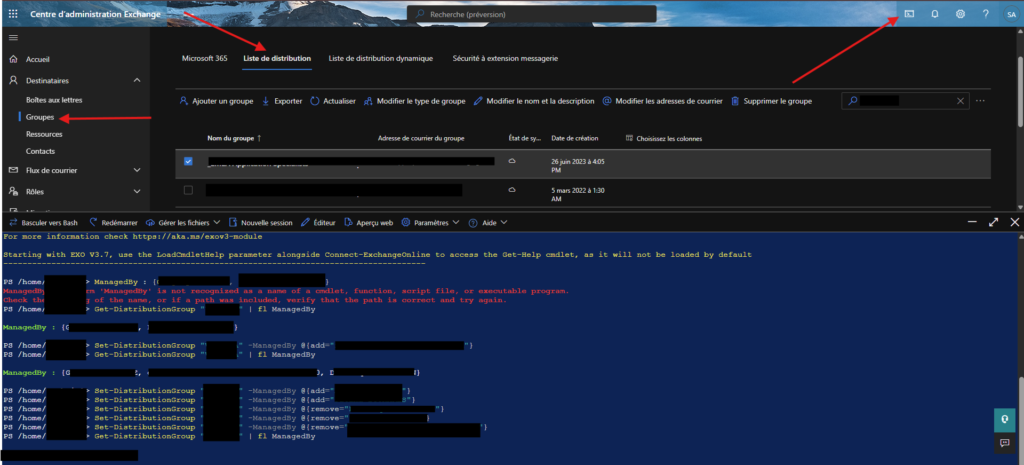
If the object is cloud-only, the greyed-out button usually means you’re trying to remove the last owner. Exchange requires at least one owner at all times.
The Fix (in Exchange Online PowerShell):
# 1. First, add a new owner (before removing the old one)
Set-DistributionGroup "Group Name" -ManagedBy @{add="admin@domain.com"}

# 2. Then remove the old owner(s)
Set-DistributionGroup "Group Name" -ManagedBy @{remove="oldowner@domain.com"}

# 3. Verify
Get-DistributionGroup "Group Name" | fl ManagedBy
Pro tip: Always maintain at least two owners to avoid this issue in the future.
The “Zombie Owner” Edge Case
Sometimes the owner appears to be “stuck” even after you’ve removed them. This happens when:
- The user is deleted, but their SID remains in permissions
- Permissions are inherited via a security group
- AD replication hasn’t completed
How to Find and Remove Orphaned SIDs (On-Premises):
# Look for SID-based permissions
Get-MailboxPermission shared@domain.com | Where {$_.User -like "S-1-5-*"}

# Remove them
Remove-MailboxPermission shared@domain.com -User "S-1-5-21-..." -AccessRights FullAccess
Last Resort: ADSIEdit
If PowerShell fails because the object reference is corrupted:
- Open ADSIEdit and connect to the Default Naming Context
- Locate the group or shared mailbox object
- Edit the
managedByattribute to remove the orphaned entry - Force an Azure AD Connect sync
Why the UI Fails You (And Why PowerShell Wins)
The Exchange Admin Center doesn’t explain why the Remove button is disabled. It could be:
- DirSync authority
- Last owner protection
- Orphaned SID reference
- Group-based inheritance
PowerShell tells you exactly what’s happening. Every time.
Lessons Learned
- Always check
IsDirSyncedfirst—it tells you where to make changes. - Never remove the last owner without adding a replacement first.
- Sync issues are solved on-premises—the cloud just reflects what’s synced.
- When in doubt, use
Get-Recipient—it’s the most reliable way to identify an object’s type and authority.
Hybrid Exchange isn’t broken—it’s just extremely literal. Once you understand where the authority lies, those greyed-out buttons become predictable, and the fixes become routine.
Still stuck? The problem usually boils down to one of three things:
- You’re editing in the wrong place (cloud vs on-prem)
- You’re trying to remove the last owner
- There’s an orphaned SID or group inheritance in play
Find which one applies, apply the correct fix, and move on with your day. Hybrid Exchange doesn’t have to be a mystery.