Have you ever added a guest to a Microsoft Team, only to have them report that the Files tab is empty or shows an « Access Denied » error? This is a common frustration. While Teams handles the chat and membership, the actual files are stored in a corresponding SharePoint site. If the SharePoint permissions don’t match the Teams membership, guests will be blocked.
As an administrator, you can’t just « log in as the guest » to see what they see. You need to look under the hood. This guide will walk you through the definitive steps to verify exactly what a guest can (and cannot) access.
Prerequisites
- You must be a Global Admin or SharePoint Admin.
- You need the exact email address of the guest user you are troubleshooting.
Scenario 1: The « Hard Block » – Organization-Wide Sharing Settings
Before diving into individual team permissions, you must check the gatekeeper: your organization’s global sharing policies. If the door is locked at the tenant level, no amount of team-level tweaking will fix it.
The Scenario: A guest is added to a team but cannot access files in any channel. Their email domain is @partner-company.com.
Step-by-Step Check:
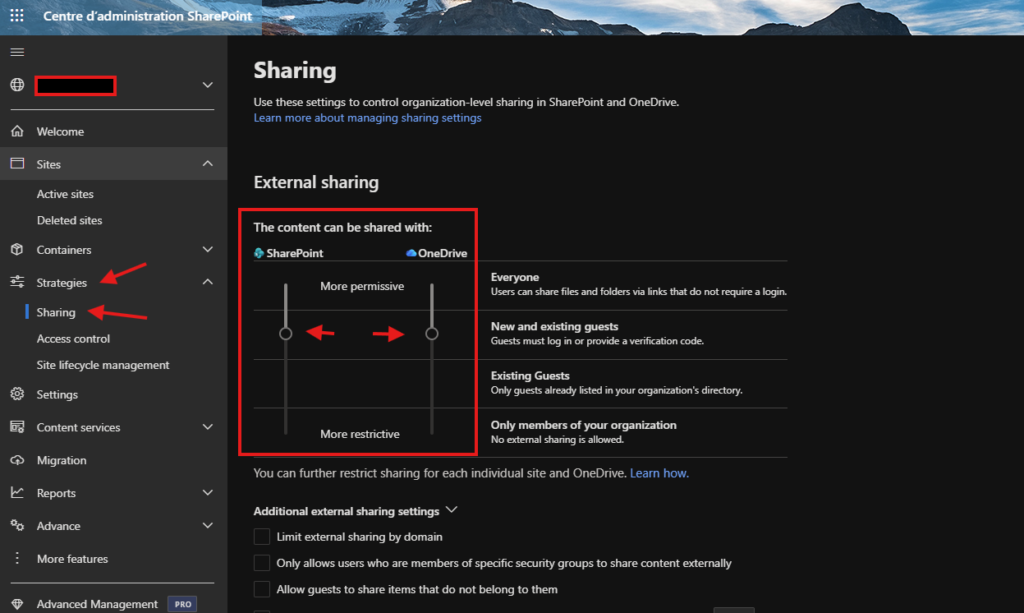
- Go to the SharePoint Admin Center.
- In the left-hand menu, expand Policies and select Sharing.
- Look at the External sharing sliders for SharePoint. Ensure it is set to « New and existing guests » or « Anyone ». If it is set to « Only people in your organization, » guests are globally blocked from accessing files: (you can still workaround this by checking the box Limit external Sharing domain, and put the concerned domain to allow, then adding guest to canal it should be fine to see files)
- Crucial Step: Scroll down and click on « More external sharing settings ». Look for the checkbox named « Limit external sharing by domain ».(Screenshot placeholder: Image showing the « More external sharing settings » expanded, with the « Limit external sharing by domain » checkbox and domain list visible, similar to the image you provided previously.)
- Analyze the result:
- If this box is checked, look at the list of allowed domains.
- Does the guest’s email domain (e.g.,
@partner-company.com) appear in this list? - If NO: The guest is being blocked by this policy. You must either add their domain to the list or uncheck the box to allow all domains. Until you do this, they will never be able to access the files.
Scenario 2: The Definitive Check – Verifying Individual Folder Permissions
If global settings aren’t the issue, you need to verify the specific permissions on the folder connected to the channel. Since you are an Admin and not necessarily a member of the team, you’ll use a « backdoor » method to check.
The Scenario: Global sharing is allowed, the guest is in the team, but they still can’t see files in the « General » channel.
Step-by-Step Check:
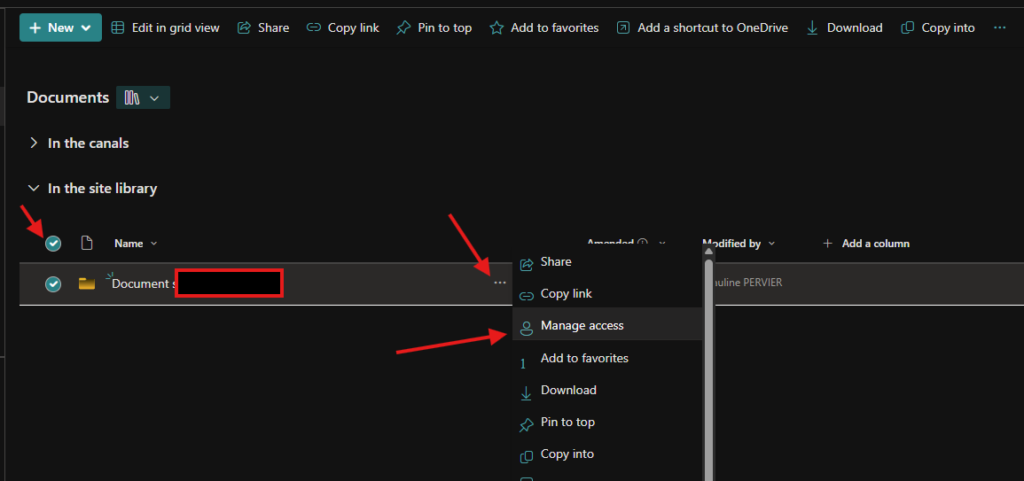
- Navigate to the SharePoint Admin Center => Sites => Active sites.
- Search for the name of the Team and click on it to open the details panel.
- To ensure you have access to check permissions, you need to make yourself a temporary admin of this specific site. Click on the Membership tab, then click « + Add site admins » and add your own admin account.
- Now, click the site’s URL from the « General » tab to open it.
- On the site’s homepage, click Documents in the left navigation. This is the library that holds all channel files.
- Click the Settings gear icon in the top-right corner and select Library settings. (You may need to click « More library settings » on the next menu).
- On the Settings page, under Permissions and Management, click on « Permissions for this document library ».
- In the top ribbon, click the « Check Permissions » button.
- In the pop-up window, enter the guest’s exact email address and click « Check Now ».
- Analyze the result: This tool gives you the final answer on their access.
- Permission: None: The guest has no access. This could be due to a broken permission inheritance or they were removed from the site’s members group.
- Permission: Read, Contribute, or Edit: The guest should be able to access the files. If they still can’t, the issue is likely on their end (e.g., caching issue, signed into the wrong account).
Scenario 3: The « Private Channel » Curveball
Private channels work differently. They get their own separate, lightweight SharePoint site. Being a member of the main team does not give access to private channel files.
The Scenario: A guest is in the main team but cannot see files in a private channel named « Project ».
Step-by-Step Check:
- First, verify the guest is actually a member of that specific private channel. You can do this in the Teams Admin Center by managing the team, going to the Channels tab, and clicking into the private channel’s details.
- If they are a member, you need to check the permissions on that private channel’s unique SharePoint site.
- Go back to the SharePoint Admin Center => Active sites.
- The site name will typically be formatted as
Team Name - Private Channel Name(e.g., « Contoso Team – Project »). - Repeat the steps from Scenario 2 for this specific site: add yourself as a Site Admin, open the site, go to the Documents library, and use the « Check Permissions » tool with the guest’s email.
By following these steps, you can move from guessing to knowing exactly why a guest cannot access files in Teams.