Objective: Secure and transfer ownership of Microsoft Forms from a deleted/disabled user account to an active user or department.
Role Required: Global Admin
Tools: Microsoft 365 Admin Center, Microsoft Forms (Delegate Mode).
Phase 1: Preparation (Create the « Landing Zone »)
Since Microsoft Forms cannot be transferred directly from User A to User B, a Microsoft 365 Group acts as the bridge and permanent owner.
- Log in to the Microsoft 365 Admin Center.
- Navigate to Teams & groups > Active teams and groups.
- Click Add a group > Select Microsoft 365.
- Name the Group:
- Option A (Departmental): e.g., « Marketing Forms », « HR Surveys ».
- Option B (Transitional): e.g., « Recovered Forms – [Employee Name] ».
- Configure Owners/Members:
- Add Yourself (Admin) as a member (Required to see the group in the transfer list).
- Add the New Owner (e.g., Marketing Person) as a member.
- Settings:
- Uncheck « Add Microsoft Teams to your group » (Unless a Teams channel is explicitly required).
- Wait: Allow 1 – 5 minutes for the group to sync with Microsoft Forms.
Phase 2: Transferring the Forms
- Access the Delegate Link: Replace the email address in brackets with the departed employee’s email and open the link:
https://forms.office.com/Pages/delegatepage.aspx?originalowner=[email_address] - Locate the Form: Find the specific form you wish to transfer.
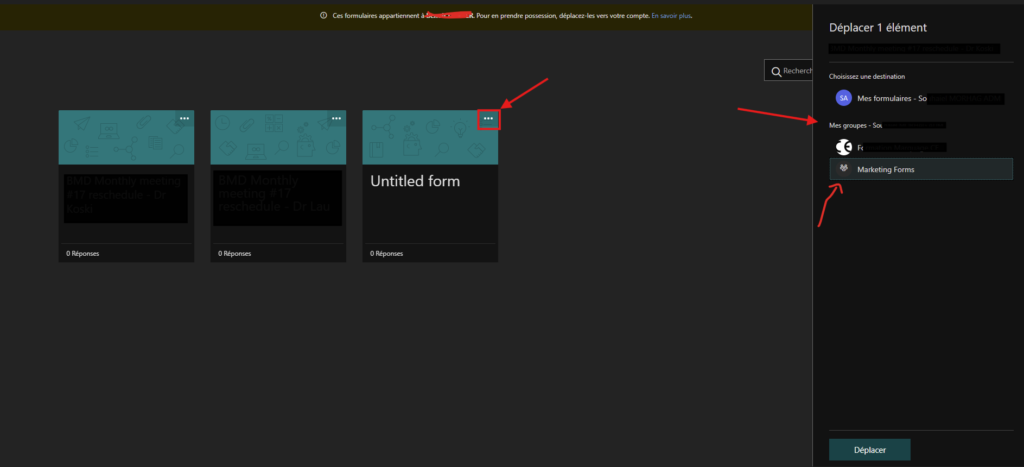
- Initiate Move:
- Click the More options (…) menu on the form tile.
- Select Move (Déplacer).
- Select Destination:
- Choose the Group created in Phase 1.
- Note: If the group is not visible yet, wait a few more minutes and refresh the page.
- Confirm: Click Move.
Phase 3: Access & Ownership (For the New User)
Once the form is moved, it is technically owned by the Group, not an individual. This is the Microsoft Best Practice to prevent this issue from happening again if the new owner leaves.
Instructions for the New Owner (Marketing Person):
- Log in to Microsoft Forms.
- Scroll down to the « My groups » section in the bottom left (or click « All My Forms » and look for the Groups tab).
- Click on the Group name (e.g., « Marketing Forms »).
- They now have full edit access to the form and can view all historical data/responses.
⚠️ Important Limitations & Warnings
- Irreversible Action: Once a form is moved to a Group, it cannot be moved back to an individual « My Forms » account. It becomes a « Group Form » permanently.
- Excel Data: The Excel spreadsheet for responses will now be stored in the Group’s SharePoint site (Documents > Apps > Microsoft Forms).
- Link Continuity: The existing link to the form (sent to respondents) will generally remain active and does not change, so current data collection is not interrupted.
Have more Info or need help setup your O365 Environnement check app.msendpoint.com