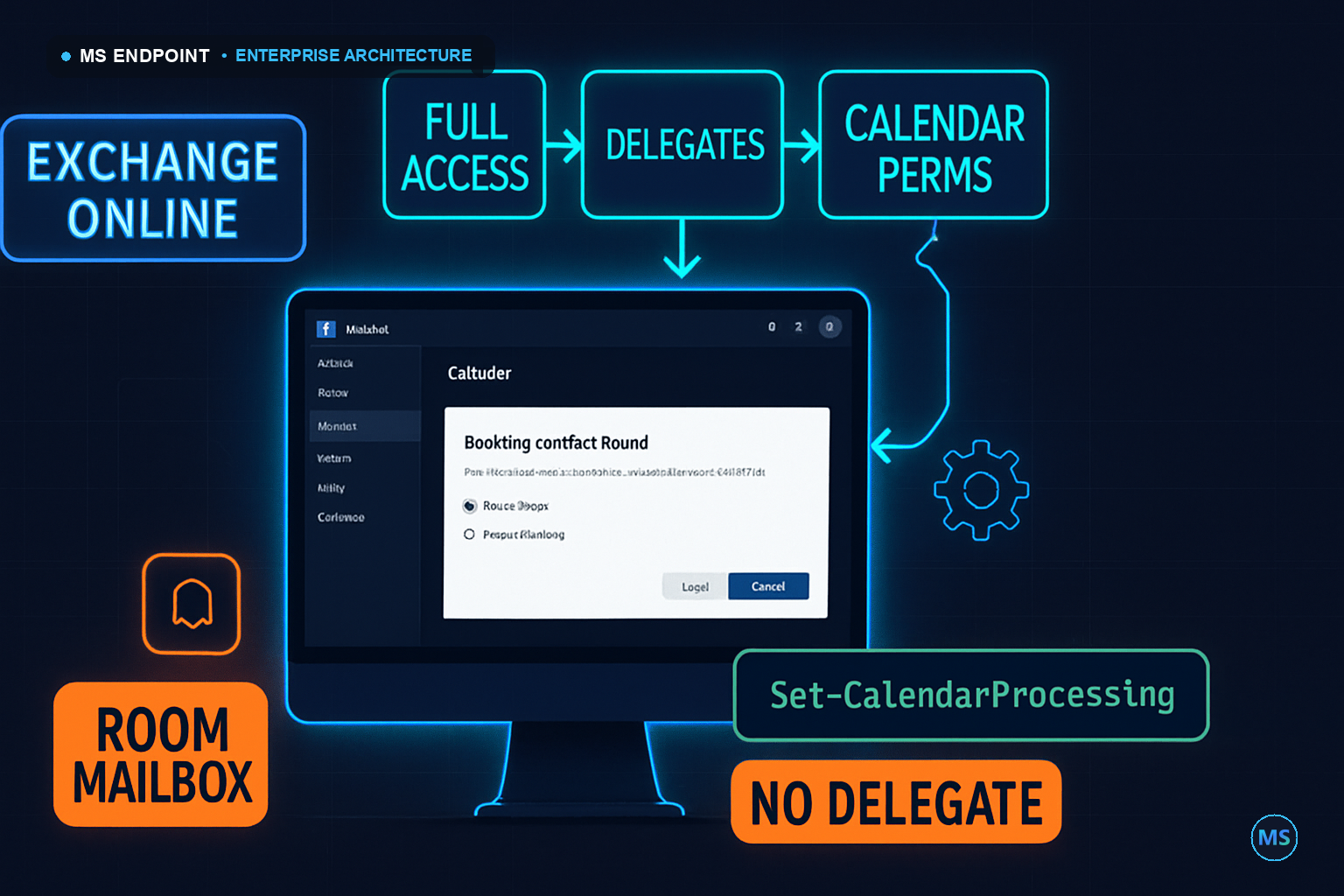
Architectural Premise & The Real-World Challenge
Room mailboxes in Exchange Online are not passive calendar objects. They are full service principals backed by a disabled user account, governed by a processing agent — CalendarProcessing — that intercepts every booking request before any human ever sees it. Microsoft documentation describes this at surface level. What it consistently glosses over is the operational gap that emerges the moment the original room owner leaves the organization, is unavailable, or simply never existed: who intervenes when a booking conflict occurs, when a reservation needs to be force-cleared, or when a user cannot complete a reservation through normal channels?
The knee-jerk answer is to assign another delegate. The architectural answer is to understand the difference between three distinct permission layers that operate independently and govern different behaviors:
- Mailbox Delegation (FullAccess) — controls whether a principal can open the mailbox, read its contents, and create or modify calendar items directly.
- Resource Delegates (
ResourceDelegates) — controls who receives booking requests for manual approval whenAutomateProcessingis set toAutoUpdate. - Calendar Permissions (
Add-MailboxFolderPermission) — controls visibility and edit rights scoped specifically to the Calendar folder, independently of mailbox-level FullAccess.
These three layers are orthogonal. Granting FullAccess does not make you a ResourceDelegate. Being a ResourceDelegate does not give you FullAccess. Neither automatically triggers email notifications for auto-processed bookings. Understanding this triangle is the prerequisite for everything that follows.
Under the Hood: Execution Engine & Mechanics
How CalendarProcessing Actually Intercepts Bookings
When a meeting organizer sends a booking request to a room mailbox (e.g., confroom-a@contoso.com), the request does not land directly in the calendar. It enters the room mailbox's Inbox, where the Resource Booking Attendant — a server-side agent running within the Exchange transport pipeline — evaluates it against the CalendarProcessing policy object attached to that mailbox.
The key properties that govern this evaluation are:
| Property | AutoAccept Behavior | AutoUpdate Behavior |
|---|---|---|
AutomateProcessing |
Engine accepts/declines automatically | Engine only updates the calendar; delegates decide |
AllBookInPolicy |
✓ Auto-accepts all in-policy requests | ✗ Delegates must approve |
AllRequestInPolicy |
Tentative hold; auto-accepted if no conflict | Forwarded to delegates for approval |
ForwardRequestsToDelegates |
✗ Delegates receive no notifications | ✓ Booking requests routed to delegates |
TentativePendingApproval |
N/A (no pending state) | Slot held as Tentative until delegate acts |
BookingWindowInDays |
Requests beyond window auto-declined | Requests beyond window auto-declined |
ResourceDelegates |
Listed but receive no active notifications | Receive approval/decline requests via email |
AutomateProcessing = AutoAccept, ResourceDelegates receive no email notifications for standard in-policy bookings. The booking agent handles everything server-side. Adding yourself as a ResourceDelegate in an AutoAccept environment does not result in notification floods — it is a no-op from a notification perspective until you switch to AutoUpdate.FullAccess Permission & AutoMapping
When Add-MailboxPermission is issued with -AutoMapping $true, Exchange writes an entry to the delegating user's mailbox configuration that causes Outlook (via MAPI/Autodiscover) to auto-mount the room mailbox as an additional mailbox in the Outlook profile on next restart. This is a client-side mount, not a server-side subscription. It works only with classic Outlook (Win32). Outlook on the Web and the new Outlook for Windows require the user to manually add the shared mailbox.
The propagation of Add-MailboxPermission through Exchange Online's directory takes 30–60 minutes in steady state. AutoMapping propagation to the Outlook client can take up to 2 hours after the directory change replicates.
Enterprise Edge Cases & Scale Gotchas
Multi-Room Environments: What Breaks at Scale
In environments with 50+ room mailboxes, individual permission assignments create an administrative surface area that becomes unmanageable quickly. The following edge cases emerge consistently in enterprise deployments:
| Scenario | Risk | Recommended Mitigation |
|---|---|---|
| Admin account offboarding | Orphaned FullAccess permissions; room unmanageable | Assign permissions to a mail-enabled security group (GG-RoomAdmins@contoso.com) |
| AutoMapping with 20+ room mailboxes | Outlook profile bloat; slow startup | Set -AutoMapping $false for bulk grants; add rooms to Outlook manually via Calendar Groups |
| ResourceDelegate on AutoAccept rooms | Stale delegate list; security review failures | Audit quarterly with Get-CalendarProcessing pipeline |
| Booking window misconfiguration | Users cannot book beyond default 180 days | Set BookingWindowInDays per room policy explicitly |
| Conflict with existing reservation during admin takeover | Double-booking when admin creates on behalf of user | Always check room calendar view before creating admin-side bookings |
| Cross-geo room mailboxes | Replication lag for permission changes in multi-geo tenants | Allow 2–4 hour propagation window before validating |
Key CalendarProcessing Properties to Audit
When diagnosing unexpected room behavior, always pull the full property list. The following are the most operationally relevant fields beyond the basics:
| Property | Default Value | Operational Impact |
|---|---|---|
AutomateProcessing |
AutoAccept |
Central switch for booking automation |
ForwardRequestsToDelegates |
True |
Only relevant when AutomateProcessing = AutoUpdate |
AllBookInPolicy |
True |
All users can auto-book when in-policy |
AllRequestInPolicy |
False |
Controls whether requests go to delegates |
BookInPolicy |
Empty | Scoped auto-accept list when AllBookInPolicy = False |
DeleteComments |
True |
Strips meeting body from room calendar entry |
AddOrganizerToSubject |
True |
Adds organizer name to subject on room calendar |
EnableResponseDetails |
True |
Includes conflict details in decline responses |
Production Implementation & Automation
Method 1 — Exchange Online via Cloud Shell (Recommended for Repeatability)
Azure Cloud Shell provides a pre-authenticated, browser-accessible PowerShell environment without requiring local module installation. This is the recommended approach for one-off administrative operations and scripted bulk changes alike.
Step 1 — Connect to Exchange Online
Open Azure Cloud Shell from the Azure Portal (PowerShell mode) and establish an authenticated session to Exchange Online. The -Device parameter triggers device code authentication, which is compatible with Cloud Shell's browser context and MFA-enforced admin accounts.
Import-Module ExchangeOnlineManagement -ErrorAction SilentlyContinue
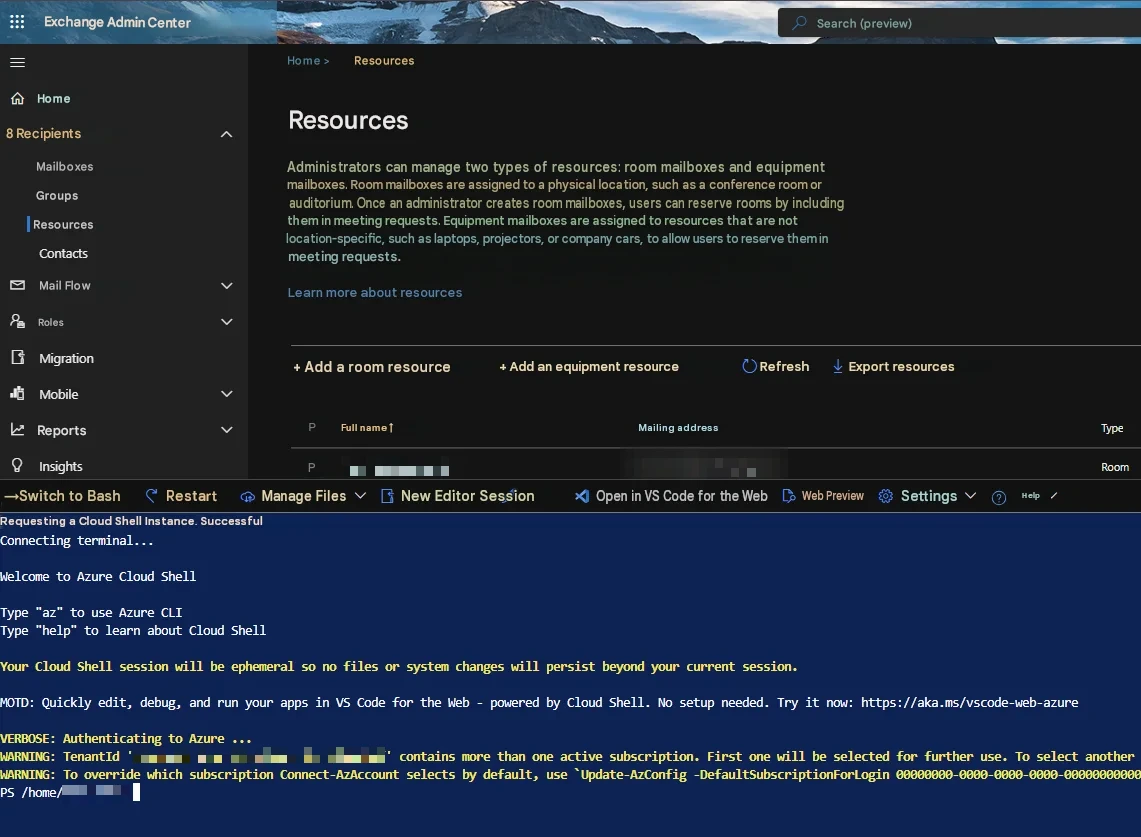
Connect-ExchangeOnline -DeviceComplete the device code flow by navigating to https://microsoft.com/devicelogin in a new tab and entering the displayed code. As shown in Figure 1 below, the Exchange Admin Center Resources blade and the Azure Cloud Shell pane can be used side by side — the EAC provides visual confirmation of existing room mailboxes while Cloud Shell handles programmatic operations against those same objects.
Step 2 — Review Current Room Configuration
Before granting any permissions, establish a baseline. Pull the current CalendarProcessing configuration and existing mailbox permissions for the target room. Substitute confroom-a@contoso.com with the room mailbox SMTP address from your environment.
# Inspect booking automation settings and current delegates
Get-CalendarProcessing confroom-a@contoso.com |
Format-List AutomateProcessing, ResourceDelegates, ForwardRequestsToDelegates,
AllBookInPolicy, AllRequestInPolicy, TentativePendingApproval,
BookingWindowInDays
# Review existing FullAccess grants
Get-MailboxPermission confroom-a@contoso.comStep 3 — Grant Full Mailbox Access to the Administrator
This grants the target admin account the ability to open the room mailbox in Outlook, read all calendar items, create new bookings, modify existing reservations, and delete entries. The -AutoMapping $true flag causes classic Outlook (Win32) to auto-mount the room mailbox after profile refresh.
Add-MailboxPermission `
-Identity confroom-a@contoso.com `
-User admin_sec@contoso.com `
-AccessRights FullAccess `
-InheritanceType All `
-AutoMapping $true-AutoMapping $false to prevent Outlook profile bloat and slow startup times. Add rooms manually to Outlook using Calendar Groups instead (see Method 3).Step 4 — Add the Administrator as a Booking Delegate (Optional)
This step is only actively impactful if you later switch the room to AutomateProcessing = AutoUpdate. In an AutoAccept environment, adding a ResourceDelegate has no runtime notification effect but correctly positions the account for future manual-approval workflows without requiring reconfiguration.
# Add delegate to the room's booking workflow
Set-CalendarProcessing `
-Identity confroom-a@contoso.com `
-ResourceDelegates @{Add = "admin_sec@contoso.com"}
# Confirm the change applied
Get-CalendarProcessing confroom-a@contoso.com |
Select-Object AutomateProcessing, ResourceDelegatesStep 5 — Bulk Grant Across Multiple Room Mailboxes
For environments managing multiple rooms simultaneously, the following script iterates the full room list, applies FullAccess permissions, and registers the booking delegate in a single operation. Update the $Rooms array with the actual SMTP addresses of your room mailboxes.
#Requires -Modules ExchangeOnlineManagement
[CmdletBinding(SupportsShouldProcess)]
param()
# Target administrator account
$AdminUser = "admin_sec@contoso.com"
# Define room mailboxes to configure
$Rooms = @(
"confroom-a@contoso.com",
"confroom-b@contoso.com",
"confroom-c@contoso.com",
"boardroom@contoso.com"
)
foreach ($Room in $Rooms) {
Write-Host "`n[Processing] $Room" -ForegroundColor Cyan
# Grant FullAccess to the room mailbox
Add-MailboxPermission `
-Identity $Room `
-User $AdminUser `
-AccessRights FullAccess `
-InheritanceType All `
-AutoMapping $true `
-Confirm:$false
# Register as ResourceDelegate for future manual-approval workflows
Set-CalendarProcessing `
-Identity $Room `
-ResourceDelegates @{Add = $AdminUser}
Write-Host "[Done] $Room configured." -ForegroundColor Green
}Step 6 — Validate All Room Configurations
After applying changes, run the validation loop to confirm that FullAccess was granted and that the delegate assignment registered correctly across every room in scope.
foreach ($Room in $Rooms) {
Write-Host "`n==== $Room ====" -ForegroundColor Cyan
# Confirm FullAccess permission
Get-MailboxPermission $Room |
Where-Object { $_.User -eq $AdminUser } |
Select-Object User, AccessRights
# Confirm CalendarProcessing delegate assignment
Get-CalendarProcessing $Room |
Select-Object AutomateProcessing, ResourceDelegates
}Step 7 — Audit All Room Mailboxes for Admin Access (Compliance)
Use this command during quarterly access reviews or compliance audits to enumerate all room mailboxes across the tenant and identify which ones have a specific admin account granted FullAccess. This is the authoritative method for validating scope before offboarding an administrator.
# Full tenant room mailbox permission audit for a specific admin
Get-EXOMailbox -RecipientTypeDetails RoomMailbox | ForEach-Object {
Get-MailboxPermission $_.PrimarySmtpAddress |
Where-Object { $_.User -eq "admin_sec@contoso.com" }
} | Select-Object Identity, User, AccessRightsGet-EXOMailbox uses the REST-backed EXO v3 cmdlet and is significantly faster than Get-Mailbox for large environments. In tenants with 500+ room mailboxes, expect this pipeline to take 3–8 minutes to complete.Method 2 — Exchange Admin Center (GUI)
The EAC provides a point-and-click path for one-off permission grants. It covers the same two permission layers (FullAccess and booking delegation) but does not support bulk operations or scripted repeatability.
Grant Full Access via EAC
Navigate to Exchange Admin Center → Recipients → Resources. Select the target room mailbox from the list. Open the Mailbox Delegation tab. Under Read and Manage (Full Access), click the Edit button, add the administrator account, and click Save.
Add Booking Delegates via EAC
Still within the room mailbox settings panel, navigate to the Booking Delegation section. Select Select delegates who can accept or decline booking requests, add the required user accounts, and click Save. Note that this option only becomes operationally active when AutomateProcessing is switched to AutoUpdate.
Method 3 — Outlook Desktop: Opening and Organizing Room Calendars
Once FullAccess has been granted via PowerShell or EAC, the administrator can surface room calendars directly in Outlook for day-to-day management.
Open a Room Calendar Manually
In Outlook, navigate to Calendar → Add Calendar → From Address Book. Search for the room mailbox by display name (e.g., Conference Room A, Boardroom) or SMTP address. Select the room and click OK. The room calendar appears under Shared Calendars in the left navigation pane.
Move the Room Calendar to My Calendars
For rooms that require frequent management, right-click the room calendar entry under Shared Calendars and select Move Calendar → My Calendars. This persists the calendar at the top of the navigation hierarchy and survives Outlook restarts without requiring re-addition.
Create a Calendar Group for Multi-Room Management
When administering multiple rooms across a location or business unit, create a Calendar Group to manage visibility in bulk. Navigate to Calendar → Calendar Groups → Create New Calendar Group. Assign a descriptive name (e.g., Meeting Rooms — HQ, Meeting Rooms — Paris). Add all relevant room calendars to the group. This enables single-click show/hide of all rooms, side-by-side overlay scheduling, and faster conflict detection during manual booking interventions.
Architectural Takeaways & Decision Matrix
What You Can and Cannot Do After Granting FullAccess + ResourceDelegate
| Capability | FullAccess Only | FullAccess + ResourceDelegate (AutoAccept) | FullAccess + ResourceDelegate (AutoUpdate) |
|---|---|---|---|
| Open room mailbox in Outlook | ✓ | ✓ | ✓ |
| View all existing reservations | ✓ | ✓ | ✓ |
| Create bookings on behalf of users | ✓ | ✓ | ✓ |
| Modify existing reservations | ✓ | ✓ | ✓ |
| Delete reservations | ✓ | ✓ | ✓ |
| Receive booking approval requests via email | ✗ | ✗ | ✓ |
| Receive accept/decline notifications from room agent | ✗ | ✗ | ✓ |
| Bypass booking policy via direct calendar write | ✓ | ✓ | ✓ |
Security Group vs. Individual Assignment
For any environment with more than two administrators who require room access, assign permissions to a mail-enabled security group rather than individual accounts. This approach centralizes lifecycle management: when an administrator is onboarded or offboarded, you modify group membership rather than touching permissions on every room mailbox individually.
# Example: Grant FullAccess to a security group instead of individual accounts
Add-MailboxPermission `
-Identity confroom-a@contoso.com `
-User "GG-RoomAdmins@contoso.com" `
-AccessRights FullAccess `
-InheritanceType All `
-AutoMapping $false # AutoMapping does not work with groups; disable explicitly-AutoMapping $true is silently ignored when the -User parameter resolves to a group rather than an individual mailbox. Always set -AutoMapping $false explicitly for group-based grants to avoid confusion during validation. Group members must add room calendars manually in Outlook.When to Switch from AutoAccept to AutoUpdate
The AutoAccept mode is appropriate for the vast majority of conference room scenarios. Switch to AutoUpdate with delegate approval only when:
- The room has limited availability and high contention (e.g., an executive boardroom that should not be freely bookable by all staff).
- Business policy requires that bookings be reviewed before confirmation (e.g., rooms with AV equipment requiring setup coordination).
- Compliance or security requirements mandate that all room reservations be logged and approved by a named individual.
# Switch a room to manual approval mode
Set-CalendarProcessing `
-Identity confroom-a@contoso.com `
-AutomateProcessing AutoUpdate `
-AllBookInPolicy $false `
-AllRequestInPolicy $true `
-TentativePendingApproval $true `
-ForwardRequestsToDelegates $true
# Confirm ResourceDelegates are assigned before switching — or no one receives the requests
Get-CalendarProcessing confroom-a@contoso.com |
Select-Object AutomateProcessing, ResourceDelegates, ForwardRequestsToDelegatesAutoUpdate without confirming that at least one valid ResourceDelegate is assigned. If ForwardRequestsToDelegates = True but ResourceDelegates is empty, booking requests are silently dropped. Users receive no response, the room calendar shows no booking, and the organizer assumes the room is available.Operational Best Practices Summary
- Maintain
AutomateProcessing = AutoAcceptas the default for general-use rooms. ReserveAutoUpdatefor restricted-access rooms only. - Use mail-enabled security groups (
GG-RoomAdmins@contoso.com) for FullAccess grants in environments with multiple administrators. - Run the tenant-wide audit script quarterly to identify stale FullAccess grants before compliance reviews surface them first.
- Document room ownership, delegate assignments, and
AutomateProcessingmode in your IT runbook. Room mailbox configuration is not surfaced in standard Intune or Azure AD access review workflows. - For rooms with
AutoAccept, administrators with FullAccess are the correct intervention mechanism for booking conflicts — open the room calendar, find the conflicting entry, and resolve it directly without switching the room's processing mode.
