Google Chrome updates frequently, thanks in part to Google’s bounty program, which helps uncover security vulnerabilities.
Ensuring that our end-users always run the latest and most secure version is critical. That’s why I created a Win32 app using a PowerShell script to check for and download the latest version of Chrome directly from the official Google source:
🔗 Chrome Installer URL
This script ensures that Chrome is always installed with the most up-to-date version. By making this app both available and required, every time a device is prepared, it will automatically receive the latest update instead of a static version.
This approach improves efficiency, as we no longer need to manually deploy Chrome updates each time a new version is released, helping us keep Intune environments up to date effortlessly. 🚀
Creating the PowerShell Script
Our goal is simple: fetch the most current Chrome installer directly from Google, run the installer silently, and then clean up by deleting the installer file. The official URL always points to the latest version, so you can be sure you’re getting up-to-date software every time.
Install Script
Below is the PowerShell script that performs these tasks:
# Define the URL for the latest Chrome installer and set the installer path
$chromeInstallerUrl = "https://dl.google.com/chrome/install/latest/chrome_installer.exe"
$installerFolder = "C:Temp"
$installerPath = Join-Path $installerFolder "chrome_installer.exe"

# Ensure the temporary folder exists; create it if it doesn’t
if (-Not (Test-Path $installerFolder)) {
    New-Item -ItemType Directory -Path $installerFolder -Force | Out-Null
}

# Download the Chrome installer
Invoke-WebRequest -Uri $chromeInstallerUrl -OutFile $installerPath

# Install Chrome silently
Start-Process -FilePath $installerPath -ArgumentList "/silent /install" -Wait

# Remove the installer file after installation
Remove-Item -Path $installerPath -Force
This script checks for the existence of the C:Temp folder, creates it if necessary, downloads the latest Chrome installer, installs Chrome silently, and then removes the installer from your system.
Uninstall Script
If you ever need to remove Chrome, you can use a similar approach. Here’s a sample script to uninstall Google Chrome:
# Define the base installation directory for Google Chrome
$chromeBasePath = "C:Program FilesGoogleChromeApplication"

# Locate the setup.exe file within the Chrome directory
$chromeUninstallPath = Get-ChildItem -Path $chromeBasePath -Recurse -Filter "setup.exe" | Select-Object -First 1 -ExpandProperty FullName

# If the uninstaller exists, run it silently with force options
if ($chromeUninstallPath) {
    Start-Process -FilePath $chromeUninstallPath -ArgumentList "--uninstall --force-uninstall --system-level --silent" -NoNewWindow -Wait
    Write-Output "Google Chrome has been uninstalled successfully."
} else {
    Write-Output "Google Chrome uninstaller not found. Please verify the installation path and try again."
}
This script searches for Chrome’s uninstaller and executes it with silent parameters to ensure a smooth removal process.
Packaging Your Script with IntuneWin
After verifying your script works as expected, the next step is to package it as a Win32 app for deployment via Microsoft Intune. Follow these steps:
- Organize Your Files:
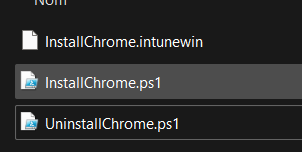
Place your install and uninstall scripts in a dedicated folder (e.g.,ChromeDeployment). - Use the Microsoft Win32 Content Prep Tool:
Convert your folder into an.intunewinpackage.
Open IntuneWinAppUtil.exe with Administrator privileges.
Set the output directory to the same location.
Select the directory that contains both the install and uninstall PowerShell scripts.
Enter the name of the install PowerShell script in the setup step.
- Deploy via the Company Portal:
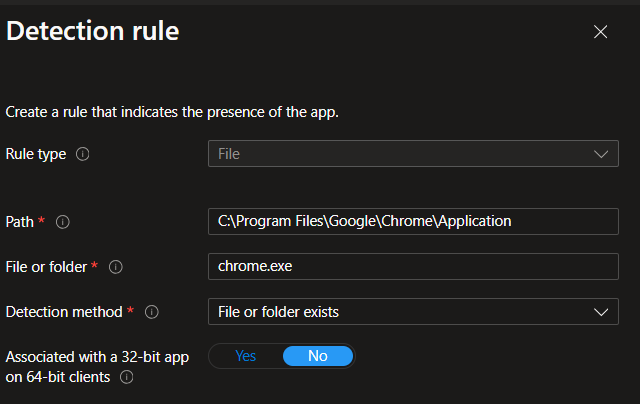
Upload the generated.intunewinfile to the Microsoft Endpoint Manager admin center. Configure the installation command (e.g., running the PowerShell script) and set up appropriate detection rules to verify that Chrome is installed successfully.
Install Command
powershell.exe -ExecutionPolicy Bypass -File InstallChrome.ps1Uninstall Command
powershell.exe -ExecutionPolicy Bypass -File UninstallChrome.ps1Detection rule
Create a rule that indicates the presence of the app
Ok now don’t forget do assign the app in to the device group that you want and or make it available for users in company portal, or as required it depend on your needs
By following these steps, your Company Portal will always serve the latest version of Google Chrome to your users, ensuring their browsers remain secure and up-to-date.
Keeping Installed Chrome Updated
While deploying the latest Chrome version is important, you should also consider keeping already installed browsers updated. This can be achieved with an Intune Configuration Profile:
- Import Google ADMX Templates:
Make sure you have the necessary Chrome ADMX files imported into Intune. - Set Update Policies:
Configure settings such as “Auto-update check period override,” “Enable component updates,” and “Update policy override” to always allow updates.
This configuration ensures that even after installation, Chrome will automatically update to the latest version whenever available.
