Streamlining Intune Deployment with EUCToolboxZero to Hero: Automating Microsoft Intune with EUCToolbox
Setting up a Microsoft Intune environment from scratch can be a daunting task. Between security baselines, application deployments, and compliance policies, there is a lot of room for manual error. Enter EUCToolbox—a streamlined tool designed by Andrew Taylor to automate the heavy lifting.
By the end of this guide, you will have a fully configured tenant featuring automated device management, security policies, and dynamic user groups. Before we dive in, ensure you have a Global Administrator or Intune Service Administrator role and the appropriate Microsoft licensing (e.g., Business Premium, E3, or E5).
Phase 1: Initial Access & Consent
Step 1: Access the Deployment Tool
Kick things off by navigating to https://deploy.euctoolbox.com. Simply click the "Let's Go" button to start the authentication process.
Step 2: Review and Consent to Permissions
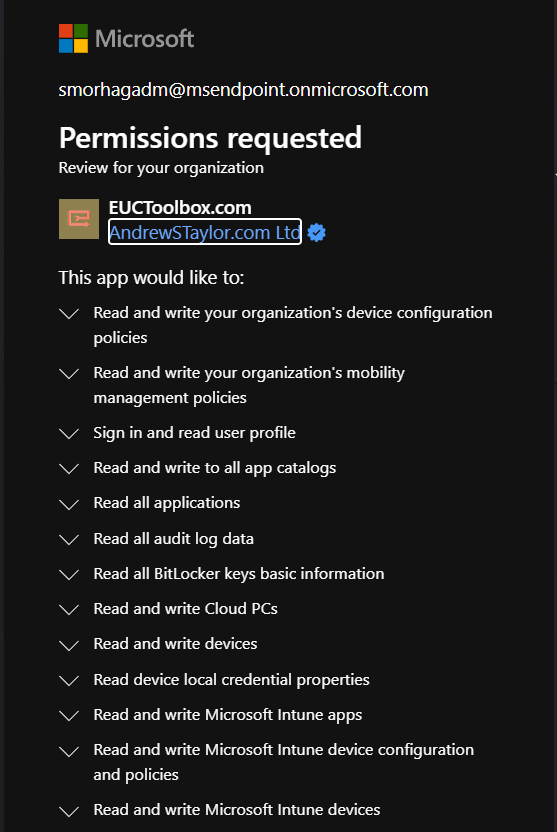
The tool requires a wide range of Graph API permissions to build your environment. These include permissions to manage device configurations, group memberships, BitLocker keys, and Conditional Access policies. Review the list and click Accept.
Phase 2: Configuring the Setup Form
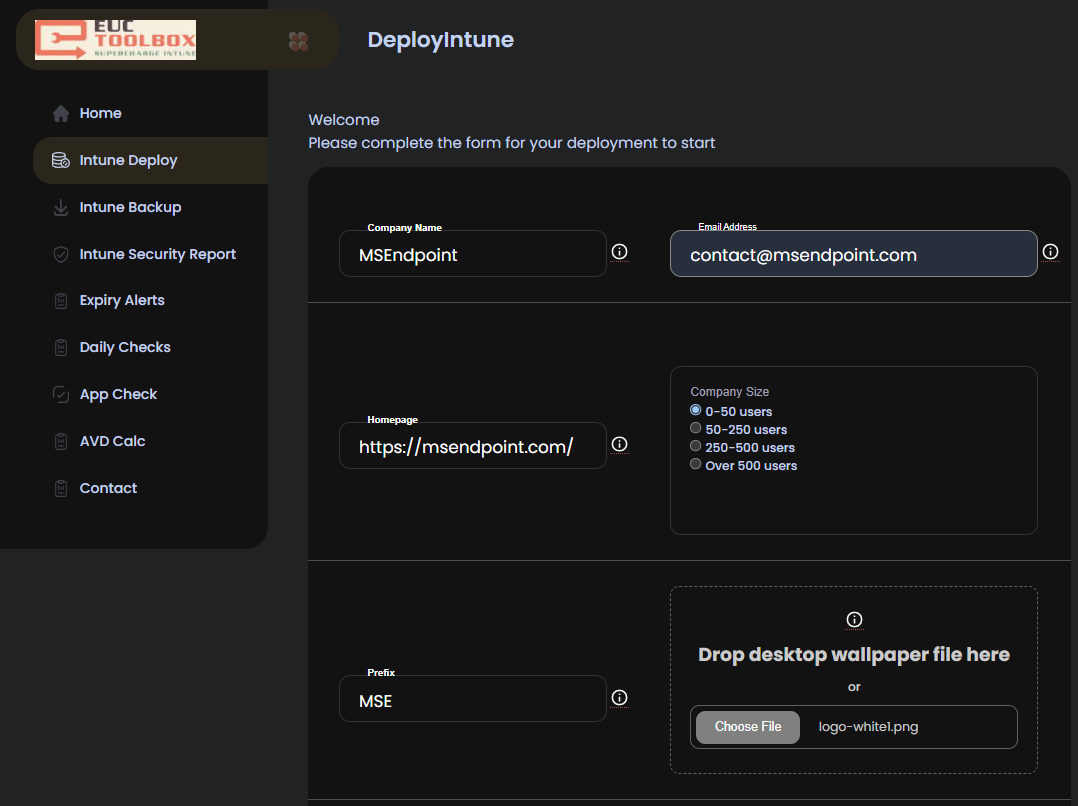
Once authorized, you’ll reach the setup form. This is where you define the "personality" of your tenant.
- Company Name: Used for identification and written to a registry key on managed devices.
- Breakglass Email: Critical! This is where your emergency "Breakglass" account details will be sent upon completion.
- Edge Homepage: Enter a full URL (starting with
https://) to be set as the default homepage for Microsoft Edge. - Policy Prefix: By default, this is "ID". You can customize this to keep your Intune portal organized (e.g., "CORP-").
- Desktop Wallpaper: Upload your corporate branding here. It will be applied as the default background for Windows devices.
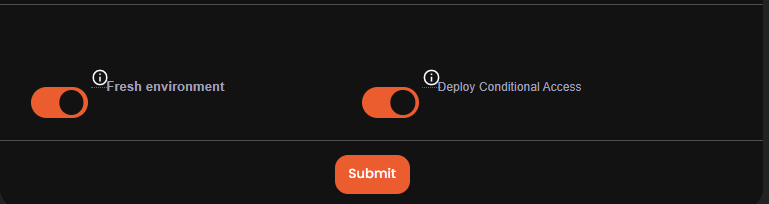
Dynamic Groups & Conditional Access
If you are working in a fresh tenant, check the box to automate Entra groups. This creates dynamic groups based on licenses and Autopilot registration. If you are in an existing environment, leave this unchecked to prevent policy clashes.
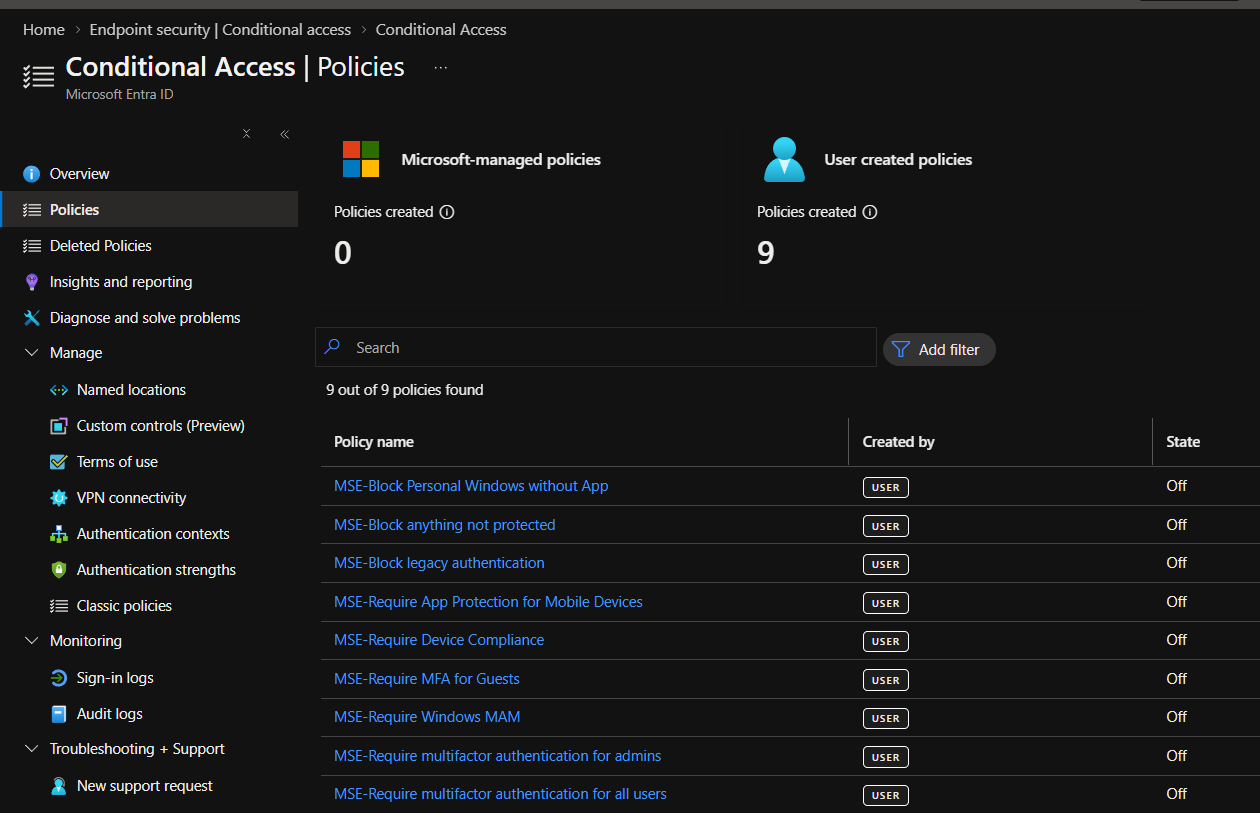
You can also toggle Conditional Access policies. These are deployed in "Report-Only" or "Off" mode by default, allowing you to review them before they start enforcing MFA or device compliance.
Phase 3: The Results – What Gets Built?
After clicking Submit, the backend automation takes over. Within about 15 to 30 minutes, your tenant will transform from a blank slate into a fully managed endpoint powerhouse.
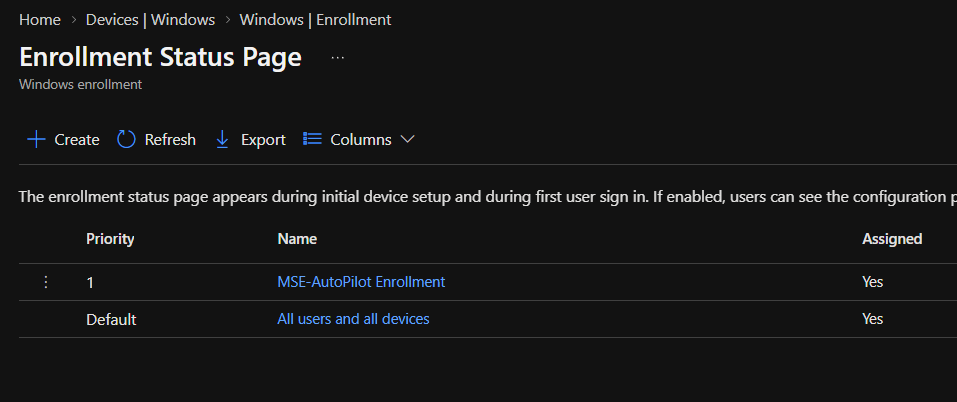
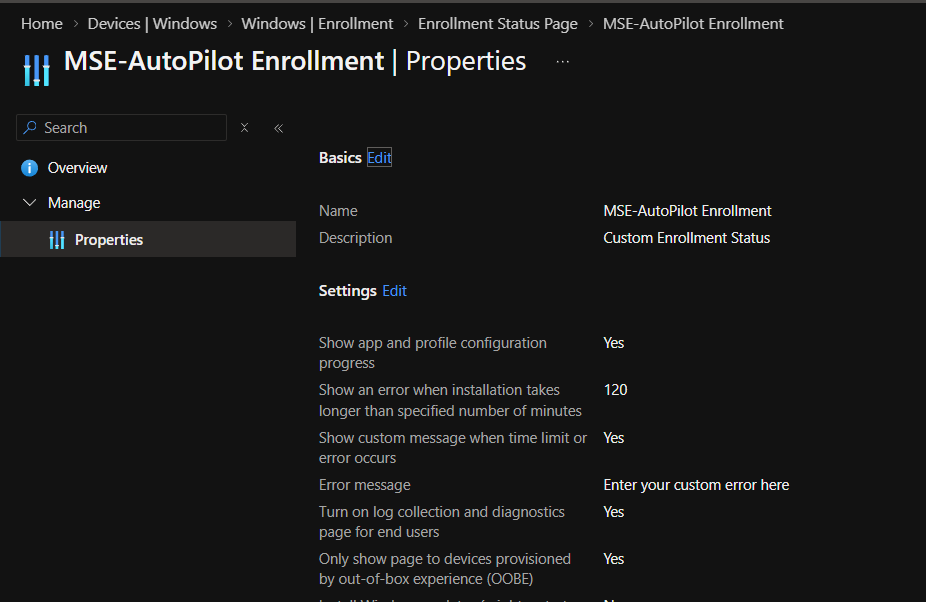
1. Autopilot and Enrollment Status Page (ESP)
The tool configures your Autopilot profiles and the Enrollment Status Page to ensure users have a seamless out-of-box experience.
2. Dynamic Groups & Assignments
No more manual grouping. Everything from user assignments to device categories is handled automatically.
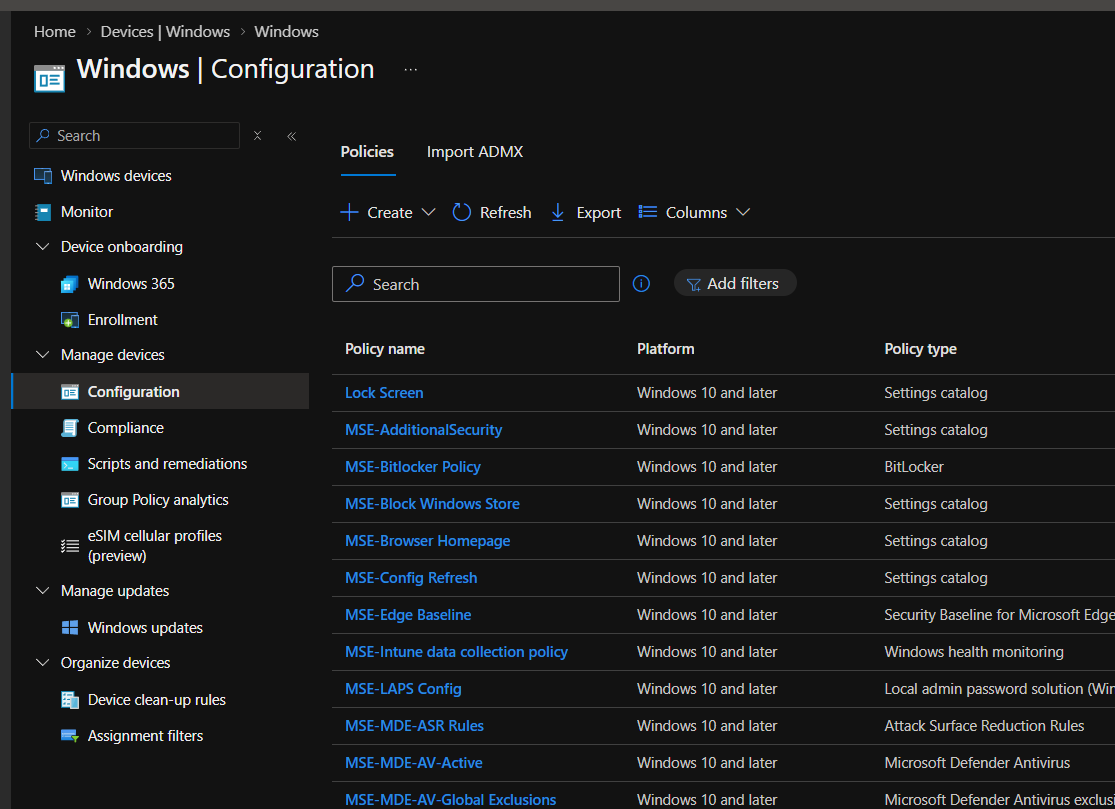
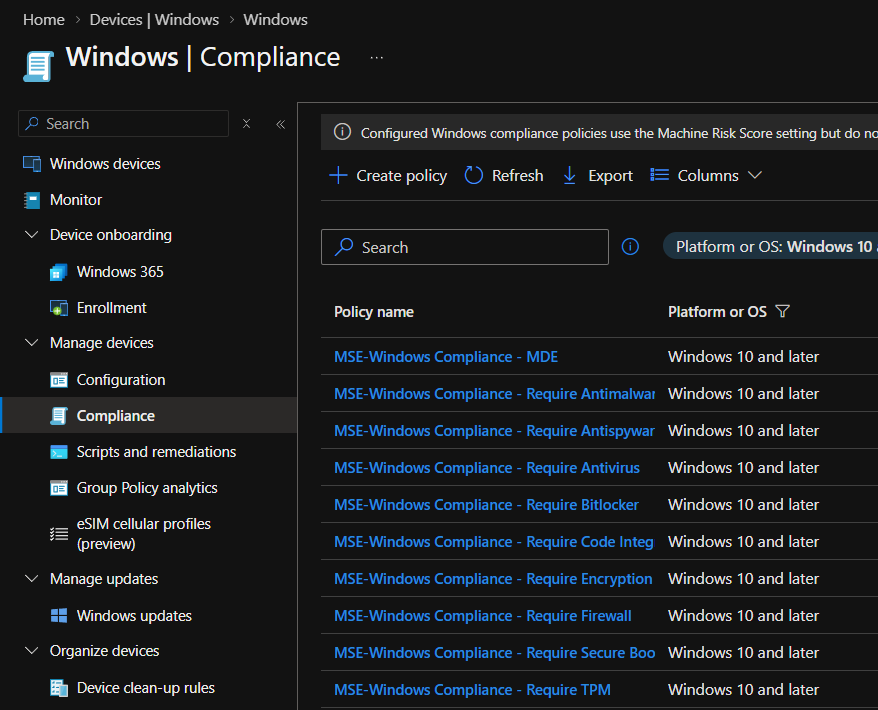
3. Configuration & Compliance Policies
From security baselines to general device settings, the "wow" factor here is real. Every essential policy is created and assigned.
4. Endpoint Security: BitLocker, LAPS, and Firewall
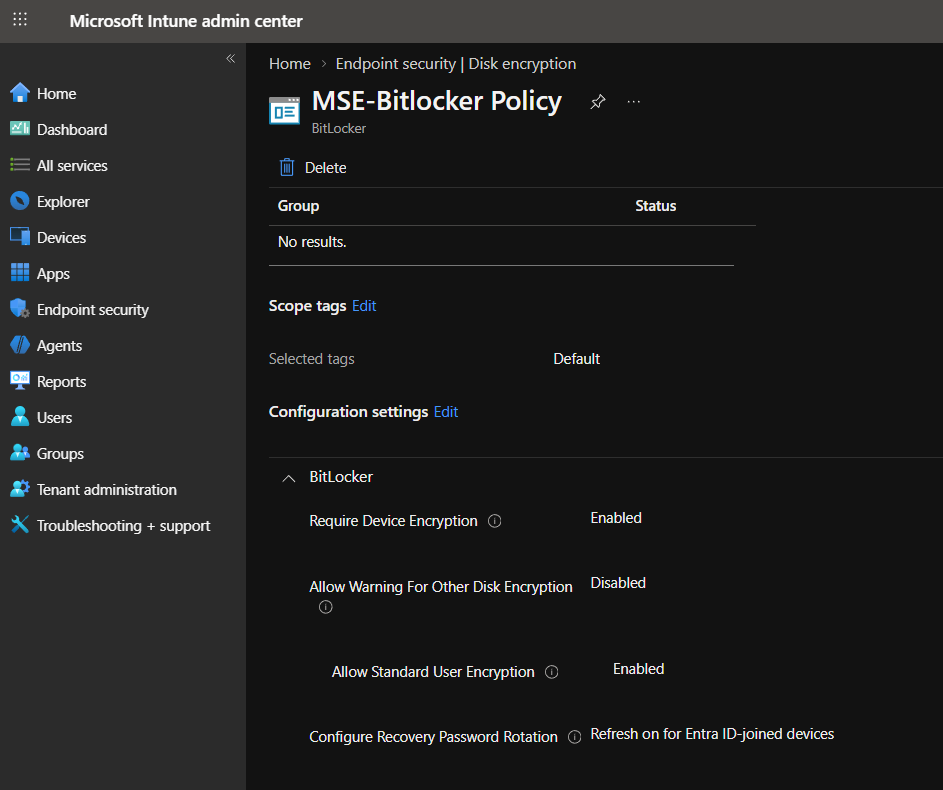
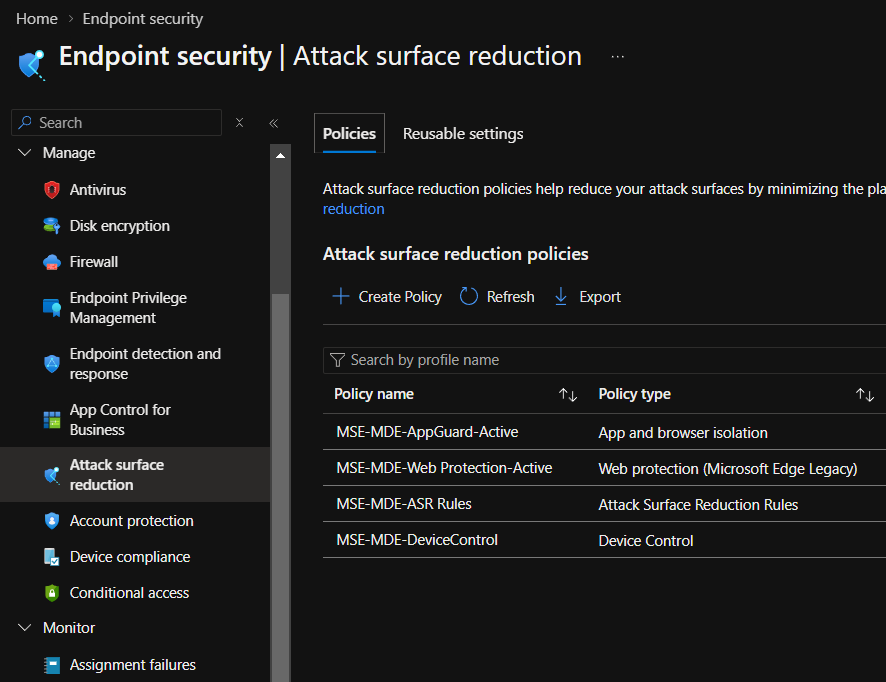
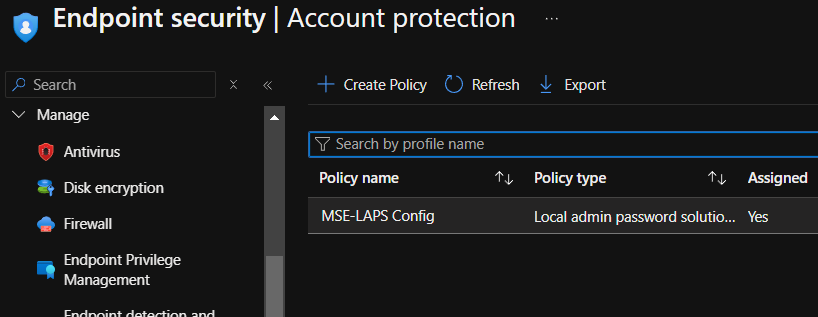
Security is baked in, not bolted on. The tool deploys Disk Encryption (BitLocker), Firewall rules, Attack Surface Reduction (ASR) rules, and even Windows LAPS configuration.
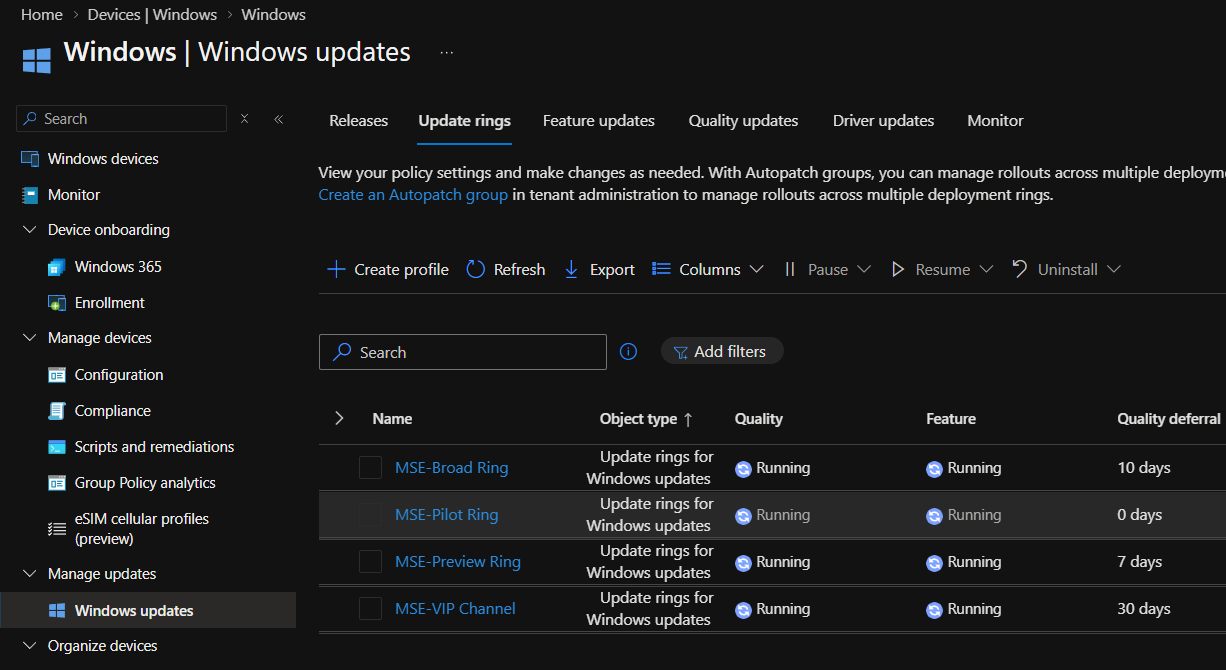
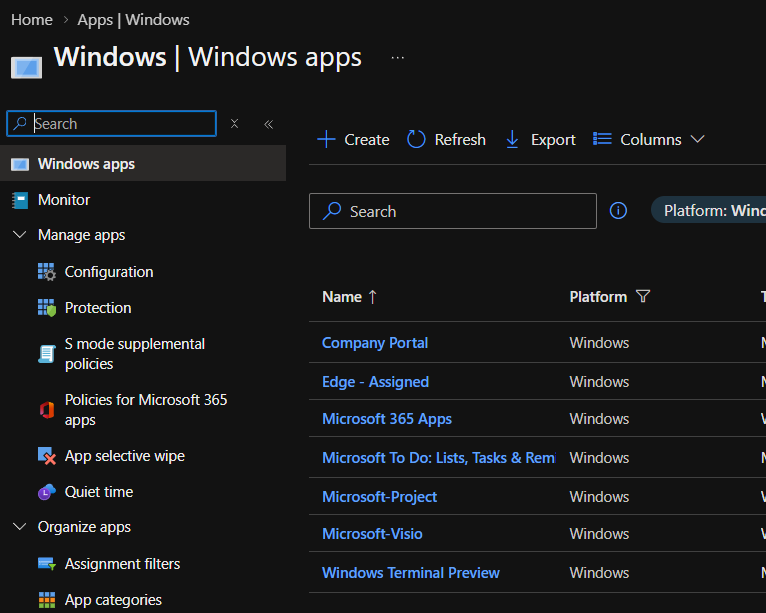
5. Windows Updates & Apps
Update rings are established to manage your Windows patching cycle, and standard Windows apps are pre-staged for deployment.
6. Identity Protection (MFA & Breakglass)
Finally, the tool secures your identity layer with Conditional Access policies for MFA and creates a dedicated Breakglass account to ensure you’re never locked out.
Verification & Troubleshooting
If you prefer to verify the deployment via code, you can use PowerShell or Graph API to check for your new policies:
# Check for created groups
Get-MgGroup -Filter "startsWith(DisplayName, 'YourPrefix')"

# Check Device Configurations via Graph
GET https://graph.microsoft.com/v1.0/deviceManagement/deviceConfigurations
Common Issues
- Permissions Error: Ensure you are a Global Admin during the consent phase.
- Email Delay: If the Breakglass credentials don't arrive in 30 minutes, check your spam folder.
- Conflicts: If using an existing tenant, double-check that the new policies don't overlap with your old ones.
Big thanks to Taylor for this awesome tool! It turns a day's worth of manual configuration into a 15-minute coffee break.
