Device synchronization in Microsoft Intune is the operational heartbeat of modern workplace management. Without timely check-ins, IT engineering fleets exist in a dangerous telemetry blind spot: compliance baselines drift, zero-day security configurations lag, and expedited quality patches fail to report true installation states. This comprehensive technical guide dissects the exact mechanics of Intune device synchronization, unpacks the real-world trade-offs of aggressive 10-minute polling, and details the production configuration of Windows DMClient CSP, Windows 11 Config Refresh, Apple Declarative Device Management (DDM), and Microsoft Graph SDK v2 automation.
- Sync Mechanism: MDM check-in is fundamentally a scheduled pull operation (device-initiated), augmented by event-driven push services (WNS for Windows, APNs for Apple, FCM for Android).
- Configurable Intervals: Only Windows exposes direct numeric polling interval customization via the DMClient CSP (measured strictly in minutes). Apple (APNs/DDM) and Google (FCM/DPC) manage check-in cadence at the operating system level.
- Config Refresh vs MDM Sync: Windows 11 Config Refresh re-applies already-cached policies locally and offline every 30–1440 minutes. It does not contact the Intune cloud or update
lastSyncDateTime. - 2026 Production Recommendation: Reserve 10-minute DMClient polling for high-compliance kiosks, shared frontline workstations, and active incident response rings. For standard enterprise laptop fleets, combine 60–120 minute polling with native Config Refresh and WNS push to prevent battery degradation and API throttling.
- Fabricated Apple OMA-URI: Custom OMA-URI paths do not exist for iOS or macOS. OMA-URI is a Windows Open Mobile Alliance protocol. Applying custom OMA-URIs to Apple devices has zero effect.
- Unit Misconfiguration: Windows DMClient CSP polling nodes use minutes, not seconds. Entering
600sets a 10-hour polling window, creating the exact opposite of the intended behavior. - The Windows "Pull-Only" Myth: Windows does not only pull on a timer. Windows relies on Windows Push Notification Services (WNS) to trigger instantaneous MDM sync sessions when an admin executes remote actions in the Intune Admin Center.
- Android Rule Density Myth: Configuring four or more compliance rules does not force a 10-minute check-in cycle on Android Enterprise. Android scheduling is governed by the OEM DPC agent and Android Doze Mode power management.
How Intune Device Sync Works Across Platforms
Device synchronization operates on a two-tier architecture: Scheduled Heartbeat (Pull) and Event-Driven Push Notifications. Understanding how these two layers interact prevents severe network bottlenecks and false troubleshooting paths.
-
The Scheduled Heartbeat (Pull)
At regular intervals, the local MDM client daemon wakes up, establishes a mutual TLS (mTLS) session with the Intune service endpoint (
*.manage.microsoft.com), transmits its current hardware/software inventory, evaluates assigned policy baselines, and collects pending tasks. -
The Cloud Push Trigger (Wake-up)
When an IT engineer triggers a remote action in the Intune console (e.g., Sync, Remote Lock, Wipe, or Expedited Quality Update), Intune does not wait for the scheduled heartbeat. It dispatches an encrypted wake-up payload through the platform's native push cloud: WNS for Windows, APNs for iOS/macOS, and FCM for Android. The device receives the push packet and immediately initiates an out-of-band MDM check-in.
-
Declarative Device Management (DDM — Modern Autonomous Enforcement)
In modern Apple platforms (iOS 16+, macOS 13+), Apple Declarative Device Management shifts status tracking directly onto the endpoint. Rather than polling repeatedly to ask "What should my policy be?", the device autonomously reports state transitions (such as passcode drift or OS update completion) reactively as soon as they occur.
Sync Mechanism Comparison: Default vs Custom vs Config Refresh
Before modifying production intervals, examine how the four core mechanisms differ across operational impact, network utilization, and platform reach:
| Mechanism | Cadence / Interval | Network Egress? | New Policies Downloaded? | Battery Impact | Primary Use Case |
|---|---|---|---|---|---|
| Default Intune Schedule | 15m initial, then every ~6–8 hours | Yes | Yes | Negligible (<1%) | Standard enterprise laptops and hybrid knowledge workers. |
| 10-Min DMClient Polling | Every 10 minutes (sustained) | Yes (continuous) | Yes | High (8–15% drain) | Fixed kiosks, shared hospital carts, critical incident rings. |
| Windows 11 Config Refresh | Configurable: 30m, 60m, 90m, 120m+ | No (100% offline) | No (local cache only) | Extremely Low | Anti-tamper protection, kiosk lockdown, drift auto-remediation. |
| Console Remote Sync (Push) | Immediate (on demand) | Yes | Yes | Negligible (isolated) | Helpdesk troubleshooting, conditional access remediation. |
| Apple Declarative Mgmt (DDM) | Event-driven reactive streaming | Yes (delta only) | Yes | Minimal | Autonomous state and software update enforcement on iOS 16+ & macOS 13+. |
Platform Breakdown: Default Timers and Native Constraints
| Operating System | Default Background Schedule | Direct Numeric Interval Control? | Native Push Transport |
|---|---|---|---|
| Windows 10 / 11 | Every 3m for 15m, every 15m for 2h, then every 8h | Yes — via DMClient CSP | Windows Push Notification Services (WNS) |
| macOS (12 and prior) | Approximately every 60–90 minutes | No (Apple MDM Spec) | Apple Push Notification service (APNs) |
| macOS (13+) & iOS (16+) | Autonomous reactive updates via DDM | No (Declarative Engine) | APNs + Declarative Status Subscriptions |
| iOS / iPadOS | Approximately every 6–8 hours + APNs trigger | No (Apple MDM Spec) | Apple Push Notification service (APNs) |
| Android Enterprise | Every 8 hours + FCM wake-up | No (Governed by DPC & Doze) | Firebase Cloud Messaging (FCM) |
Windows 10 & 11: Configuring 10-Minute Polling via DMClient CSP
Windows is the only operating system that supports programmatic modification of the core MDM check-in heartbeat. This configuration targets the DMClient Configuration Service Provider (CSP) using a Custom OMA-URI profile.
DMClient/Provider/MS DM Server/Poll node are evaluated by the Windows OMADM client in minutes.
- Setting Value:
10= 10 minutes. - Setting Value:
600= 600 minutes (10 hours!).
Step-by-Step Intune Profile Setup
-
Create a Custom Configuration Profile
Sign in to the Microsoft Intune Admin Center. Navigate to Devices > Windows > Configuration > Create > New Policy. Select Platform: Windows 10 and later and Profile type: Templates > Custom.
-
Configure Tier 1 Retry Cadence
Click Add to define the initial check-in frequency upon enrollment or network re-establishment:
Name:        DMClient-Poll-FirstInterval
Description: Initial check-in retry interval in minutes
OMA-URI:     ./Device/Vendor/MSFT/DMClient/Provider/MS DM Server/Poll/IntervalForFirstSetOfRetries
Data type:   Integer
Value:       10
-
Set Retry Iteration Count
Define how many times Tier 1 executes before transitioning to sustained scheduling:
Name:        DMClient-Poll-FirstCount
Description: Number of retries in first tier (0 = infinite)
OMA-URI:     ./Device/Vendor/MSFT/DMClient/Provider/MS DM Server/Poll/NumberOfFirstRetries
Data type:   Integer
Value:       0
-
Configure Sustained Polling Frequency
Define the permanent background polling rate for remaining scheduled retries:
Name:        DMClient-Poll-SustainedInterval
Description: Permanent scheduled check-in frequency in minutes
OMA-URI:     ./Device/Vendor/MSFT/DMClient/Provider/MS DM Server/Poll/IntervalForRemainingScheduledRetries
Data type:   Integer
Value:       10
-
Assign and Validate via Event Viewer
Assign the policy to a dedicated pilot security group. On a managed test machine, open Event Viewer and navigate to:
Applications and Services Logs > Microsoft > Windows > DeviceManagement-Enterprise-Diagnostics-Provider > Operational
Filter for Event ID 208 ("MDM Session succeeded"). Verify that timestamps appear consecutively every 10 minutes (± 2 minutes randomized jitter).
Windows 11 Config Refresh: Modern Tamper Protection Without Cloud Egress
Introduced in Windows 11 22H2 (KB5031455) and natively integrated into Windows 11 23H2 and 24H2, Config Refresh solves the primary business requirement behind aggressive sync: preventing policy drift and unauthorized local tampering.
Unlike DMClient polling, Config Refresh runs completely offline against the local policy cache stored in %ProgramData%\Microsoft\DMClient. It re-enforces existing CSPs without consuming tenant network bandwidth or making HTTP requests to Intune.
Deploying Config Refresh via Intune Settings Catalog
-
Navigate to Settings Catalog
In Intune Admin Center, go to Devices > Windows > Configuration > Create > New Policy > Windows 10 and later > Settings catalog.
-
Add Config Refresh Node
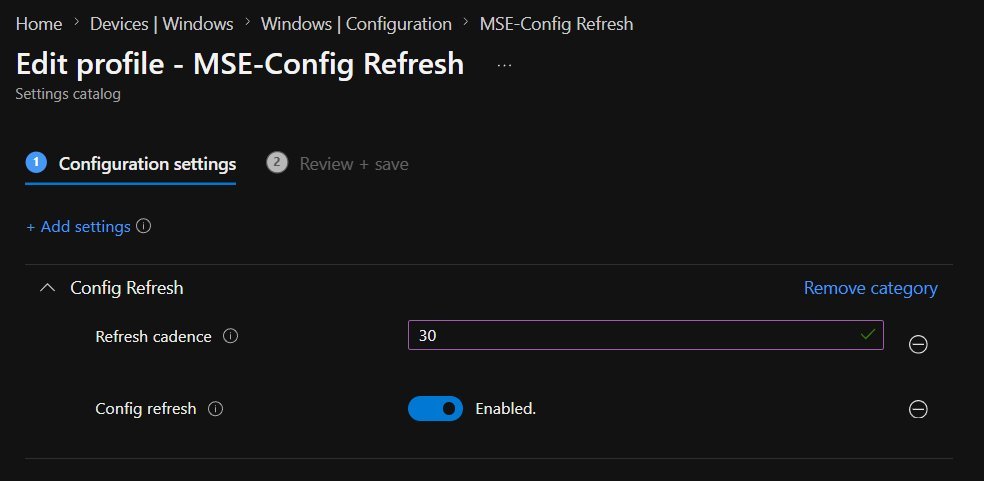
Click + Add settings, search for
Config Refresh, and enable both attributes:Config refresh: Enabled Refresh cadence: 30 // Options: 30, 60, 90, 120, 180, 240, 360, 720, 1440 minutes
-
Operational Benefit: The "Pause Config Refresh" Remote Action
If an IT engineer needs to temporarily modify a local registry key or troubleshoot a driver issue without Config Refresh immediately reverting the change, Intune provides the Pause Config Refresh remote action (or local command via Settings > Accounts > Access work or school). Admins can pause enforcement for up to 24 hours, after which enforcement automatically resumes.
Apple Platforms (macOS & iOS): APNs and Declarative Device Management
Apple strictly isolates its MDM agent. No configuration profile or custom payload can force an iOS or macOS device to poll Intune on an arbitrary 10-minute timer. Instead, Apple relies on Apple Push Notification service (APNs) and Declarative Device Management (DDM).
- Remote sync commands fail instantly.
- New policy assignments are delayed until routine background heartbeats (which can take 8–24 hours).
- Disaster Recovery Warning: When renewing the certificate in the Apple Push Certificates Portal, you MUST use the exact same Apple ID and certificate UID. Renewing with a different Apple ID orphans your enrolled Apple fleet, requiring full device re-enrollment!
macOS Terminal Verification
To audit MDM check-in state, APNs push receipt, and clock alignment directly on a managed Mac:
# Query enrollment status and management identity
sudo /usr/libexec/mdmclient QueryDeviceInformation

# Stream live MDM daemon logs filtered for APNs wake-up events
log stream --predicate 'subsystem == "com.apple.mdmclient"' --info

# Verify system clock synchronization (TLS handshakes fail if clock skew > 300s)
sntp time.apple.com
Android Enterprise: FCM Gateway and Battery Optimization
Android Enterprise devices receive out-of-band sync commands through Google Firebase Cloud Messaging (FCM). The Intune DPC (Device Policy Controller) agent processes the incoming push packet and triggers policy synchronization.
Remediation: Deploy an App Protection Policy or Device Configuration profile that whitelists the Microsoft Intune / Company Portal application from battery optimization, ensuring FCM high-priority data packets wake the device instantly.
Required Network Egress Firewall Rules
For Android push synchronization to function inside enterprise corporate Wi-Fi environments, verify that firewalls allow outbound access without SSL inspection on:
fcm.googleapis.com(TCP ports 5228, 5229, 5230, and 443)*.googleapis.com,*.google.com(TCP 443)
Automating Fleet Synchronization with Microsoft Graph SDK v2
Instead of manually clicking "Sync" device by device, enterprise engineers automate bulk sync triggers and identify stale endpoints using the Microsoft.Graph PowerShell SDK v2.
The production-ready script below queries endpoints whose lastSyncDateTime exceeds 30 minutes, handles pagination across large enterprise tenants, and dispatches throttled sync requests with automatic retry logic:
<#
.SYNOPSIS
    Proactive Enterprise Intune Fleet Sync & Stale Device Remediation
    Requires: Microsoft.Graph.DeviceManagement SDK v2
#>
Connect-MgGraph -Scopes "DeviceManagementManagedDevices.ReadWrite.All" -NoWelcome

# Define staleness threshold (30 minutes)
$threshold = [datetime]::UtcNow.AddMinutes(-30).ToString("yyyy-MM-ddTHH:mm:ssZ")

# Retrieve non-compliant or stale devices with pagination
Write-Host "Querying tenant devices where lastSyncDateTime < $threshold..." -ForegroundColor Cyan

$staleDevices = Get-MgDeviceManagementManagedDevice -Filter "lastSyncDateTime lt $threshold" `
    -Select "id,deviceName,operatingSystem,lastSyncDateTime,complianceState,managementState" `
    -All

Write-Host "Found $($staleDevices.Count) stale device(s) requiring forced sync." -ForegroundColor Yellow

foreach ($device in $staleDevices) {
    Write-Host "Sending Sync Command -> $($device.DeviceName) [$($device.OperatingSystem)] (Last Sync: $($device.LastSyncDateTime))"

    try {
        # Dispatch remote sync action
        Sync-MgDeviceManagementManagedDevice -ManagedDeviceId $device.Id -ErrorAction Stop

        # Throttle dispatch to remain safely within Graph API 429 rate limits
        Start-Sleep -Milliseconds 250
    }
    catch {
        $statusCode = $_.Exception.Response.StatusCode.value__
        if ($statusCode -eq 429) {
            Write-Warning "Graph API rate limit encountered. Backing off for 5 seconds..."
            Start-Sleep -Seconds 5
            Sync-MgDeviceManagementManagedDevice -ManagedDeviceId $device.Id -ErrorAction SilentlyContinue
        } else {
            Write-Error "Failed to sync device $($device.Id): $($_.Exception.Message)"
        }
    }
}

Write-Host "Fleet sync dispatch completed successfully." -ForegroundColor Green
Troubleshooting Common Sync Failures
When devices fail to check in or ignore remote sync commands, follow this prioritized diagnostic sequence:
Production Pre-Flight Checklist
Before rolling out customized sync polling or Config Refresh profiles fleet-wide, validate every checkpoint in this operational checklist:
| Operational Gate | Technical Requirement | Status |
|---|---|---|
| Pilot Ring Ring-Fencing | Deployed exclusively to 50–100 non-executive pilot endpoints. | Mandatory |
| DMClient Unit Validation | Confirmed OMA-URI integer values are set in MINUTES (e.g., 10, not 600). |
Verified |
| Push Network Reachability | Corporate firewall egress permits outbound traffic to WNS, APNs, and FCM gateways. | Verified |
| Apple APNs Certificate Expiry | Apple MDM Push certificate verified in Tenant Admin with >60 days validity remaining. | Verified |
| Windows 11 OS Version Filter | Config Refresh scoped to Windows 11 22H2 (KB5031455)+, 23H2, and 24H2 build targets. | Verified |
| Automated Graph Monitoring | Scheduled alert script configured to detect endpoints with lastSyncDateTime > 24h. |
Active |
| Rollback Strategy Documented | Policy reversion and unassignment workflow tested to restore default 8-hour heartbeat in <15 minutes. | Documented |
Key Takeaways and Architecture Summary
- Distinguish Pull from Push: Scheduled sync is a pull heartbeat. Push notifications (WNS, APNs, FCM) wake the device immediately for out-of-band operational commands.
- Only Windows DMClient Is Numeric: Do not attempt to force 10-minute check-in intervals on iOS or macOS using custom OMA-URIs.
- Leverage Windows 11 Config Refresh: Use Config Refresh to solve local registry tampering every 30 minutes without exhausting network bandwidth or laptop battery life.
- Monitor Apple APNs Proactively: An expired APNs certificate silently paralyzes remote sync across all iPhones, iPads, and MacBooks.
- Automate with Graph SDK v2: Utilize
Get-MgDeviceManagementManagedDeviceandSync-MgDeviceManagementManagedDeviceto build self-healing remediation pipelines for stale fleet endpoints.
