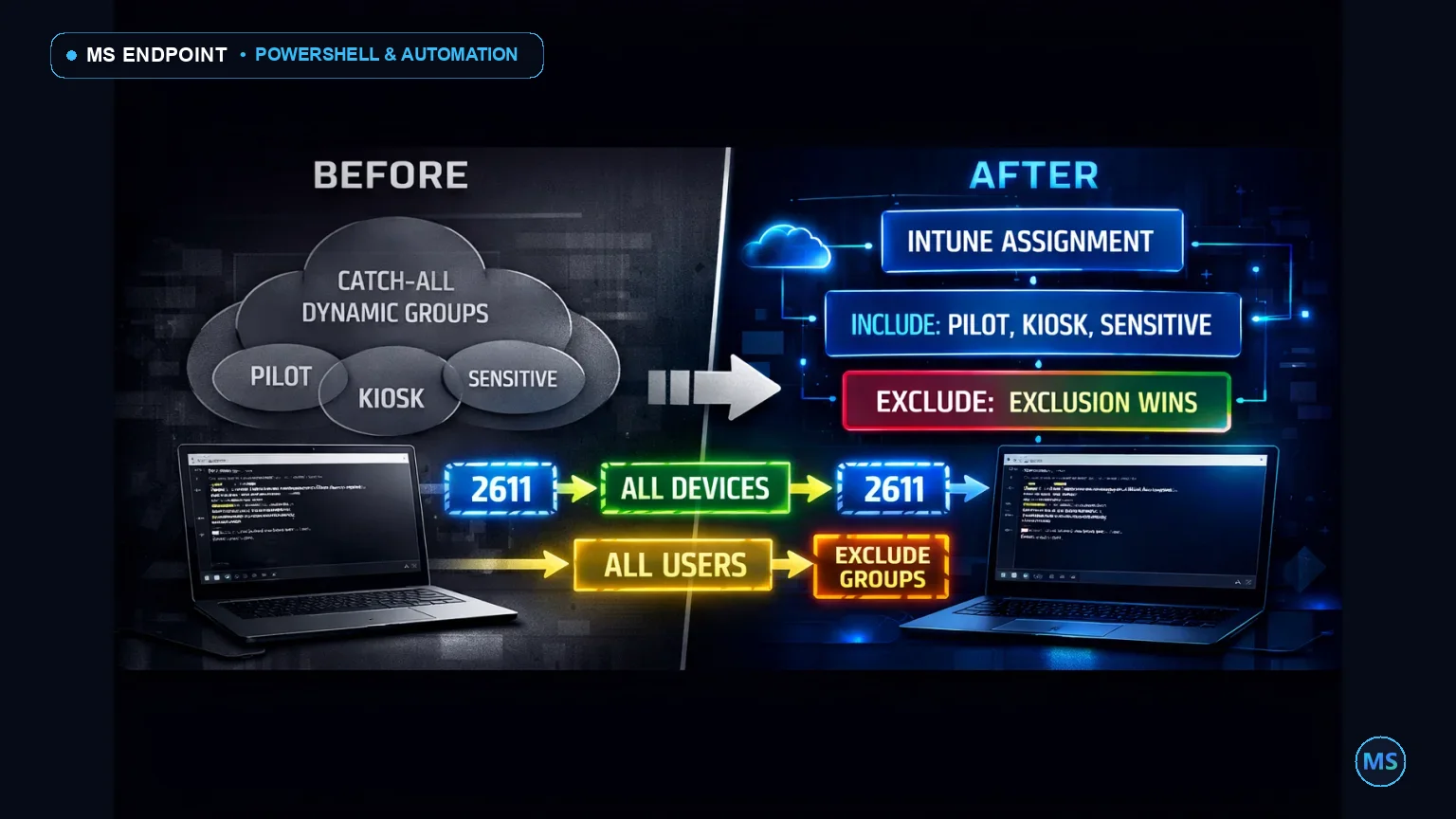
That slightly awkward moment when you’ve wanted to assign a Windows PowerShell script to All Devices, but had to build a catch-all dynamic group first, then another exception group, then explain to someone six months later why “All-Win-Managed-Except-Kiosk-Phase2-Final” exists. Service release 2611 fixes that particular bit of admin archaeology. As of the week of November 16, 2026, Intune supports group exclusions and the built-in All Users / All Devices targeting options for Windows PowerShell scripts.
For anyone running production Windows estates, this matters because script assignment behavior is finally lining up with how the rest of Intune has behaved for a while. You can assign broadly, exclude precisely, and stop manufacturing groups purely to work around a missing blade capability.
Operational challenge and script objective
The feature sounds small until you have to audit fifty script assignments and answer two questions that always show up during change review: who is actually targeted and what exceptions are in place. In large tenants, that answer drifts fast. Built-in groups make broad targeting simpler, and exclusions reduce the need for throwaway include groups, but they also increase the need for clean reporting.
So the script below does one job properly: it inventories your Windows PowerShell script assignments in Intune, resolves whether they use built-in targets like All Devices or All Users, enumerates included and excluded Entra groups, and exports a clean report you can hand to another engineer without a fifteen-minute caveat speech.
This is an admin workstation script using Microsoft Graph PowerShell SDK v2. It does not run on the endpoint through IME. Think of it as the “show me what’s really assigned” tool you run before a change window, during an audit, or after somebody says “I only excluded a small test group” with suspicious confidence.
| Requirement | Value | Why it matters |
|---|---|---|
| PowerShell | 7.x preferred, 5.1 supported | Graph SDK v2 behaves better in 7.x, especially around auth and object handling. |
| Modules | Microsoft.Graph.Authentication, Microsoft.Graph.DeviceManagement, Microsoft.Graph.Groups | Needed for auth, device management reads, and group name resolution. |
| Graph scopes | DeviceManagementConfiguration.Read.All, Group.Read.All |
Least privilege for reporting assignment objects and group display names. |
| Execution context | Admin workstation | This script audits Intune configuration, not endpoint execution. |
| Output | Console + CSV export | Useful for CAB notes, peer review, and “why did this hit kiosks?” postmortems. |
%ProgramData%\Microsoft\IntuneManagementExtension\Logs\IntuneManagementExtension.log and AgentExecutor.log.
The complete production script
Connect-MgGraph -UseDeviceAuthentication for reliable MFA prompt support across Cloud Shell and headless administration servers.# Author: Souhaiel MORHAG | msendpoint.com
# License: MIT
# Required Scopes: DeviceManagementConfiguration.Read.All, Group.Read.All
# Purpose: Inventory Intune Windows PowerShell script assignments, including built-in targets and exclusions.
[CmdletBinding(SupportsShouldProcess=$true)]
Param (
[Parameter(Mandatory = $false,
[Parameter(Mandatory,
[Parameter(Mandatory,
[Parameter(Mandatory,
[Parameter(Mandatory
)]
[ValidateNotNullOrEmpty()]
[string]$ExportPath = ".\Intune-WindowsPowerShellScriptAssignments.csv",
[Parameter(Mandatory = $false)]
[switch]$IncludeRawAssignments,
[Parameter(Mandatory = $false)]
[switch]$PassThru
)
$ErrorActionPreference = 'Stop'
function Write-Log {
]
[string]$Message,
[Parameter(Mandatory = $false)]
[ValidateSet('INFO','WARN','ERROR','OK')]
[string]$Level = 'INFO'
)
$timestamp = Get-Date -Format 'yyyy-MM-dd HH:mm:ss'
switch ($Level) {
'INFO' { Write-Host "[$timestamp] [INFO ] $Message" -ForegroundColor Cyan }
'WARN' { Write-Host "[$timestamp] [WARN ] $Message" -ForegroundColor Yellow }
'ERROR' { Write-Host "[$timestamp] [ERROR] $Message" -ForegroundColor Red }
'OK' { Write-Host "[$timestamp] [ OK ] $Message" -ForegroundColor Green }
}
}
function Test-MgModule {
$requiredModules = @(
'Microsoft.Graph.Authentication',
'Microsoft.Graph.DeviceManagement',
'Microsoft.Graph.Groups'
)
foreach ($module in $requiredModules) {
if (-not (Get-Module -ListAvailable -Name $module)) {
throw "Required module '$module' is not installed. Install-Module $module -Scope CurrentUser"
}
}
}
function Connect-GraphIfNeeded {
$scopes = @(
'DeviceManagementConfiguration.Read.All',
'Group.Read.All'
)
$context = Get-MgContext -ErrorAction SilentlyContinue
if (-not $context) {
Write-Log -Message "Connecting to Microsoft Graph..." -Level INFO
Connect-MgGraph -Scopes $scopes -NoWelcome | Out-Null
}
else {
Write-Log -Message "Reusing existing Microsoft Graph context for tenant: $($context.TenantId)" -Level INFO
}
}
function Invoke-GraphGetWithRetry {
]
[string]$Uri,
[Parameter(Mandatory = $false)]
[int]$MaxRetryCount = 5
)
$attempt = 0
do {
try {
return Invoke-MgGraphRequest -Method GET -Uri $Uri -OutputType PSObject
}
catch {
$attempt++
$response = $_.Exception.Response
$statusCode = $null
$retryAfter = 5
if ($response) {
try {
$statusCode = [int]$response.StatusCode
}
catch {
$statusCode = $null
}
try {
if ($response.Headers -and $response.Headers.Contains('Retry-After')) {
$retryAfter = [int]$response.Headers.GetValues('Retry-After')[0]
}
}
catch {
$retryAfter = 5
}
}
if (($statusCode -eq 429 -or $statusCode -eq 503) -and $attempt -lt $MaxRetryCount) {
Write-Log -Message "Graph throttling/service busy on '$Uri'. Retry $attempt of $MaxRetryCount in $retryAfter second(s)." -Level WARN
Start-Sleep -Seconds $retryAfter
}
else {
throw
}
}
} while ($attempt -lt $MaxRetryCount)
throw "Graph request failed after $MaxRetryCount attempts for URI: $Uri"
}
function Get-GroupDisplayNameSafe {
]
[string]$GroupId
)
try {
$group = Get-MgGroup -GroupId $GroupId -Property Id,DisplayName
return $group.DisplayName
}
catch {
Write-Log -Message "Failed to resolve group display name for GroupId '$GroupId'. Using raw ID." -Level WARN
return $GroupId
}
}
function Resolve-AssignmentTarget {
]
[psobject]$Assignment
)
$target = $Assignment.target
$odataType = $target.'@odata.type'
switch ($odataType) {
'#microsoft.graph.allDevicesAssignmentTarget' {
return [pscustomobject]@{
TargetType = 'Include'
ScopeType = 'BuiltIn'
ScopeName = 'All Devices'
ScopeId = 'BuiltIn-AllDevices'
RawODataType = $odataType
}
}
'#microsoft.graph.allLicensedUsersAssignmentTarget' {
return [pscustomobject]@{
TargetType = 'Include'
ScopeType = 'BuiltIn'
ScopeName = 'All Users'
ScopeId = 'BuiltIn-AllUsers'
RawODataType = $odataType
}
}
'#microsoft.graph.groupAssignmentTarget' {
$groupId = $target.groupId
return [pscustomobject]@{
TargetType = 'Include'
ScopeType = 'Group'
ScopeName = (Get-GroupDisplayNameSafe -GroupId $groupId)
ScopeId = $groupId
RawODataType = $odataType
}
}
'#microsoft.graph.exclusionGroupAssignmentTarget' {
$groupId = $target.groupId
return [pscustomobject]@{
TargetType = 'Exclude'
ScopeType = 'Group'
ScopeName = (Get-GroupDisplayNameSafe -GroupId $groupId)
ScopeId = $groupId
RawODataType = $odataType
}
}
default {
return [pscustomobject]@{
TargetType = 'Unknown'
ScopeType = 'Unknown'
ScopeName = 'Unknown assignment target'
ScopeId = ''
RawODataType = $odataType
}
}
}
}
try {
Test-MgModule
Connect-GraphIfNeeded
$uri = "https://graph.microsoft.com/beta/deviceManagement/deviceManagementScripts?`$expand=assignments"
Write-Log -Message "Querying Intune Windows PowerShell scripts from Microsoft Graph..." -Level INFO
$response = Invoke-GraphGetWithRetry -Uri $uri
if (-not $response.value) {
Write-Log -Message "No Windows PowerShell scripts were returned from Intune." -Level WARN
exit 0
}
$results = New-Object System.Collections.Generic.List[object]
foreach ($script in $response.value) {
$assignments = @($script.assignments)
if (-not $assignments -or $assignments.Count -eq 0) {
$results.Add([pscustomobject]@{
ScriptName = $script.displayName
ScriptId = $script.id
AssignmentCount = 0
IncludedTargets = ''
ExcludedTargets = ''
RunAsAccount = $script.runAsAccount
EnforceSignature = $script.enforceSignatureCheck
RunAs32Bit = $script.runAs32Bit
FileName = $script.fileName
CreatedDateTime = $script.createdDateTime
LastModifiedDateTime = $script.lastModifiedDateTime
RawAssignmentTypes = ''
})
continue
}
$resolvedAssignments = foreach ($assignment in $assignments) {
Resolve-AssignmentTarget -Assignment $assignment
}
$includeTargets = ($resolvedAssignments | Where-Object { $_.TargetType -eq 'Include' } | ForEach-Object { $_.ScopeName }) -join '; '
$excludeTargets = ($resolvedAssignments | Where-Object { $_.TargetType -eq 'Exclude' } | ForEach-Object { $_.ScopeName }) -join '; '
$rawTypes = ($resolvedAssignments | ForEach-Object { $_.RawODataType }) -join '; '
$results.Add([pscustomobject]@{
ScriptName = $script.displayName
ScriptId = $script.id
AssignmentCount = $assignments.Count
IncludedTargets = $includeTargets
ExcludedTargets = $excludeTargets
RunAsAccount = $script.runAsAccount
EnforceSignature = $script.enforceSignatureCheck
RunAs32Bit = $script.runAs32Bit
FileName = $script.fileName
CreatedDateTime = $script.createdDateTime
LastModifiedDateTime = $script.lastModifiedDateTime
RawAssignmentTypes = $rawTypes
})
if ($IncludeRawAssignments) {
foreach ($resolved in $resolvedAssignments) {
Write-Verbose ("Script '{0}' => {1} | {2} | {3}" -f $script.displayName, $resolved.TargetType, $resolved.ScopeType, $resolved.ScopeName)
}
}
}
if ($PSCmdlet.ShouldProcess($ExportPath, "Export Intune Windows PowerShell script assignment report")) {
$directory = Split-Path -Path $ExportPath -Parent
if ($directory -and -not (Test-Path -Path $directory)) {
New-Item -Path $directory -ItemType Directory -Force | Out-Null
}
$results |
Sort-Object ScriptName |
Export-Csv -Path $ExportPath -NoTypeInformation -Encoding UTF8
Write-Log -Message "Exported report to '$ExportPath'" -Level OK
}
$results | Sort-Object ScriptName | Format-Table -AutoSize
if ($PassThru) {
$results
}
exit 0
}
catch {
Write-Log -Message $_.Exception.Message -Level ERROR
exit 1
}Deep-dive: how the critical logic works
The useful part isn’t the CSV export. It’s the target resolution logic.
Intune assignments come back as Graph assignment target objects with different @odata.type values. That’s where the truth lives. For this feature set, the important ones are:
| Graph target type | Meaning | Operational interpretation |
|---|---|---|
#microsoft.graph.allDevicesAssignmentTarget |
Built-in include target for all devices | Broadest device scope. Use exclusions carefully unless you enjoy change freeze calls. |
#microsoft.graph.allLicensedUsersAssignmentTarget |
Built-in include target for all users | Relevant where the script assignment model exposes user-based built-in targeting in the portal. |
#microsoft.graph.groupAssignmentTarget |
Standard included group | Normal scoped deployment to a named Entra group. |
#microsoft.graph.exclusionGroupAssignmentTarget |
Excluded group | Exclusion wins when a member is also in the included set. |
The script uses the beta Graph endpoint for this inventory path because Intune assignment surfaces often light up there first or expose richer object detail earlier. That means you should treat this as an admin reporting tool, not a “run in a million-dollar unattended automation pipeline without review” artifact.
v1.0 for the specific script assignment shape you need, prefer that for long-term automation.
There’s also retry handling for HTTP 429 and 503. That isn’t decorative. Large tenants and Friday-afternoon audit scrapes have a habit of producing “please slow down” responses from Graph. The function reads Retry-After when present and backs off cleanly instead of face-planting on the first throttle event.
Group name resolution is done separately using Get-MgGroup. If the group no longer exists or the token can’t read it, the script keeps going and falls back to the raw group ID. That’s deliberate. Dead references happen in real tenants. Your report should still finish instead of collapsing because someone deleted an exception group three months ago and nobody told Intune.
Terminal execution and real output samples
Typical usage looks like this:
# Interactive run with export
.\Get-IntuneWindowsPowerShellScriptAssignments.ps1 -ExportPath .\exports\ScriptAssignments.csv

# Dry run to validate file path and action flow
.\Get-IntuneWindowsPowerShellScriptAssignments.ps1 -ExportPath .\exports\ScriptAssignments.csv -WhatIf

# Verbose run with raw assignment details
.\Get-IntuneWindowsPowerShellScriptAssignments.ps1 -ExportPath .\exports\ScriptAssignments.csv -IncludeRawAssignments -Verbose

# Return objects to the pipeline for further filtering
.\Get-IntuneWindowsPowerShellScriptAssignments.ps1 -PassThru-WhatIf where applicable.[2026-11-20 09:12:41] [INFO ] Connecting to Microsoft Graph...
[2026-11-20 09:12:47] [INFO ] Querying Intune Windows PowerShell scripts from Microsoft Graph...
[2026-11-20 09:12:54] [ OK ] Exported report to '.\exports\ScriptAssignments.csv'
ScriptName ScriptId AssignmentCount IncludedTargets ExcludedTargets RunAsAccount FileName
---------- -------- --------------- --------------- --------------- ------------ --------
Set Time Zone 2f4f0b0a-xxxx-xxxx-xxxx-xxxxxxxxxxxx 1 All Devices system Set-TimeZone.ps1
Deploy Root Certificate 71c7f2db-xxxx-xxxx-xxxx-xxxxxxxxxxxx 2 All Devices Kiosk Devices system Deploy-RootCA.ps1
Remove Legacy Agent 8bb14144-xxxx-xxxx-xxxx-xxxxxxxxxxxx 2 Win11 Production VIP Admin Devices system Remove-Agent.ps1
User Profile Cleanup 91a0a6b3-xxxx-xxxx-xxxx-xxxxxxxxxxxx 1 All Users user Cleanup-Profile.ps1Extensions and proactive remediation packaging
This reporting script belongs on an admin workstation, in Azure Automation with a managed identity if you adapt auth, or inside a CI/CD validation step before deployment changes are approved. It is not something you package directly as a Windows endpoint PowerShell script because its job is to inspect the Intune service, not tweak the client.
That said, the feature it audits absolutely changes how you build endpoint automation strategy:
-
Use built-in broad targeting for low-risk, universal actions.
Good examples: inventory markers, lightweight registry baselines, file cleanup jobs, or preparing prerequisites for a later app deployment. -
Use exclusions to protect rings that should never be first.
Typical exclusions: kiosk devices, executive endpoints, lab machines, shared factory devices, privileged admin workstations. -
Move recurring compliance logic into Remediations where appropriate.
If you’re checking drift repeatedly, a Detection/Remediation pair is usually cleaner than a one-shot PowerShell script assignment. Detection returns exit0for compliant and1for noncompliant; remediation fixes the issue. -
Keep script logging endpoint-side.
For Windows scripts delivered through IME, write local logs and check%ProgramData%\Microsoft\IntuneManagementExtension\Logs\IntuneManagementExtension.logandAgentExecutor.logwhen a device says “failed” but offers all the emotional support of a brick.
If you want to adapt this into a governance workflow, one solid pattern is to run it nightly, export the CSV, and diff the assignment state. That catches quiet scope changes like a new All Devices assignment with no exclusions, which is exactly the kind of thing that looks harmless in a quick portal glance and becomes very memorable by Monday morning.
The real win here isn’t just that Intune gained another checkbox. It’s that Windows PowerShell script targeting now behaves more like the rest of the platform. Less group scaffolding, fewer fake “all devices” groups, cleaner exception handling, and much better odds that the next engineer opening the tenant won’t need to reverse-engineer your assignment strategy like it’s a crime scene.
# Example Graph request shape used by the reporting script
GET https://graph.microsoft.com/beta/deviceManagement/deviceManagementScripts?$expand=assignments

{
  "value": [
    {
      "displayName": "Deploy Root Certificate",
      "assignments": [
        {
          "target": {
            "@odata.type": "#microsoft.graph.allDevicesAssignmentTarget"
          }
        },
        {
          "target": {
            "@odata.type": "#microsoft.graph.exclusionGroupAssignmentTarget",
            "groupId": "aaaaaaaa-bbbb-cccc-dddd-eeeeeeeeeeee"
          }
        }
      ]
    }
  ]
}