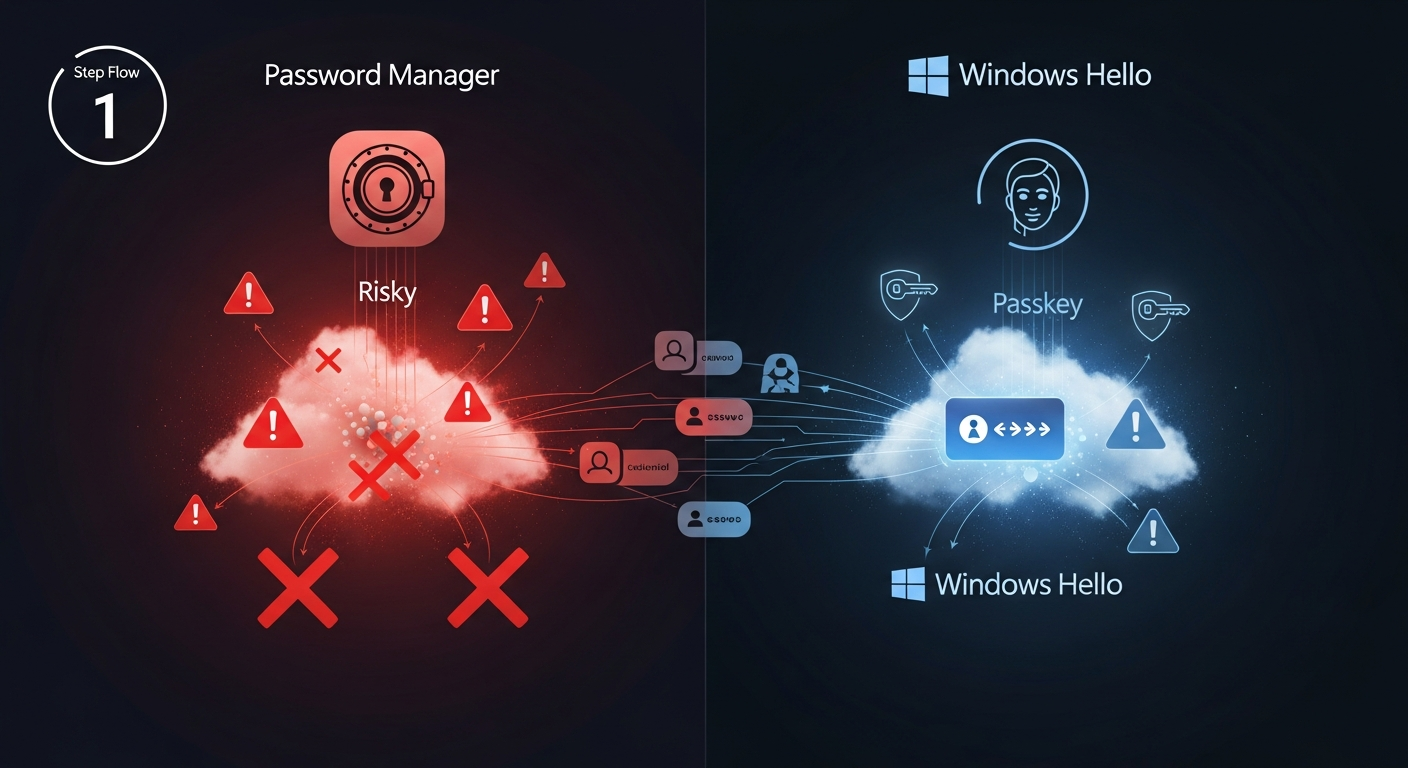
Microsoft Edge Passkey Sync for Enterprise: A Deep Dive in Production Deployment
In June 2026, Microsoft Edge gains native passkey synchronization for enterprise users—a watershed moment for passwordless authentication at scale. This isn't marketing rhetoric: passkeys eliminate phishing entirely by binding credentials to the origin domain, rendering credential stuffing impossible. For Intune administrators managing 500+ devices, this is both opportunity and operational complexity.
This guide covers the complete deployment lifecycle: prerequisites, configuration via Intune and Group Policy, troubleshooting the five failure modes you will encounter in production, and the monitoring strategy that catches sync breakage before users notice.
What Are Passkeys? The Fundamentals
Passkeys are cryptographic key pairs that replace passwords entirely. Unlike passwords, passkeys are:
- Phishing-resistant: Bound to the origin domain (example.com), so users cannot be tricked into entering them on a fake site.
- Device-native: Stored in the operating system's secure enclave (Windows Hello, Touch ID, Face ID), never transmitted over the network.
- FIDO2-based: Built on open W3C standards, not proprietary to Microsoft.
- User-friendly: No password to remember; sign-in via biometric or PIN on the device.
In the context of enterprise Edge sync, a passkey created on your Windows laptop is automatically encrypted and synced to your iPhone—so you can sign in with a single biometric gesture on any device.
Prerequisites: What You Need Before Day One
Don't skip this section. Deployments fail silently when prerequisites are missing.
| Requirement | Minimum Version | Notes |
|---|---|---|
| Microsoft Edge | 120+ | Passkey sync feature available in Stable channel. Canary/Beta versions may have incomplete implementation. |
| Azure AD / Entra ID | Any (P1 recommended) | Premium P1 unlocks Conditional Access rules scoped to passkey auth. Standard tier works but lacks advanced controls. |
| Intune Enrollment | MDM only | Devices must be enrolled. BYOD with Workplace Join is insufficient for passkey sync. |
| Windows / macOS | Win11 22H2, macOS 13+ | Older versions lack WebAuthn and secure enclave APIs required for passkey operations. |
| iOS / Android | iOS 16+, Android 9+ | Passkey sync relies on iCloud Keychain (iOS) and Google Password Manager (Android). Both require these OS versions minimum. |
| Network Connectivity | N/A | Devices must have periodic internet access (at minimum, every 7 days) for sync verification. Purely offline devices will lag behind in sync. |
| Device Encryption | BitLocker / FileVault | Strongly recommended. Passkeys stored in secure enclave assume the device storage is encrypted. Do not deploy without encryption enabled. |
Deployment Path 1: Intune Configuration Profile (Cloud-Native)
For hybrid or cloud-only Azure AD organizations, Intune is the fastest route to passkey enablement.
Navigate to Microsoft Intune Admin Center → Devices → Configuration Profiles → Create Profile.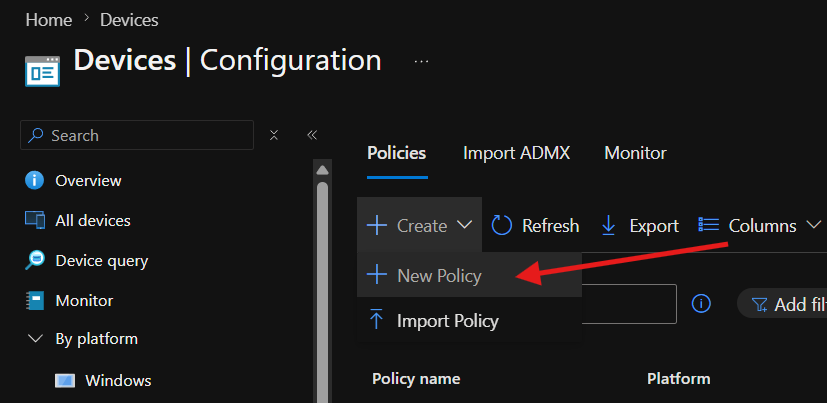
Select Platform: Windows 10 and later (or macOS if target is Apple devices).
Profile type: Settings Catalog (recommended for modern policy delivery).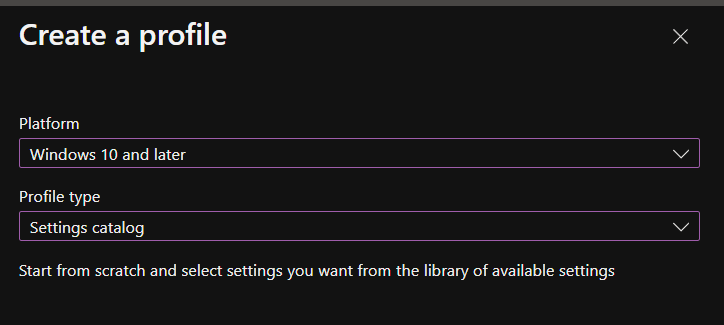
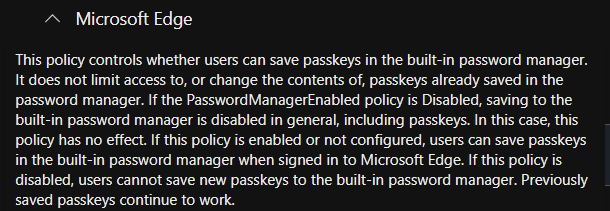
In the Settings Catalog, search for Passkey PasswordlessSignin and PasskeySync.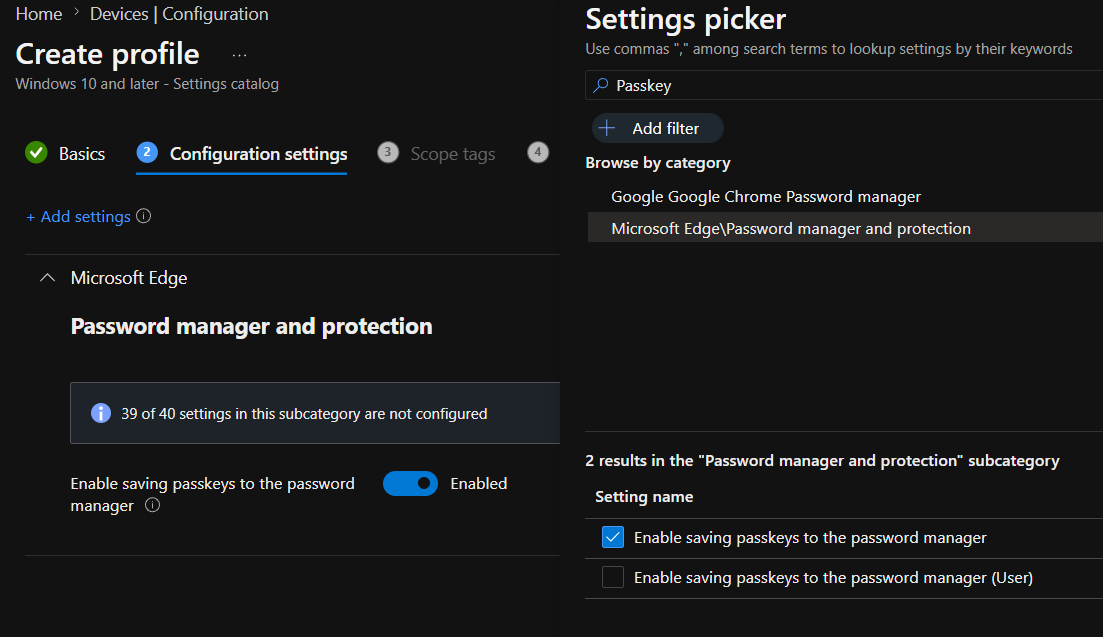
// Settings Catalog JSON representation
{
  "PasswordlessSigninEnabled": true,
  "PasskeySyncEnabled": true,
  "PasskeyBackupStorageLocation": "AzureAD",
  "PasskeySyncScope": "EnterpriseManaged"
}
Explanation:
PasswordlessSigninEnabled=true: Allows Edge to use passwordless auth (passkeys, Windows Hello).PasskeySyncEnabled=true: Enables cross-device sync of passkeys to Azure AD vault.PasskeyBackupStorageLocation=AzureAD: Store encrypted passkeys in Azure AD, not consumer accounts (Microsoft account).PasskeySyncScope=EnterpriseManaged: Sync only for work accounts; personal passkeys remain local.
Create or use an existing Azure AD group (e.g., SG-PasswordlessAuth-Pilot).
Assign the profile to this group. Start with 50–100 users in a pilot phase.
Set Assignments → Included Groups and configure Filters if needed (e.g., filter by device OS version).
Wait 15–30 minutes for Intune to deliver policy. Use Device Compliance diagnostics:
https://endpoint.microsoft.com
→ Devices → Windows devices → Device compliance
→ Select a device → Device configuration
→ Check "Passwordless sign-in" policy status
Look for Success status. If Pending, check device connectivity and Intune enrollment status.
Deployment Path 2: Group Policy (Hybrid AD)
For on-premises AD-joined or hybrid-joined devices, Group Policy Object (GPO) distribution is more reliable than cloud-only Intune.
On a domain controller or admin workstation with GPMC installed:
// Run Group Policy Editor
Press Win+R → "gpedit.msc"
Navigate to:
Computer Configuration
  → Administrative Templates
    → Windows Components
      → Microsoft Edge
        → Credential and identity management
Find and enable the following policies:
| Policy Name | Setting | Effect |
|---|---|---|
Enable passwordless sign-in |
Enabled | Allows passkey/Windows Hello login in Edge |
Enable passkey sync across devices |
Enabled | Syncs passkeys to Azure AD vault |
Passkey backup location |
AzureAD | Specifies vault destination (not consumer account) |
Allow passkey creation |
Enabled | Users can create new passkeys in Edge |
If you want to limit passkey sync to specific organizational units (OUs), you can apply the GPO selectively:
// Example OU hierarchy
OU=Finance,DC=contoso,DC=com  → Apply Passkey GPO
OU=Marketing,DC=contoso,DC=com → Apply Passkey GPO
OU=Legacy,DC=contoso,DC=com    → No policy (stays password-only)
On test devices, force immediate policy application:
// Force Group Policy refresh
gpupdate /force

// Restart Edge (it caches policies at startup)
Taskkill /IM msedge.exe /F

// Verify policy applied in registry
Reg query "HKLM\\Software\\Policies\\Microsoft\\Edge" /s
Deployment Path 3: PowerShell Remediation Script (Zero-Trust)
For maximum control and auditability, deploy passkey policies via a PowerShell Remediation script in Intune.
# ============================================================================
# Deploy Passkey Sync Policy via Intune Remediation Script
# Remediation scripts run as SYSTEM; they auto-correct configuration drift
# ============================================================================

# Detection: Check if policy is already set
$regPath = "HKLM:\Software\Policies\Microsoft\Edge"
$passwordlessEnabled = (Get-ItemProperty -Path $regPath -Name "PasswordlessSigninEnabled" -ErrorAction SilentlyContinue).PasswordlessSigninEnabled
$syncEnabled = (Get-ItemProperty -Path $regPath -Name "PasskeySyncEnabled" -ErrorAction SilentlyContinue).PasskeySyncEnabled

if ($passwordlessEnabled -eq 1 -and $syncEnabled -eq 1) {
    Write-Host "PASS: Passkey policies already configured"
    exit 0
} else {
    Write-Host "FAIL: Policies missing or incorrect"
    exit 1
}

# Remediation: Apply policies if not detected
Write-Host "Deploying passkey policies..."

# Create registry path if doesn't exist
if (!(Test-Path -Path $regPath)) {
    New-Item -Path $regPath -Force | Out-Null
}