If you've managed Microsoft Intune in production for any length of time, you've likely been caught off guard at least once — a policy silently deprecated, an enrollment profile behaving differently after a service update, or a compliance rule that suddenly stopped evaluating correctly. These aren't bugs. They're the natural consequence of a rapidly evolving SaaS platform where Microsoft ships updates continuously, often without the fanfare of a traditional software release cycle.
The good news: Microsoft provides a surprisingly robust set of tools to keep you informed. The bad news: most admins only discover them after something breaks. This article walks you through every layer of Intune's update monitoring ecosystem — from the built-in portal views to automated PowerShell alerting — so you can get ahead of changes instead of reacting to them.
Why Proactive Monitoring Matters More Than You Think
Intune is updated on a monthly cadence, with service-side changes rolling out even more frequently. Unlike on-premises tools where you control the update schedule, Intune changes happen whether you're ready or not. A feature deprecated today may stop functioning in 90 days. A new compliance policy schema might invalidate an existing PowerShell script you rely on. An API version you're calling could be retired with a single announcement in the Message Center.
The operational risk here is real. In enterprise environments, a single misconfigured or silently-changed compliance policy can cascade — devices fall out of compliance, Conditional Access blocks access to Exchange or SharePoint, and your helpdesk is flooded with tickets before you even know something changed. Proactive monitoring isn't just best practice; it's a form of operational risk management.
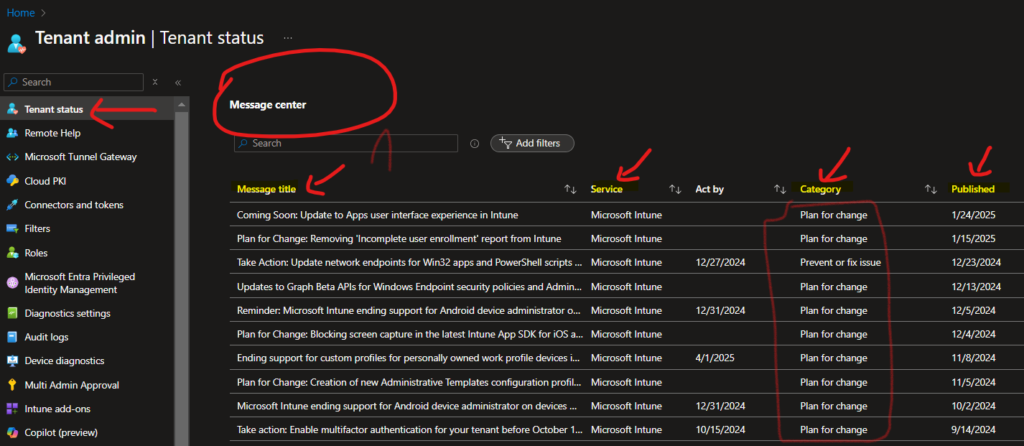
Starting Point: Tenant Admin > Tenant Status
Your first stop inside the Intune portal should be Tenant Admin > Tenant Status. This dashboard is the operational heartbeat of your Intune environment. Navigate there via the Microsoft Intune admin center and bookmark it permanently — it should be part of your daily ops routine.
Service Health
The Service Health tab shows real-time and historical incidents for Intune and dependent services. When you see an active advisory, click into it immediately. Microsoft's incident descriptions often include affected regions, affected functionality (e.g., "Device enrollment via Autopilot may experience delays"), and a timeline. Don't just note that something is broken — read the impact scope. Sometimes only a subset of tenants or a specific connector (NDES, JAMF, etc.) is affected, which helps you triage faster.
One underused feature here is Past Incidents. Reviewing the last 30–90 days of incidents tells you where recurring instability lives. If you see three separate advisory events related to Android enrollment in 60 days, that's a signal to build a runbook or increase your monitoring frequency for that workload specifically.
Issues in Your Environment That Require Action
This section is environment-specific and surfaces actionable items that Microsoft has identified within your tenant. Think of it as Microsoft's way of flagging technical debt you may not know you have. Common items include:
- Connectors with expired certificates (e.g., NDES, Certificate Connector)
- Deprecated configuration profile types that need migration
- Enrollment restrictions or policies using legacy schema
- Android Enterprise binding issues
Do not ignore this section. Items here are tenant-specific, meaning Microsoft has already identified that your configuration is affected, not just a general advisory. Treat every item as a P2 ticket and assign an owner.
The Message Center: Your Change Management Feed
The Microsoft 365 Message Center (accessible via admin.microsoft.com) is where Microsoft publishes planned changes, feature rollouts, deprecations, and required actions. For Intune-focused admins, filter the Message Center to show only Intune and Microsoft Endpoint Manager posts to reduce noise.
Pay close attention to posts tagged "Action Required" — these are the ones with hard deadlines. Missing an "Action Required" post is how you end up with broken SCEP certificate deployments or non-functional compliance policies after a date-driven deprecation hits.
Configuring Email Notifications from the Message Center
- Navigate to admin.microsoft.com and open the Message Center.
- Click Preferences in the top-right of the Message Center.
- Under the Email tab, enter your email address (or a shared mailbox — recommended for team visibility).
- Select the services you want notifications for. For Intune admins: Microsoft Intune, Microsoft Endpoint Manager, Azure Active Directory, and Conditional Access are the minimum set.
- Save preferences and allow up to 8 hours for the first digest to arrive.
Production tip: Route these to a shared mailbox (e.g., intune-alerts@yourdomain.com) and add your entire endpoint management team. Individual email subscriptions create a single point of failure — if the subscribed admin is on leave, nobody gets the alert.
Automating Update Monitoring with Microsoft Graph API and PowerShell
Manual portal checks don't scale. If you manage multiple tenants or want to build a proper change management pipeline, automate Message Center retrieval using the Microsoft Graph API. The serviceAnnouncement resource exposes both service health and Message Center data programmatically.
Prerequisites
- An Azure AD App Registration with
ServiceHealth.Read.AllandServiceMessage.Read.Allapplication permissions (not delegated — this runs unattended) - Admin consent granted for those permissions
- PowerShell 7+ with the
Microsoft.Graphmodule or direct REST calls viaInvoke-RestMethod
Script: Pull Active Intune Service Incidents
# Authenticate to Microsoft Graph
$tenantId     = "your-tenant-id"
$clientId     = "your-app-client-id"
$clientSecret = "your-client-secret"

$tokenBody = @{
    grant_type    = "client_credentials"
    scope         = "https://graph.microsoft.com/.default"
    client_id     = $clientId
    client_secret = $clientSecret
}

$tokenResponse = Invoke-RestMethod -Method Post `
    -Uri "https://login.microsoftonline.com/$tenantId/oauth2/v2.0/token" `
    -Body $tokenBody

$headers = @{ Authorization = "Bearer $($tokenResponse.access_token)" }

# Get active service health issues for Intune
$healthUri = "https://graph.microsoft.com/v1.0/admin/serviceAnnouncement/issues" +
             "?`$filter=service eq 'Microsoft Intune' and isResolved eq false"

$issues = Invoke-RestMethod -Method Get -Uri $healthUri -Headers $headers

if ($issues.value.Count -eq 0) {
    Write-Host "No active Intune service incidents." -ForegroundColor Green
} else {
    foreach ($issue in $issues.value) {
        Write-Host "[INCIDENT] $($issue.title)" -ForegroundColor Red
        Write-Host "  Status  : $($issue.status)"
        Write-Host "  Start   : $($issue.startDateTime)"
        Write-Host "  Impact  : $($issue.impactDescription)"
        Write-Host ""
    }
}
Script: Pull Unread Message Center Posts Tagged for Intune
# Reuse $headers from above
$msgUri = "https://graph.microsoft.com/v1.0/admin/serviceAnnouncement/messages" +
          "?`$filter=services/any(s: s eq 'Microsoft Intune')" +
          "&`$orderby=lastModifiedDateTime desc&`$top=20"

$messages = Invoke-RestMethod -Method Get -Uri $msgUri -Headers $headers

foreach ($msg in $messages.value) {
    $tag = if ($msg.tags -contains "actionRequired") { "[ACTION REQUIRED]" } else { "[INFO]" }
    Write-Host "$tag $($msg.title)" -ForegroundColor $(if ($tag -eq "[ACTION REQUIRED]") { "Yellow" } else { "Cyan" })
    Write-Host "  Published : $($msg.startDateTime)"
    Write-Host "  Category  : $($msg.category)"
    Write-Host "  ID        : $($msg.id)"
    Write-Host ""
}
Schedule these scripts via an Azure Automation Runbook or a Logic App on a daily trigger. Output the results to a Teams channel using a webhook — this way your entire team sees Intune change notifications in the channel they already monitor, with zero manual effort.
What to Do When You Get an Alert: A Triage Framework
Getting the alert is only half the battle. What you do next determines whether a change becomes an outage or a non-event. Here's a practical triage framework:
- Classify the change: Is it a deprecation with a deadline, a behavior change, a new feature rollout, or an incident? Each type has a different response priority.
- Assess blast radius: How many devices, users, or policies are affected? Use Intune's device filters and compliance reports to scope the impact before acting.
- Test in a pilot ring first: Never apply remediations or config changes in response to an advisory directly to production. Use a test group or a dedicated Autopilot staging tenant if available.
- Document your response: Log the Message Center ID, the action you took, and the date. This is invaluable during audits and post-incident reviews.
- Communicate to stakeholders: If the change has end-user impact (e.g., a new compliance requirement that could block email), notify users in advance through your standard comms channel.
Additional Monitoring Resources You Should Be Using
What's New in Intune (Official Docs)
Microsoft maintains a monthly "What's New" page for Intune at learn.microsoft.com/mem/intune/fundamentals/whats-new. Bookmark this and review it at the start of each month. It's more detailed than Message Center posts and often includes migration guidance for deprecated features alongside new capability announcements.
Microsoft Tech Community Blog
The Intune engineering team posts deep-dive announcements on the Microsoft Tech Community blog. These posts often appear before the change hits the Message Center and include context that the formal advisory omits — why the change is being made, what the long-term direction is, and known edge cases. Subscribe to the Intune category RSS feed.
Graph API Changelog
If you use Graph API for automation or reporting, monitor the Graph API changelog. API versions are retired on a rolling basis, and calling a deprecated beta endpoint without a fallback will break your scripts silently — there's no in-portal warning for this. Integrate a version check into your automation scripts.
Common Pitfalls and Production Gotchas
- Ignoring "Plan for Change" posts: These have soft timelines that later become hard deadlines. Treat them as active work items from day one.
- Single-admin email subscriptions: As noted above, always use a shared mailbox for Message Center digests.
- Not filtering Message Center by service: Without filters, the noise-to-signal ratio is terrible. Filter aggressively to Intune-relevant services.
- Reacting to incidents without scoping first: Not every incident affects your tenant or your specific workload. Scope before you escalate internally.
- Missing the Graph API version retirement window: Beta API endpoints can be retired with 90 days notice. If your automation relies on beta endpoints, audit them quarterly.
Building a Sustainable Intune Change Management Process
Ad hoc monitoring doesn't scale. As your Intune environment matures, formalize your change management process. At minimum, establish a weekly 15-minute "Intune change review" meeting where someone presents new Message Center items, active incidents, and upcoming deprecations. Assign owners to each action item and track them in your ticketing system.
Pair this with a monthly review of the What's New docs and a quarterly audit of your automation scripts against the Graph API changelog. This cadence — daily automated alerts, weekly human review, monthly doc review, quarterly audit — covers every time horizon where Intune changes can affect your environment.
Proactive monitoring isn't glamorous, but it's the single highest-leverage habit an Intune admin can build. The admins who never get blindsided aren't lucky — they just built better systems for staying informed. Start with the Message Center email subscription today, add the PowerShell scripts to your automation pipeline this week, and formalize the change review meeting this month. Future you will be grateful.
