Architectural Premise & The Real-World Challenge
Retiring devices from a modern enterprise tenant is deceptively asymmetric. A single physical machine — a laptop pulled from a recycling pallet or a decommissioned device handed back after a hardware refresh — leaves behind up to four independent identity objects scattered across Microsoft's cloud surface: an Intune managed device record, a Microsoft Entra ID device object, an active Windows Autopilot device identity, and potentially a lingering imported Autopilot identity from an earlier CSV-based registration. None of those four records has an automatic cascading delete relationship with any of the others.
The practical consequence is that most organizations operating at scale accumulate significant amounts of orphaned objects. Intune's device compliance reports inflate. Entra ID license assignment logic can misfire against stale objects. Autopilot's hardware hash registry retains entries for machines that physically no longer exist in the organization, which creates provisioning ambiguity the next time that serial number surfaces — for example, after a corporate device is donated, wiped by the recipient, and accidentally re-enrolled against the original tenant.
Microsoft's built-in Intune portal lets you delete managed devices individually or in small batches through the UI. There is no native bulk deregistration flow that simultaneously targets all four object types in a single transactional operation. Graph API calls are atomic per resource per request, not per device. That architectural reality forces you to build the orchestration layer yourself.
The engine documented here solves exactly that problem: a CSV-driven, Graph-authenticated PowerShell automation that discovers and deletes all four object types per serial number, enforces a default dry-run mode with full audit CSV output, and handles the lookup join between Intune's AzureADDeviceId property and Entra's DeviceId — a join that Microsoft's own documentation consistently underspecifies.
Under the Hood: Execution Engine & Mechanics
The Four-Layer Identity Model
Understanding what you are actually deleting requires mapping the object graph. When a Windows device enrolls through Autopilot and completes Intune MDM enrollment, four distinct records are written across Microsoft's cloud services:
| Layer | Object Type | Graph Resource | Primary Key | Auto-Deleted on Wipe? |
|---|---|---|---|---|
| 1 | Intune Managed Device | deviceManagement/managedDevices |
Managed Device ID (GUID) | ✗ |
| 2 | Entra ID Device Object | devices |
Object ID (GUID) | ✗ |
| 3 | Autopilot Device Identity | deviceManagement/windowsAutopilotDeviceIdentities |
Autopilot Identity ID (GUID) | ✗ |
| 4 | Imported Autopilot Identity | deviceManagement/importedWindowsAutopilotDeviceIdentities |
Import Record ID (GUID) | ✗ |
None of these four layers holds a hard foreign-key reference to the others in a way that Graph exposes for cascading operations. The join between Layer 1 and Layer 2 is the azureADDeviceId property on the Intune managed device record, which maps to the deviceId property on the Entra device object — not to Entra's id (the Object ID used for deletion). The engine must therefore perform an explicit two-step resolution: read azureADDeviceId from Intune, look it up against the Entra inventory keyed by deviceId, then extract the Entra object's id for the actual Remove-MgDevice call.
Authentication Architecture: App-Only with Client Credentials
The engine authenticates using a service principal (app registration) with a client secret, establishing an app-only Graph context via Connect-MgGraph -ClientSecretCredential. This is the correct pattern for unattended pipeline execution — it eliminates interactive MFA prompts and avoids delegated permission scope limitations that would prevent reading the full device inventory across large tenants.
The following Microsoft Graph application permissions are required on the app registration. All must be granted admin consent:
| Permission Scope | Type | Justification |
|---|---|---|
DeviceManagementManagedDevices.ReadWrite.All |
Application | Read and delete Intune managed device records |
DeviceManagementServiceConfig.ReadWrite.All |
Application | Read and delete Autopilot device identities (active and imported) |
Directory.ReadWrite.All |
Application | Read and delete Entra ID device objects |
Directory.ReadWrite.All is a high-privilege scope. It grants write access to the full directory, not just device objects. In a production hardened tenant, consider scoping the app registration with Conditional Access for workload identities and restricting it to dedicated automation infrastructure. Rotate the client secret on a schedule aligned with your organization's secret lifecycle policy.Execution Flow: From CSV to Graph Deletion
The engine follows a strict seven-phase execution pipeline:
- CSV ingestion and normalization — serial numbers are trimmed, uppercased, and deduplicated in memory.
- Module bootstrap — four Microsoft.Graph sub-modules are conditionally installed and imported.
- Graph authentication — app-only context established and validated via
Get-MgContextwithAuthTypeassertion. - Full tenant inventory sweep — all four object types are loaded into memory using
-Allpagination. - Lookup table construction — four in-memory hashtables keyed by normalized serial number, plus two Entra cross-reference tables keyed by
DeviceIdandDisplayName. - Per-serial processing loop — each target serial resolves its four object collections, then either reports (dry-run) or deletes (execute mode).
- Audit CSV export and summary — every device and every operation is written to a timestamped report regardless of mode.
The Entra ID Lookup Join — Why It's Harder Than It Looks
The Entra ID lookup deserves specific attention because it is the most failure-prone join in the pipeline. The engine implements two resolution strategies in order of reliability:
Primary strategy: For each Intune managed device found for a given serial, the engine reads device.AzureADDeviceId and queries the $EntraByDeviceId hashtable keyed on that value (normalized to uppercase). This works correctly in any hybrid or cloud-native join scenario where the Intune record was created through a full MDM enrollment.
Fallback strategy: In environments where some Entra device objects were registered without completing full Intune MDM enrollment — or where the Intune record was already manually deleted before this script runs — the AzureADDeviceId on the Intune side is absent. The engine falls back to querying $EntraByDisplayName keyed on the serial number itself. This handles the specific edge case where the Entra device's DisplayName property equals the hardware serial number, which is common for devices that were registered through Autopilot pre-provisioning flows but never completed full enrollment.
After both resolution passes, a deduplication step groups the collected Entra objects by their Id property to prevent double-deletion attempts when both strategies resolve to the same object.
Enterprise Edge Cases & Scale Gotchas
Inventory Load at Scale: Token Windows and Memory Pressure
The engine's inventory phase calls four -All paginated Graph queries sequentially. For a tenant with 30,000 managed devices, each Get-MgDeviceManagementManagedDevice -All call will paginate through multiple Graph response pages (default page size: 100 objects for device endpoints). The complete sweep across all four endpoints can take several minutes and hold the entire device corpus in memory simultaneously.
| Tenant Size | Est. Inventory Load Time | Approx. Memory (4 endpoints) | Token Expiry Risk |
|---|---|---|---|
| < 5,000 devices | 30–90 seconds | < 500 MB | ✓ None |
| 5,000–20,000 devices | 2–6 minutes | 500 MB – 2 GB | ✗ Low risk |
| 20,000–50,000 devices | 6–15 minutes | 2–5 GB | ✗ Moderate — token refresh required |
| 50,000+ devices | 15+ minutes | 5+ GB | ✗ High — consider chunked execution |
Hybrid Entra Join vs. Cloud-Native: Behavioral Differences
| Scenario | Intune Record Present | Entra Object Resolvable via AzureADDeviceId | Autopilot Identity Present | Engine Behavior |
|---|---|---|---|---|
| Cloud-native AADJ + Autopilot | ✓ | ✓ | ✓ | Full 4-layer cleanup |
| Hybrid AADJ (HAADJ) + Autopilot | ✓ | ✓ (synced via AAD Connect) | ✓ | Entra delete removes cloud object only; on-prem AD object must be cleaned separately |
| Autopilot registered, never enrolled | ✗ | ✗ (primary); DisplayName fallback attempted | ✓ | Autopilot identity deleted; Entra resolved via DisplayName fallback if record exists |
| Retired device, Intune record manually deleted prior | ✗ | ✗ (primary); DisplayName fallback attempted | Varies | Partial cleanup; Entra and Autopilot layers cleaned if resolvable |
| CSV import only, never enrolled | ✗ | ✗ | ✗ active | Imported Autopilot identity deleted only |
Imported Autopilot Identities: The Often-Forgotten Fourth Layer
Imported Autopilot identities (importedWindowsAutopilotDeviceIdentities) are created when hardware hashes are uploaded via CSV through the Intune portal or through the OEM direct-import API. Once the device completes its first Autopilot registration, the imported identity record is typically superseded by an active windowsAutopilotDeviceIdentity — but the imported record is not automatically deleted. Both records persist simultaneously.
This is why the engine maintains two separate Autopilot lookup tables and two separate deletion sequences. Omitting the imported identity cleanup is the single most common cause of Autopilot re-enrollment failures after a supposed full decommission: the device's hardware hash still exists in the tenant as an imported record and pulls it back into the Autopilot deployment profile assignment on next OOBE.
Production Implementation & Automation
Input CSV Format
The engine accepts a CSV with a mandatory SerialNumber column and an optional Reason column. The reason field is carried through to the audit report for change-management traceability. Any rows with null or whitespace serial numbers are silently skipped during normalization. Duplicate serial entries in the CSV are deduplicated — only the first occurrence is retained.
SerialNumber,Reason
ABC1234,Device retired
XYZ5678,Device replaced
1TNG9K3,Recycled
14PH793,Donation-Recycle
2XZK373,Donation-Recycle
FT4L373,Donation-Recycle
App Registration Setup
Step 1 — Create the App Registration
Navigate to Microsoft Entra admin center > App registrations > New registration. Name it something operationally clear, for example svc-autopilot-cleanup. Set the supported account type to Accounts in this organizational directory only. No redirect URI is required for app-only flows.
Step 2 — Add API Permissions
Under API permissions, add the following Microsoft Graph Application permissions and grant admin consent for each:
DeviceManagementManagedDevices.ReadWrite.All, DeviceManagementServiceConfig.ReadWrite.All, Directory.ReadWrite.All.
Step 3 — Generate a Client Secret
Under Certificates & secrets > Client secrets, create a new secret with a validity period aligned to your secret rotation policy. Copy the secret value immediately — it is only displayed once. Record the Application (client) ID and Directory (tenant) ID from the app's Overview blade.
Complete Production Script
-Execute switch is intentionally absent from the default invocation. Always perform at least one dry-run pass and validate the audit CSV before committing deletions. The dry-run report gives you a complete impact assessment at zero risk. Only add -Execute after reviewing and approving the dry-run output.#
# .SYNOPSIS
# Enterprise-grade reusable Intune, Entra ID, and Windows Autopilot
# cleanup engine.
#
# .DESCRIPTION
# Reads device serial numbers from a CSV file and discovers matching:
# - Intune managed devices
# - Microsoft Entra ID device objects
# - Windows Autopilot device identities
# - Imported Windows Autopilot device identities
#
# The default mode is dry-run. Use -Execute to perform deletions.
#
# .CSV FORMAT
# SerialNumber,Reason
# ABC1234,Device retired
# XYZ5678,Device replaced
#
# Required Graph Application Permissions:
# DeviceManagementManagedDevices.ReadWrite.All
# DeviceManagementServiceConfig.ReadWrite.All
# Directory.ReadWrite.All
#
# .NOTES
# Version: 4.0
#
[CmdletBinding(SupportsShouldProcess = $true, ConfirmImpact = 'High')]
param(
[Parameter(Mandatory = $true)]
[ValidateScript({
if (-not (Test-Path -LiteralPath $_ -PathType Leaf)) {
throw "Input CSV file not found: $_"
}
$true
})]
[string]$InputCsv,
[Parameter(Mandatory = $true)]
[ValidateNotNullOrEmpty()]
[string]$TenantId,
[Parameter(Mandatory = $true)]
[ValidateNotNullOrEmpty()]
[string]$AppId,
[Parameter(Mandatory = $true)]
[ValidateNotNullOrEmpty()]
[string]$AppSecret,
[Parameter(Mandatory = $false)]
[switch]$Execute,
[Parameter(Mandatory = $false)]
[ValidateNotNullOrEmpty()]
[string]$CsvReportPath = ".\\Autopilot_Cleanup_Report_$(Get-Date -Format 'yyyyMMdd_HHmmss').csv"
)
Set-StrictMode -Version Latest
$ErrorActionPreference = 'Stop'
#region Helper functions
function Write-Section {
param(
[Parameter(Mandatory)]
[string]$Title
)
Write-Host ''
Write-Host ('=' * 70) -ForegroundColor Cyan
Write-Host " $Title" -ForegroundColor Cyan
Write-Host ('=' * 70) -ForegroundColor Cyan
}
function Get-NormalizedSerial {
param(
[AllowNull()]
[AllowEmptyString()]
[string]$SerialNumber
)
if ([string]::IsNullOrWhiteSpace($SerialNumber)) {
return $null
}
return $SerialNumber.Trim().ToUpperInvariant()
}
function Add-ToLookup {
param(
[Parameter(Mandatory)]
[hashtable]$Lookup,
[Parameter(Mandatory)]
[string]$Key,
[Parameter(Mandatory)]
[object]$Value
)
if (-not $Lookup.ContainsKey($Key)) {
$Lookup[$Key] = [System.Collections.Generic.List[object]]::new()
}
$Lookup[$Key].Add($Value)
}
function Invoke-GraphDeletion {
param(
[Parameter(Mandatory)]
[string]$ResourceName,
[Parameter(Mandatory)]
[string]$ResourceId,
[Parameter(Mandatory)]
[scriptblock]$DeletionCommand
)
try {
if ($PSCmdlet.ShouldProcess(
"$ResourceName [$ResourceId]",
'Delete Microsoft Graph object'
)) {
& $DeletionCommand
Write-Host " DELETED: $ResourceName [$ResourceId]" `
-ForegroundColor Green
return [PSCustomObject]@{
Success = $true
Status = 'DELETED'
Error = $null
}
}
return [PSCustomObject]@{
Success = $true
Status = 'SKIPPED BY SHOULDPROCESS'
Error = $null
}
}
catch {
$errorMessage = $_.Exception.Message
Write-Host " FAILED: $ResourceName [$ResourceId]" `
-ForegroundColor Red
Write-Host " $errorMessage" `
-ForegroundColor Red
return [PSCustomObject]@{
Success = $false
Status = 'FAILED'
Error = $errorMessage
}
}
}
#endregion Helper functions
#region 1. Import and normalize input data
Write-Section -Title 'INTUNE, ENTRA ID, AND AUTOPILOT BULK CLEANUP'
Write-Host "Input file : $InputCsv"
Write-Host "Mode : $(if ($Execute) { 'ACTIVE DELETION' } else { 'DRY RUN' })" `
-ForegroundColor $(if ($Execute) { 'Red' } else { 'Yellow' })
$RawData = @(Import-Csv -LiteralPath $InputCsv)
if ($RawData.Count -eq 0) {
throw 'The input CSV is empty.'
}
$CsvColumns = @($RawData[0].PSObject.Properties.Name)
if ('SerialNumber' -notin $CsvColumns) {
throw "The CSV must contain a column named 'SerialNumber'."
}
$Targets = @(
$RawData |
ForEach-Object {
$normalizedSerial = Get-NormalizedSerial `
-SerialNumber $_.SerialNumber
if ($normalizedSerial) {
[PSCustomObject]@{
Serial = $normalizedSerial
Reason = if (
$_.PSObject.Properties.Name -contains 'Reason' -and
-not [string]::IsNullOrWhiteSpace($_.Reason)
) {
$_.Reason.Trim()
}
else {
'Not specified'
}
}
}
} |
Group-Object -Property Serial |
ForEach-Object {
$_.Group[0]
}
)
if ($Targets.Count -eq 0) {
throw 'No valid serial numbers were found in the input CSV.'
}
Write-Host "Devices : $($Targets.Count) unique serial number(s)" `
-ForegroundColor Green
#endregion 1. Import and normalize input data
#region 2. Install and import required Graph modules
Write-Section -Title 'MICROSOFT GRAPH MODULES'
$RequiredModules = @(
'Microsoft.Graph.Authentication'
'Microsoft.Graph.DeviceManagement'
'Microsoft.Graph.DeviceManagement.Enrollment'
'Microsoft.Graph.Identity.DirectoryManagement'
)
foreach ($moduleName in $RequiredModules) {
if (-not (Get-Module -ListAvailable -Name $moduleName)) {
Write-Host "Installing module: $moduleName" `
-ForegroundColor Yellow
Install-Module `
-Name $moduleName `
-Scope CurrentUser `
-Repository PSGallery `
-Force `
-AllowClobber `
-ErrorAction Stop
}
Import-Module `
-Name $moduleName `
-Force `
-ErrorAction Stop
}
#endregion 2. Install and import required Graph modules
#region 3. Authenticate to Microsoft Graph
Write-Section -Title 'MICROSOFT GRAPH AUTHENTICATION'
$SecureSecret = ConvertTo-SecureString `
-String $AppSecret `
-AsPlainText `
-Force
$ClientSecretCredential = [System.Management.Automation.PSCredential]::new(
$AppId,
$SecureSecret
)
Disconnect-MgGraph -ErrorAction SilentlyContinue | Out-Null
Write-Host 'Connecting to Microsoft Graph...' -NoNewline
Connect-MgGraph `
-TenantId $TenantId `
-ClientSecretCredential $ClientSecretCredential `
-ContextScope Process `
-NoWelcome `
-ErrorAction Stop
$GraphContext = Get-MgContext
if (-not $GraphContext) {
throw 'Microsoft Graph authentication failed. No Graph context is available.'
}
if ($GraphContext.AuthType -ne 'AppOnly') {
throw "Unexpected Graph authentication type: $($GraphContext.AuthType)"
}
Write-Host ' OK' -ForegroundColor Green
Write-Host "Tenant : $($GraphContext.TenantId)"
Write-Host "Client ID : $($GraphContext.ClientId)"
Write-Host "Auth type : $($GraphContext.AuthType)"
#endregion 3. Authenticate to Microsoft Graph
#region 4. Load tenant inventories
Write-Section -Title 'LOADING TENANT INVENTORIES'
Write-Host 'Loading Intune managed devices...' -NoNewline
$AllIntune = @(
Get-MgDeviceManagementManagedDevice `
-All `
-Property 'id,deviceName,serialNumber,azureADDeviceId' `
-ErrorAction Stop
)
Write-Host " $($AllIntune.Count)" -ForegroundColor Green
Write-Host 'Loading Entra ID devices...' -NoNewline
$AllEntra = @(
Get-MgDevice `
-All `
-Property 'id,deviceId,displayName' `
-ErrorAction Stop
)
Write-Host " $($AllEntra.Count)" -ForegroundColor Green
Write-Host 'Loading Windows Autopilot identities...' -NoNewline
$AllAutopilot = @(
Get-MgDeviceManagementWindowsAutopilotDeviceIdentity `
-All `
-ErrorAction Stop
)
Write-Host " $($AllAutopilot.Count)" -ForegroundColor Green
Write-Host 'Loading imported Autopilot identities...' -NoNewline
$AllImportedAutopilot = @(
Get-MgDeviceManagementImportedWindowsAutopilotDeviceIdentity `
-All `
-ErrorAction Stop
)
Write-Host " $($AllImportedAutopilot.Count)" -ForegroundColor Green
#endregion 4. Load tenant inventories
#region 5. Build lookup tables
Write-Section -Title 'BUILDING LOOKUP TABLES'
$IntuneBySerial = @{}
$AutopilotBySerial = @{}
$ImportedApBySerial = @{}
$EntraByDeviceId = @{}
$EntraByDisplayName = @{}
foreach ($device in $AllIntune) {
$serial = Get-NormalizedSerial -SerialNumber $device.SerialNumber
if ($serial) {
Add-ToLookup `
-Lookup $IntuneBySerial `
-Key $serial `
-Value $device
}
}
foreach ($device in $AllAutopilot) {
$serial = Get-NormalizedSerial -SerialNumber $device.SerialNumber
if ($serial) {
Add-ToLookup `
-Lookup $AutopilotBySerial `
-Key $serial `
-Value $device
}
}
foreach ($device in $AllImportedAutopilot) {
$serial = Get-NormalizedSerial -SerialNumber $device.SerialNumber
if ($serial) {
Add-ToLookup `
-Lookup $ImportedApBySerial `
-Key $serial `
-Value $device
}
}
foreach ($device in $AllEntra) {
if (-not [string]::IsNullOrWhiteSpace($device.DeviceId)) {
$deviceIdKey = $device.DeviceId.Trim().ToUpperInvariant()
Add-ToLookup `
-Lookup $EntraByDeviceId `
-Key $deviceIdKey `
-Value $device
}
if (-not [string]::IsNullOrWhiteSpace($device.DisplayName)) {
$displayNameKey = $device.DisplayName.Trim().ToUpperInvariant()
Add-ToLookup `
-Lookup $EntraByDisplayName `
-Key $displayNameKey `
-Value $device
}
}
Write-Host 'Lookup tables created successfully.' -ForegroundColor Green
#endregion 5. Build lookup tables
#region 6. Process devices
Write-Section -Title 'PROCESSING DEVICES'
$ReportResults = [System.Collections.Generic.List[object]]::new()
$Stats = [ordered]@{
Total = $Targets.Count
Complete = 0
Partial = 0
NotFound = 0
DryRun = 0
}
foreach ($target in $Targets) {
$serial = $target.Serial
$reason = $target.Reason
Write-Host ''
Write-Host ('-' * 70)
Write-Host "Processing serial: $serial" -ForegroundColor Cyan
Write-Host "Reason : $reason"
Write-Host ('-' * 70)
$IntuneDevices = @()
$EntraDevices = @()
$AutopilotDevices = @()
$ImportedApDevices = @()
if ($IntuneBySerial.ContainsKey($serial)) {
$IntuneDevices = @($IntuneBySerial[$serial])
}
if ($AutopilotBySerial.ContainsKey($serial)) {
$AutopilotDevices = @($AutopilotBySerial[$serial])
}
if ($ImportedApBySerial.ContainsKey($serial)) {
$ImportedApDevices = @($ImportedApBySerial[$serial])
}
# Match Entra devices using Azure AD device IDs from Intune.
foreach ($intuneDevice in $IntuneDevices) {
if (-not [string]::IsNullOrWhiteSpace(
$intuneDevice.AzureADDeviceId
)) {
$entraDeviceIdKey = $intuneDevice.AzureADDeviceId.Trim().ToUpperInvariant()
if ($EntraByDeviceId.ContainsKey($entraDeviceIdKey)) {
$EntraDevices += @(
$EntraByDeviceId[$entraDeviceIdKey]
)
}
}
}
# Fallback for environments where the Entra display name equals the serial.
if ($EntraByDisplayName.ContainsKey($serial)) {
$EntraDevices += @($EntraByDisplayName[$serial])
}
# Remove duplicate Entra objects.
$EntraDevices = @(
$EntraDevices |
Where-Object { $_ -and $_.Id } |
Group-Object -Property Id |
ForEach-Object {
$_.Group[0]
}
)
Write-Host " Intune managed devices : $($IntuneDevices.Count)"
Write-Host " Entra ID devices : $($EntraDevices.Count)"
Write-Host " Autopilot identities : $($AutopilotDevices.Count)"
Write-Host " Imported AP identities : $($ImportedApDevices.Count)"
$FoundAny = (
$IntuneDevices.Count -gt 0 -or
$EntraDevices.Count -gt 0 -or
$AutopilotDevices.Count -gt 0 -or
$ImportedApDevices.Count -gt 0
)
$IntuneStatus = if ($IntuneDevices.Count) { 'FOUND' } else { 'NOT FOUND' }
$EntraStatus = if ($EntraDevices.Count) { 'FOUND' } else { 'NOT FOUND' }
$AutopilotStatus = if ($AutopilotDevices.Count) { 'FOUND' } else { 'NOT FOUND' }
$ImportedApStatus = if ($ImportedApDevices.Count) { 'FOUND' } else { 'NOT FOUND' }
$IntuneErrors = [System.Collections.Generic.List[string]]::new()
$EntraErrors = [System.Collections.Generic.List[string]]::new()
$AutopilotErrors = [System.Collections.Generic.List[string]]::new()
$ImportedApErrors = [System.Collections.Generic.List[string]]::new()
if (-not $FoundAny) {
$Stats.NotFound++
Write-Host 'No matching object was found in the tenant.' `
-ForegroundColor Gray
}
elseif (-not $Execute) {
if ($IntuneDevices.Count) {
$IntuneStatus = "WOULD DELETE ($($IntuneDevices.Count))"
}
if ($EntraDevices.Count) {
$EntraStatus = "WOULD DELETE ($($EntraDevices.Count))"
}
if ($AutopilotDevices.Count) {
$AutopilotStatus = "WOULD DELETE ($($AutopilotDevices.Count))"
}
if ($ImportedApDevices.Count) {
$ImportedApStatus = "WOULD DELETE ($($ImportedApDevices.Count))"
}
$Stats.DryRun++
Write-Host 'Dry-run only. No object was deleted.' `
-ForegroundColor Yellow
}
else {
$SuccessfulOperations = 0
$FailedOperations = 0
# Delete Intune managed device objects first.
foreach ($device in $IntuneDevices) {
$result = Invoke-GraphDeletion `
-ResourceName 'Intune managed device' `
-ResourceId $device.Id `
-DeletionCommand {
Remove-MgDeviceManagementManagedDevice `
-ManagedDeviceId $device.Id `
-Confirm:$false `
-ErrorAction Stop
}
if ($result.Success) {
$SuccessfulOperations++
}
else {
$FailedOperations++
$IntuneErrors.Add($result.Error)
}
}
if ($IntuneDevices.Count) {
if ($IntuneErrors.Count -eq 0) {
$IntuneStatus = "DELETED ($($IntuneDevices.Count))"
}
elseif ($IntuneErrors.Count -lt $IntuneDevices.Count) {
$IntuneStatus = 'PARTIAL'
}
else {
$IntuneStatus = 'FAILED'
}
}
# Delete Entra ID device objects.
foreach ($device in $EntraDevices) {
$result = Invoke-GraphDeletion `
-ResourceName 'Entra ID device' `
-ResourceId $device.Id `
-DeletionCommand {
Remove-MgDevice `
-DeviceId $device.Id `
-Confirm:$false `
-ErrorAction Stop
}
if ($result.Success) {
$SuccessfulOperations++
}
else {
$FailedOperations++
$EntraErrors.Add($result.Error)
}
}
if ($EntraDevices.Count) {
if ($EntraErrors.Count -eq 0) {
$EntraStatus = "DELETED ($($EntraDevices.Count))"
}
elseif ($EntraErrors.Count -lt $EntraDevices.Count) {
$EntraStatus = 'PARTIAL'
}
else {
$EntraStatus = 'FAILED'
}
}
# Delete active Windows Autopilot identities.
foreach ($device in $AutopilotDevices) {
$result = Invoke-GraphDeletion `
-ResourceName 'Windows Autopilot identity' `
-ResourceId $device.Id `
-DeletionCommand {
Remove-MgDeviceManagementWindowsAutopilotDeviceIdentity `
-WindowsAutopilotDeviceIdentityId $device.Id `
-Confirm:$false `
-ErrorAction Stop
}
if ($result.Success) {
$SuccessfulOperations++
}
else {
$FailedOperations++
$AutopilotErrors.Add($result.Error)
}
}
if ($AutopilotDevices.Count) {
if ($AutopilotErrors.Count -eq 0) {
$AutopilotStatus = "DELETED ($($AutopilotDevices.Count))"
}
elseif ($AutopilotErrors.Count -lt $AutopilotDevices.Count) {
$AutopilotStatus = 'PARTIAL'
}
else {
$AutopilotStatus = 'FAILED'
}
}
# Delete imported Windows Autopilot identities.
foreach ($device in $ImportedApDevices) {
$result = Invoke-GraphDeletion `
-ResourceName 'Imported Autopilot identity' `
-ResourceId $device.Id `
-DeletionCommand {
Remove-MgDeviceManagementImportedWindowsAutopilotDeviceIdentity `
-ImportedWindowsAutopilotDeviceIdentityId $device.Id `
-Confirm:$false `
-ErrorAction Stop
}
if ($result.Success) {
$SuccessfulOperations++
}
else {
$FailedOperations++
$ImportedApErrors.Add($result.Error)
}
}
if ($ImportedApDevices.Count) {
if ($ImportedApErrors.Count -eq 0) {
$ImportedApStatus = "DELETED ($($ImportedApDevices.Count))"
}
elseif ($ImportedApErrors.Count -lt $ImportedApDevices.Count) {
$ImportedApStatus = 'PARTIAL'
}
else {
$ImportedApStatus = 'FAILED'
}
}
if ($FailedOperations -eq 0) {
$Stats.Complete++
}
else {
$Stats.Partial++
}
}
$AllErrors = @(
$IntuneErrors
$EntraErrors
$AutopilotErrors
$ImportedApErrors
) | Where-Object { -not [string]::IsNullOrWhiteSpace($_) }
$ReportResults.Add(
[PSCustomObject]@{
SerialNumber = $serial
Reason = $reason
IntuneObjectCount = $IntuneDevices.Count
IntuneStatus = $IntuneStatus
EntraObjectCount = $EntraDevices.Count
EntraStatus = $EntraStatus
AutopilotObjectCount = $AutopilotDevices.Count
AutopilotStatus = $AutopilotStatus
ImportedApObjectCount = $ImportedApDevices.Count
ImportedApStatus = $ImportedApStatus
Errors = $AllErrors -join ' | '
ExecutionMode = if ($Execute) { 'ACTIVE' } else { 'DRY RUN' }
Timestamp = Get-Date -Format 'yyyy-MM-dd HH:mm:ss'
}
)
}
#endregion 6. Process devices
#region 7. Export report
Write-Section -Title 'CLEANUP RUN SUMMARY'
$ReportDirectory = Split-Path `
-Path $CsvReportPath `
-Parent
if (
-not [string]::IsNullOrWhiteSpace($ReportDirectory) -and
-not (Test-Path -LiteralPath $ReportDirectory)
) {
New-Item `
-Path $ReportDirectory `
-ItemType Directory `
-Force |
Out-Null
}
$ReportResults |
Export-Csv `
-LiteralPath $CsvReportPath `
-NoTypeInformation `
-Encoding UTF8
Write-Host "Total devices analyzed : $($Stats.Total)"
Write-Host "Successfully completed : $($Stats.Complete)" `
-ForegroundColor Green
Write-Host "Partial or failed : $($Stats.Partial)" `
-ForegroundColor $(if ($Stats.Partial -gt 0) { 'Yellow' } else { 'Green' })
Write-Host "Not found in tenant : $($Stats.NotFound)" `
-ForegroundColor Gray
Write-Host "Dry-run matches : $($Stats.DryRun)" `
-ForegroundColor Yellow
Write-Host "Audit report : $CsvReportPath" `
-ForegroundColor Cyan
if (-not $Execute) {
Write-Host ''
Write-Host '[DRY RUN] No changes were applied.' `
-ForegroundColor Yellow
Write-Host 'To perform the deletions, run the script with -Execute.' `
-ForegroundColor Yellow
}
Disconnect-MgGraph -ErrorAction SilentlyContinue | Out-Null
#endregion 7. Export reportExecuting a Dry Run
Always begin with a dry run. The command below targets a CSV of decommissioned devices against the Contoso tenant, producing a timestamped audit report without committing any Graph deletions:
.\Invoke-AutopilotCleanup.ps1 `
    -InputCsv       "C:\Cleanup\devices_to_retire.csv" `
    -TenantId       "xxxxxxxx-xxxx-xxxx-xxxx-xxxxxxxxxxxx" `
    -AppId          "yyyyyyyy-yyyy-yyyy-yyyy-yyyyyyyyyyyy" `
    -AppSecret      "YourClientSecretValueHere"
# -Execute is intentionally omitted — dry-run is the default mode
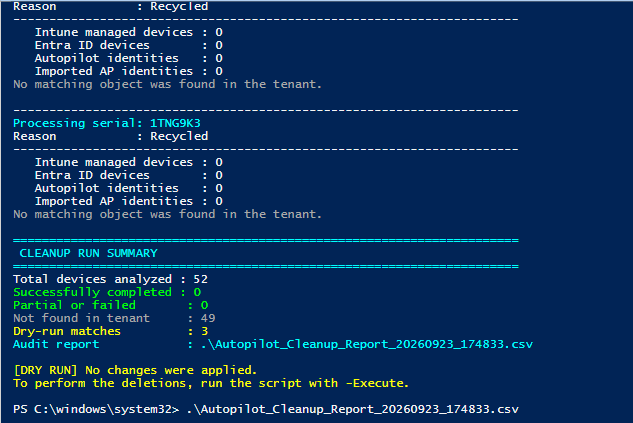
As shown in Figure 1 below, the dry-run console output gives an unambiguous per-device breakdown across all four identity layers, followed by a summary line that confirms zero deletions were committed. Of 52 devices analyzed in this example run, 49 returned no records whatsoever across the tenant, and 3 matched at least one layer — flagged as dry-run candidates. Serial 1TNG9K3, tagged as Recycled, resolved zero objects in Intune, Entra ID, Autopilot, and the imported Autopilot registry — a clean state confirmation that the device was already fully removed from this tenant prior to this script run.
Reading the Audit CSV: What Each Column Tells You
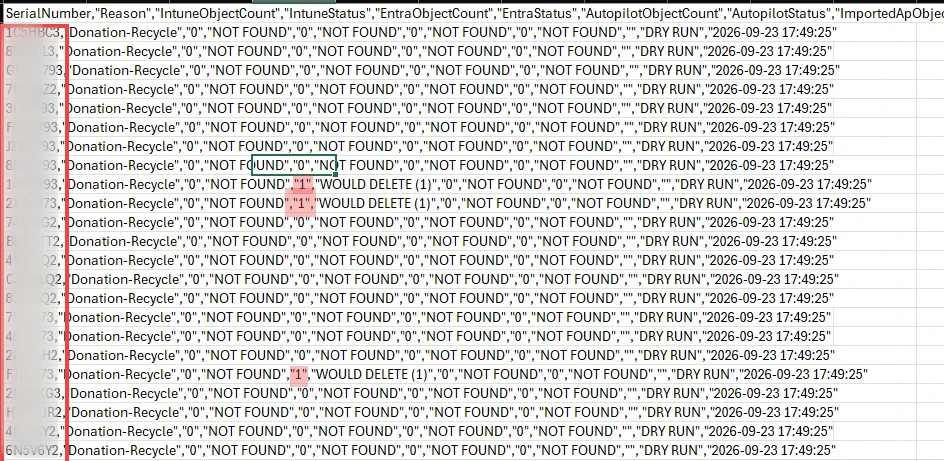
The audit CSV produced by every run — regardless of mode — is the primary change-management artifact. As shown in Figure 2 below, the dry-run CSV output for the Donation-Recycle batch clearly segregates the three devices (14PH793, 2XZK373, FT4L373) that carry an active Entra object from the majority that returned NOT FOUND across all layers. The EntraStatus column for those three entries reads WOULD DELETE (1) — a precise impact statement that an approver can act on before live execution is authorized. All Intune and Autopilot columns for the same serials read NOT FOUND, confirming these are orphaned Entra objects with no corresponding managed device or Autopilot registration.
| CSV Column | Dry-Run Value | Execute Value | Meaning |
|---|---|---|---|
IntuneStatus |
WOULD DELETE (N) / NOT FOUND | DELETED (N) / FAILED / PARTIAL | Outcome for Intune managed device records |
EntraStatus |
WOULD DELETE (N) / NOT FOUND | DELETED (N) / FAILED / PARTIAL | Outcome for Entra ID device objects |
AutopilotStatus |
WOULD DELETE (N) / NOT FOUND | DELETED (N) / FAILED / PARTIAL | Outcome for active Autopilot identities |
ImportedApStatus |
WOULD DELETE (N) / NOT FOUND | DELETED (N) / FAILED / PARTIAL | Outcome for imported Autopilot identity records |
ExecutionMode |
DRY RUN | ACTIVE | Confirms whether deletions were committed |
Errors |
(empty) | Exception message(s) pipe-delimited | Graph API error text for failed delete operations |
Timestamp |
yyyy-MM-dd HH:mm:ss | yyyy-MM-dd HH:mm:ss | UTC wall-clock time of per-device processing |
Executing Live Deletions After Dry-Run Approval
Once the dry-run CSV has been reviewed and signed off through your change management process, re-invoke the script with the -Execute switch. The -WhatIf behavior built into [CmdletBinding(SupportsShouldProcess)] is bypassed inside Invoke-GraphDeletion only when $Execute is present, ensuring the ShouldProcess guard remains active for any interactive invocation that does not pass -Execute explicitly.
.\Invoke-AutopilotCleanup.ps1 `
    -InputCsv       "C:\Cleanup\devices_to_retire.csv" `
    -TenantId       "xxxxxxxx-xxxx-xxxx-xxxx-xxxxxxxxxxxx" `
    -AppId          "yyyyyyyy-yyyy-yyyy-yyyy-yyyyyyyyyyyy" `
    -AppSecret      "YourClientSecretValueHere" `
    -CsvReportPath  "C:\Cleanup\Reports\Autopilot_Cleanup_PROD_$(Get-Date -Format 'yyyyMMdd_HHmmss').csv" `
-Execute-Execute. Maintain the audit CSV as your post-change evidence artifact.Architectural Takeaways & Decision Matrix
When to Use This Engine vs. Alternative Approaches
The bulk cleanup engine documented here is purpose-built for a specific operational window: mass device lifecycle exit events — hardware refreshes, office closures, donation programs, and end-of-lease returns — where you have a reliable serial number list from an asset management source and need to scrub all four cloud identity layers in a single auditable pass. It is not the right tool for every decommissioning scenario.
| Scenario | Recommended Approach | This Script | Intune Portal Manual | Graph Direct API |
|---|---|---|---|---|
| 1–5 devices, ad hoc retirement | Intune Portal UI | ✗ Overkill | ✓ | ✗ |
| 6–50 devices, single batch | This script (dry-run + execute) | ✓ | ✗ Error-prone | ✗ |
| 50–10,000 devices, hardware refresh | This script in batched CSV runs | ✓ | ✗ Not viable | ✗ No orchestration |
| Continuous stale device cleanup (automated) | Proactive Remediations + Graph webhook | ✗ Not event-driven | ✗ | ✓ |
| HAADJ environment with on-prem AD sync | This script + AD computer account disable/delete | ✓ Cloud layers only | ✗ | ✗ |
| Autopilot deregistration only (no Intune/Entra) | OEM partner center API or this script targeting AP layers only | ✓ Partial scope | ✗ | ✗ |
Deletion Sequencing Rationale
The script deletes in a deliberate sequence: Intune first, Entra second, active Autopilot third, imported Autopilot last. This ordering is intentional. Deleting the Intune managed device record first removes the MDM enrollment anchor, which prevents any policy or compliance re-evaluation against the device during the cleanup window. Deleting Entra second eliminates the device's authentication identity before the Autopilot records are removed, avoiding the edge case where a device that is still powered on and network-connected could attempt a re-enrollment using a cached Autopilot profile before its Autopilot identity has been purged.
Audit Trail Integration
The timestamped CSV output produced by every script execution — whether dry-run or live — is designed to be consumed directly by ITSM platforms, SharePoint-based change logs, or SIEM ingestion pipelines. Each row carries a Timestamp field, an ExecutionMode field, and a pipe-delimited Errors field that captures the raw Graph exception message text for any failed deletion. This means the audit trail differentiates between objects that were targeted but not found (genuine absence), objects that were targeted and successfully deleted, and objects that were targeted but failed at the Graph API layer with an actionable error message — three meaningfully different operational states that a flat deletion log would collapse into noise.
-CsvReportPath that includes the ITSM ticket number in the filename (e.g., -CsvReportPath "C:\Reports\CHG0123456_cleanup.csv"). This creates a one-to-one linkage between the change record and the execution artifact without any additional post-processing logic.Key Graph API Nodes Reference
| Operation | Graph Endpoint | PowerShell Cmdlet | HTTP Method |
|---|---|---|---|
| List all Intune managed devices | /deviceManagement/managedDevices |
Get-MgDeviceManagementManagedDevice |
GET |
| Delete Intune managed device | /deviceManagement/managedDevices/{id} |
Remove-MgDeviceManagementManagedDevice |
DELETE |
| List all Entra ID devices | /devices |
Get-MgDevice |
GET |
| Delete Entra ID device | /devices/{id} |
Remove-MgDevice |
DELETE |
| List Autopilot device identities | /deviceManagement/windowsAutopilotDeviceIdentities |
Get-MgDeviceManagementWindowsAutopilotDeviceIdentity |
GET |
| Delete Autopilot device identity | /deviceManagement/windowsAutopilotDeviceIdentities/{id} |
Remove-MgDeviceManagementWindowsAutopilotDeviceIdentity |
DELETE |
| List imported Autopilot identities | /deviceManagement/importedWindowsAutopilotDeviceIdentities |
Get-MgDeviceManagementImportedWindowsAutopilotDeviceIdentity |
GET |
| Delete imported Autopilot identity | /deviceManagement/importedWindowsAutopilotDeviceIdentities/{id} |
Remove-MgDeviceManagementImportedWindowsAutopilotDeviceIdentity |
DELETE |
Error Triage: The Five Most Common Graph Failures
When live deletions fail, the error text is captured verbatim in the Errors column of the audit CSV and echoed to the console in red. The following table covers the five failure patterns encountered most frequently in production cleanup runs and their resolution paths:
| Graph Error | Affected Layer | Root Cause | Resolution |
|---|---|---|---|
Forbidden (403) |
Any | Missing or unconsented Graph application permission on the app registration | Verify all three application permissions are granted admin consent in Entra ID app registration. Re-run after consent propagation (allow up to 5 minutes). |
Request_ResourceNotFound (404) |
Any | Object was deleted between the inventory sweep and the deletion call — race condition in concurrent cleanup runs or manual portal deletion during execution | Safe to ignore. The object is already absent. Review if running multiple cleanup scripts simultaneously against the same tenant. |
TooManyRequests (429) |
Any at scale | Graph throttling threshold exceeded — typically triggered when processing hundreds of sequential deletions without back-off | Add Start-Sleep -Seconds 2 between deletion iterations, or implement exponential back-off inside Invoke-GraphDeletion using the Retry-After response header value. |
Authorization_RequestDenied |
Entra ID | Attempting to delete an Entra device object that is managed by an external authority (e.g., a synced HAADJ object where AAD Connect holds write-back ownership) | Disable the on-premises AD computer account first and allow AAD Connect to sync the disabled state, then re-run the cleanup script. |
InternalServerError (500) |
Autopilot | Transient Graph service fault — typically resolves without intervention | Re-run the script against only the failed serials (extract from audit CSV where AutopilotStatus = FAILED) after a 15-minute wait. |
FAILED or PARTIAL:Import-Csv .\Autopilot_Cleanup_Report_20260923_174833.csv | Where-Object { $_.IntuneStatus -match 'FAILED|PARTIAL' -or $_.EntraStatus -match 'FAILED|PARTIAL' -or $_.AutopilotStatus -match 'FAILED|PARTIAL' -or $_.ImportedApStatus -match 'FAILED|PARTIAL' } | Select-Object SerialNumber, Reason | Export-Csv .
etry_batch.csv -NoTypeInformationFeed
retry_batch.csv back into the script as -InputCsv for a targeted retry pass.Complementary Tooling: Where This Script Fits in the Broader Lifecycle
The cleanup engine solves the exit phase of the device lifecycle. It does not replace — and should be explicitly paired with — the following complementary controls for a complete lifecycle governance posture at Contoso:
| Lifecycle Phase | Recommended Control | Relationship to This Script |
|---|---|---|
| Device provisioning | Windows Autopilot deployment profiles + ESP | Creates the four-layer identity objects this script cleans up |
| Ongoing compliance | Intune compliance policies + Conditional Access device filters | Stale objects cleaned by this script would otherwise skew compliance reporting |
| Stale device detection | Intune device inactivity reports or Graph query on lastSyncDateTime |
Generates the serial number candidate list that feeds this script's input CSV |
| Autopilot re-registration | OEM direct import or manual CSV upload post-cleanup | This script must complete successfully before a serial can be re-registered to a different tenant or deployment profile |
| On-premises AD cleanup (HAADJ) | AD computer account disable + AAD Connect delta sync | Must precede or accompany Entra deletion for HAADJ devices to prevent object recreation at next sync |
Hardening the Engine for Pipeline Execution
When operationalizing this script inside a CI/CD pipeline — Azure DevOps, GitHub Actions, or an Azure Automation runbook — three additional hardening measures are strongly recommended beyond what the base script provides:
Step 1 — Store the client secret in a vault, never in pipeline variables
Pass -AppSecret from Azure Key Vault using the pipeline's managed identity or a Key Vault-linked variable group. Never store the raw secret value in a pipeline variable marked as plain text. In Azure Automation, use the Automation credential asset or the Key Vault integration to inject the secret at runtime.
Step 2 — Gate the -Execute switch behind a manual approval step
In Azure DevOps, separate the dry-run stage from the execute stage using an environment with a required approver. The dry-run stage publishes the audit CSV as a pipeline artifact. The approver reviews the artifact and approves the execute stage gate only after confirming scope. This enforces the dry-run review as a non-bypassable control rather than a recommended practice.
Step 3 — Capture the exit code and fail the pipeline on partial outcomes
The script currently exits with the default PowerShell exit code. For pipeline integration, append an explicit exit code based on $Stats.Partial and $Stats.NotFound proportions so that the pipeline stage is marked as failed or warned rather than succeeded when partial deletions occur. This prevents a partially-failed cleanup run from being silently absorbed by a green pipeline status.
# Append this block after the report export section for pipeline-aware exit handling

$PartialRate = if ($Stats.Total -gt 0) {
    [math]::Round(($Stats.Partial / $Stats.Total) * 100, 1)
} else { 0 }

if ($Stats.Partial -gt 0) {
    Write-Warning "Partial failure rate: $PartialRate% — review audit CSV before closing change record."
    exit 1
}

if ($Execute -and $Stats.Complete -eq 0 -and $Stats.NotFound -lt $Stats.Total) {
    Write-Error "Zero successful completions with non-zero targets. Investigate immediately."
    exit 2
}

exit 0
With the exit code block in place, any Azure DevOps pipeline step running this script will surface a non-zero exit as a failed task, triggering the configured failure notifications and preventing downstream pipeline stages from proceeding under the assumption that cleanup completed cleanly.
/deviceManagement/managedDevices?$filter=lastSyncDateTime le {date}&$select=serialNumber,deviceName,lastSyncDateTime with a staleness threshold of your choice (90 days is a common enterprise baseline), pipe the results through Select-Object @{N='SerialNumber';E={$_.serialNumber}}, @{N='Reason';E={'Stale - no sync >90 days'}}, and export to CSV. This creates a fully automated stale-device-to-cleanup pipeline without any manual ITSM export step in the chain.Final Architecture Summary
The core design principle running through every section of this engine is that safety and auditability are not optional add-ons — they are structural properties enforced at the code level. The dry-run default prevents accidental mass deletion by requiring an explicit opt-in flag. The ShouldProcess decorator ensures PowerShell's standard -WhatIf and -Confirm contract is honored. The in-memory inventory approach eliminates per-device Graph round-trips during the processing loop, keeping deletion throughput high while minimizing the risk of throttling. The dual Entra lookup strategy — primary via AzureADDeviceId join, fallback via DisplayName — covers the full spectrum of enrollment states without requiring any pre-filtering of the input CSV by the operator.
What you get at the end of a production run is not just a cleaner tenant. You get a timestamped, per-device, per-layer evidence record that can be attached to a change ticket, ingested by a SIEM, or used to reconstruct exactly what was deleted, when, and why — which is precisely what enterprise change management and audit requirements demand from any tooling that touches identity infrastructure at scale.