
What You'll Configure
This walkthrough will guide you through enabling the new ‘Copilot in M365 apps with Anthropic models’ setting in your Microsoft 365 environment. This feature allows users to utilize advanced AI capabilities directly within Word, Excel, and PowerPoint, increasing productivity and enhancing user experience. By setting this up, you will enable a more flexible and capable Copilot experience for your users, tailored to leverage Anthropic's advanced language models.
Prerequisites: To proceed, ensure that you have the following:
- Microsoft 365 E3 or E5 licenses for all users
- Global Admin or Compliance Admin role in Microsoft 365
- Access to the Microsoft 365 Admin Center
Step-by-Step Configuration
Step 1: Sign in to Admin Center
Navigate to the Microsoft 365 Admin Center.
- Go to admin.microsoft.com
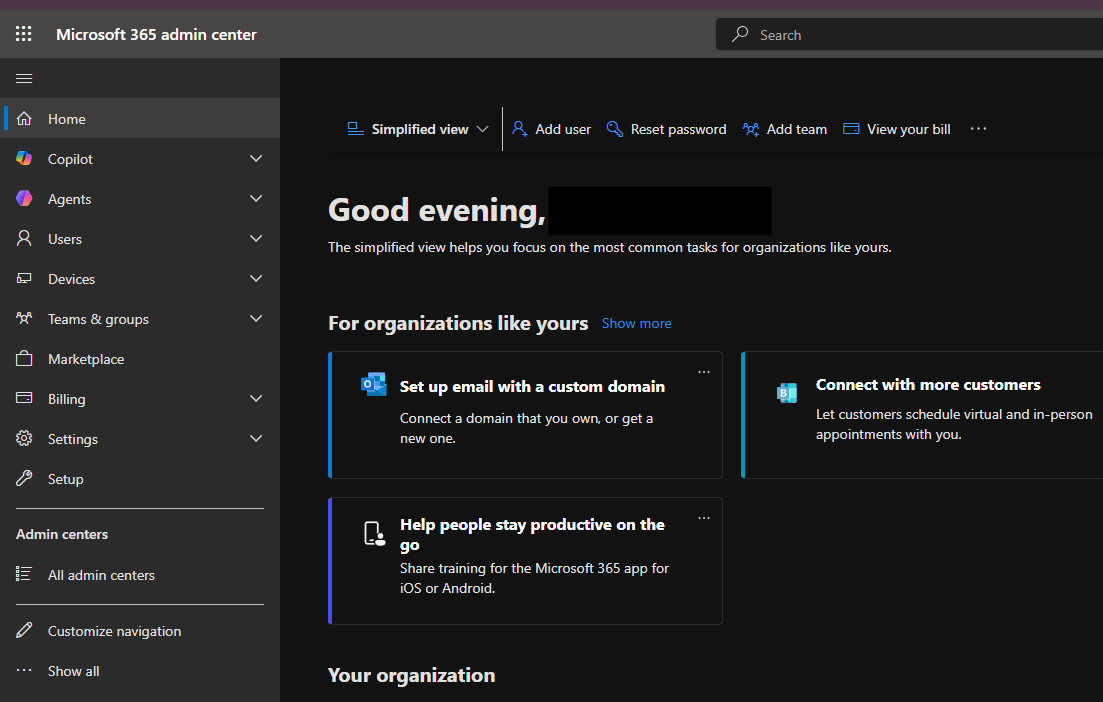
Step 2: Access the Settings
Locate the settings for the Copilot configurations.
- Click on Settings in the left menu.
- Then select Org settings.
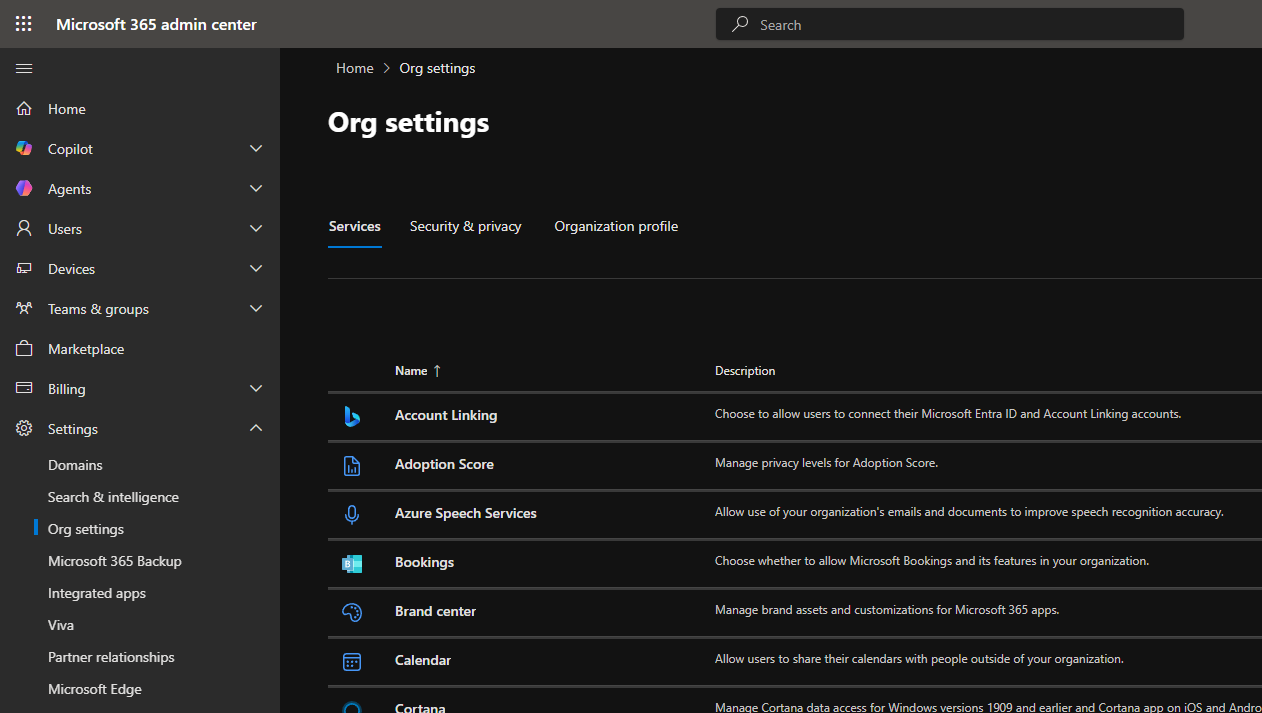
Step 3: Enable Anthropic Models
Find the Copilot settings to enable Anthropic integration.
- Scroll down to Microsoft 365 Copilot.
- Select Copilot in M365 apps with Anthropic models.
- Toggle the setting to On.
Step 4: Save Changes
After enabling the setting, ensure you save your changes.
- Click on Save at the bottom right of the page.
Step 5: Inform Your Users
Notify your users of the new capabilities.
- Send an email or use your preferred communication tool to inform users about the new Anthropic features available in Copilot.
Verification
To confirm that the Anthropic models are enabled, perform the following checks:
- Open any of the M365 apps (Word, Excel, or PowerPoint).
- Check for the Copilot icon in the toolbar, and test its functionality.
For programmatic verification, use these PowerShell commands:
Get-MgOrganization | Select-Object CopilotSettings
You should see the properties including Anthropic models set to true.
Common Issues
Here are some common challenges and solutions when enabling Anthropic models:
- Copilot Icon Missing: Ensure that users have the appropriate license. Double-check that the setting was saved correctly.
- Slow Performance: It may be due to network issues. Verify your connection and, if necessary, check the Microsoft Service Health dashboard for any ongoing incidents.
- Error Messages: If users encounter errors, remind them to clear their cache and cookies in the browser or desktop application to resolve conflicts.
- Functionality Limits: Not all users may have access based on their license. Confirm that each user has the required Microsoft 365 E3 or E5 licenses.
- Feature Inconsistencies: If features do not align with expectations, ensure all users are updated to the latest version of Office apps.
For further configuration details and related information, consult the following documentation:
