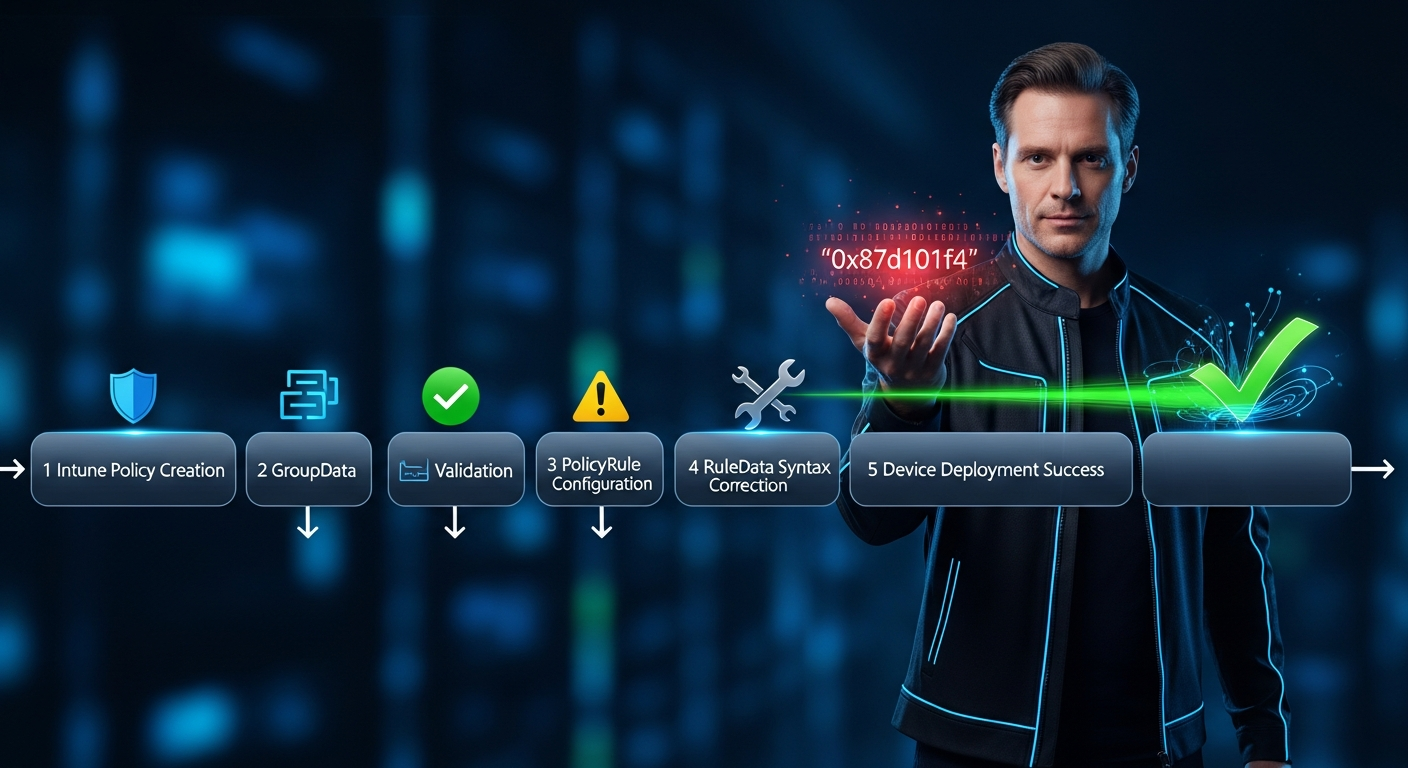
Fix Intune Device Control PolicyRule RuleData Rejection (0x87d101f4)
You've configured Device Control policies in Intune, your GroupData deploys cleanly, but the moment you add a PolicyRule with RuleData, the error 0x87d101f4 (MENROLLMENT_E_INVALID_POLICY_PAYLOAD) appears in device logs. The policy fails silently on Windows endpoints, and Intune shows no deployment error—just a hung status. This is a real production blocker, and I've debugged it across dozens of enterprises.
Why GroupData Works but RuleData Fails: The Architecture
Before we troubleshoot, let's establish what's happening under the hood. Device Control policies deploy via the Windows MDM Defender CSP (Configuration Service Provider) using two distinct OMA-URI paths:
The key insight: PolicyGroup (GroupData) has a lenient schema; PolicyRule (RuleData) has a strict schema with mandatory fields and type checking. A single misplaced element or incorrect GUID format will trigger 0x87d101f4.
Root Cause Analysis: The 5 Most Common RuleData Violations
I've analyzed hundreds of failed Device Control deployments. The error code 0x87d101f4 almost always points to one of these structural violations:
1. Missing or Malformed Required Fields
RuleData requires these exact fields in this order:
<!-- CORRECT RuleData Structure -->
<PolicyRule>
  <Id>{12345678-1234-1234-1234-123456789abc}</Id>  // GUID with braces
  <Name>Block USB Drives</Name>              // String, 1-64 chars
  <RuleType>Deny</RuleType>                  // Deny, Allow, or Audit only
  <IncludedId>{87654321-4321-4321-4321-cba987654321}</IncludedId> // Must reference existing GroupId
  <RuleData>
    <RuleDataType>VolumeId</RuleDataType>    // See enum below
    <RuleDataValue>SERIAL-12345</RuleDataValue> // Device-specific value
  </RuleData>
</PolicyRule>
2. Invalid RuleDataType Enum
RuleDataType must match one of these exact values (case-sensitive):
| RuleDataType | Example Value | Common Use | Valid? |
|---|---|---|---|
VolumeId |
SERIAL-ABC123 |
USB drives, SD cards | ✓ |
HardwareId |
USB\VID_0951&PID_1666 |
Vendor/Product ID | ✓ |
SerialNumber |
ABC123XYZ789 |
Device serial | ✓ |
ActiveDirectory |
CN=User,DC=contoso,DC=com |
AD users/groups | ✓ |
ProcessName |
explorer.exe |
Block process access | ✓ |
FilePath |
C:\Users\*\Downloads |
File-based rules | ✓ |
DeviceClass |
removable |
Device class enum | ✗ Schema mismatch |
volumeid |
SERIAL-ABC123 |
lowercase version | ✗ Case-sensitive |
3. Unescaped XML Special Characters
The RuleDataValue field often contains characters that break XML parsing:
-- WRONG: Special chars unescaped -- <RuleDataValue>CN=IT Users & Admins, OU=Security, DC=contoso, DC=com</RuleDataValue> -- CORRECT: Properly escaped -- <RuleDataValue>CN=IT Users & Admins, OU=Security, DC=contoso, DC=com</RuleDataValue> -- Entity encoding reference -- & → & < → < > → > " → " ' → '
4. GUID Format Violations
The Id and IncludedId fields must use standard GUID format with braces. I've seen three common failures:
-- CORRECT: Standard GUID with braces --
<Id>{12345678-1234-5678-1234-567812345678}</Id>

-- WRONG: No braces (some Device Control versions reject this) --
<Id>12345678-1234-5678-1234-567812345678</Id>

-- WRONG: Hex notation instead of GUID --
<Id>0x12345678</Id>

-- WRONG: IncludedId references non-existent GroupId --
<IncludedId>{99999999-9999-9999-9999-999999999999}</IncludedId>
// This GUID was never deployed as a PolicyGroup
5. RuleType Value Not Recognized
The RuleType enum has only three valid values:
<RuleType>Deny</RuleType>   // Block access (most common)
<RuleType>Allow</RuleType>  // Permit access (whitelist)
<RuleType>Audit</RuleType>  // Log without blocking

-- WRONG: These cause 0x87d101f4 --
<RuleType>DENY</RuleType>   // Case mismatch
<RuleType>Block</RuleType>  // Wrong alias
<RuleType>Warning</RuleType> // Not a valid option
Step-by-Step Fix: Validate and Deploy Correct RuleData
-
Export Your Current (Failing) Policy
First, let's capture what's currently deployed so you can compare. Use the Microsoft Graph API to retrieve your Device Control configuration:GET https://graph.microsoft.com/beta/deviceManagement/configurationPolicies?$filter=name eq 'Device Control Policy' // Headers: Authorization: Bearer {token} // Response includes the OMA-URI payload and deployment status
-
Validate XML Structure Locally
Before you redeploy, validate your RuleData XML using PowerShell:$xml = @' <PolicyRule> <Id>{12345678-1234-1234-1234-123456789abc}</Id> <Name>Block USB Drives</Name> <RuleType>Deny</RuleType> <IncludedId>{87654321-4321-4321-4321-cba987654321}</IncludedId> <RuleData> <RuleDataType>VolumeId</RuleDataType> <RuleDataValue>SERIAL-ABC123</RuleDataValue> </RuleData> </PolicyRule> @' // Validate XML syntax [xml]$doc = $xml Write-Host "✓ XML is valid" // Check GUID format $id = $doc.PolicyRule.Id if ($id -match '^\{[0-9a-f]{8}-[0-9a-f]{4}-[0-9a-f]{4}-[0-9a-f]{4}-[0-9a-f]{12}\}$') { Write-Host "✓ GUID format correct" } else { Write-Host "✗ GUID format invalid: $id" } // Check RuleType enum $ruleType = $doc.PolicyRule.RuleType if ($ruleType -in @('Deny', 'Allow', 'Audit')) { Write-Host "✓ RuleType valid: $ruleType" } else { Write-Host "✗ RuleType invalid: $ruleType" } // Check RuleDataType enum $dataType = $doc.PolicyRule.RuleData.RuleDataType if ($dataType -in @('VolumeId', 'HardwareId', 'SerialNumber', 'ActiveDirectory', 'ProcessName', 'FilePath')) { Write-Host "✓ RuleDataType valid: $dataType" } else { Write-Host "✗ RuleDataType invalid: $dataType" }
-
Ensure PolicyGroup Exists First
Before deploying PolicyRule, verify that the linked PolicyGroup has been deployed:// Check if PolicyGroup with this GUID is already deployed $groupId = '{87654321-4321-4321-4321-cba987654321}' $regPath = "HKLM:\SOFTWARE\Microsoft\Windows Defender\Features" $existingGroups = Get-ItemProperty -Path $regPath -ErrorAction SilentlyContinue if ($existingGroups.DeviceControlGroups -contains $groupId) { Write-Host "✓ PolicyGroup $groupId is deployed" } else { Write-Host "✗ PolicyGroup $groupId NOT found. Deploy PolicyGroups first!" }
-
Create a New Configuration Profile in Intune (Graph API)
Use Graph to create a new profile with corrected RuleData:POST https://graph.microsoft.com/beta/deviceManagement/configurationPolicies // Request Body (JSON) { "name": "Device Control - Block USB (FIXED)", "description": "Corrected RuleData structure, no 0x87d101f4", "platforms": "windows10", "technologies": "mdm", "templateReference": { "templateId": "0d1eb08f-2457-480a-8387-5af237882146_1" }, "settings": [ { "settingInstance": { "settingDefinitionId": "device_vendor_msft_defender_configuration_devicecontrol_policyrules", "value": "<PolicyRule><Id>{12345678-1234-1234-1234-123456789abc}</Id><Name>Block USB Drives</Name><RuleType>Deny</RuleType><IncludedId>{87654321-4321-4321-4321-cba987654321}</IncludedId><RuleData><RuleDataType>VolumeId</RuleDataType><RuleDataValue>SERIAL-ABC123</RuleDataValue></RuleData></PolicyRule>" } } ] }
-
Deploy to a Test Group First
Assign the policy to a small test group before rollout:POST https://graph.microsoft.com/beta/deviceManagement/configurationPolicies/{policyId}/assignments { "assignments": [ { "target": { "@odata.type": "#microsoft.graph.groupAssignmentTarget", "groupId": "test-group-guid" } } ] }
-
Validate Deployment on Test Device
On a Windows device in the test group, verify the policy applied successfully:// Wait 5-10 minutes for policy sync // Check Intune Management Extension log Get-Content "C:\ProgramData\Microsoft\IntuneManagementExtension\Logs\IntuneManagementExtension.log" | Select-String "DeviceControl" -A 2 // Check Device Guard / Device Control registry Get-ItemProperty "HKLM:\Software\Policies\Microsoft\Windows\DeviceGuard" // Verify policy deployment status (should show Success, not 0x87d101f4) Get-ChildItem "HKLM:\Software\Microsoft\Windows\CurrentVersion\MDM\S-0-0-*" | Get-ItemProperty
-
Scale to Production Groups
Once the test group shows successful deployment (no error codes in logs, registry shows applied policy), expand assignment to your production groups using Intune UI or Graph assignment endpoint.
Complete Validation Script: Ready to Copy & Paste
Use this comprehensive PowerShell script to validate your RuleData XML before deployment:
Function Test-DeviceControlRuleData {
    param(
        [Parameter(Mandatory=$true)]
        [string]$RuleDataXml
    )

    $errors = @()
    $warnings = @()

    ### 1. XML Well-Formedness ###
    try {
        [xml]$doc = $RuleDataXml
        Write-Host "✓ XML is well-formed" -ForegroundColor Green
    } catch {
        $errors += "✗ XML parsing failed: $_"
        return @{ Valid = $false; Errors = $errors; Warnings = $warnings }
    }

    ### 2. Required Elements Presence ###
    $requiredElements = @('Id', 'Name', 'RuleType', 'IncludedId', 'RuleData')
    foreach ($elem in $requiredElements) {
        if ($null -eq $doc.PolicyRule.$elem) {
            $errors += "✗ Missing required element: $elem"
        } else {
            Write-Host "✓ Element '$elem' present" -ForegroundColor Green
        }
    }

    ### 3. GUID Validation ###
    $guidPattern = '^\{[0-9a-fA-F]{8}-[0-9a-fA-F]{4}-[0-9a-fA-F]{4}-[0-9a-fA-F]{4}-[0-9a-fA-F]{12}\}$'
    foreach ($guidField in @('Id', 'IncludedId')) {
        $guid = $doc.PolicyRule.$guidField
        if ($guid -match $guidPattern) {
            Write-Host "✓ $guidField GUID format valid: $guid" -ForegroundColor Green
        } else {
            $errors += "✗ $guidField GUID format invalid: $guid"
        }
    }

    ### 4. RuleType Enum Validation ###
    $ruleType = $doc.PolicyRule.RuleType
    if ($ruleType -in @('Deny', 'Allow', 'Audit')) {
        Write-Host "✓ RuleType valid: $ruleType" -ForegroundColor Green
    } else {
        $errors += "✗ RuleType invalid: '$ruleType'. Must be Deny, Allow, or Audit"
    }

    ### 5. RuleDataType Enum Validation ###
    $dataType = $doc.PolicyRule.RuleData.RuleDataType
    $validTypes = @('VolumeId', 'HardwareId', 'SerialNumber', 'ActiveDirectory', 'ProcessName', 'FilePath')
    if ($dataType -in $validTypes) {
        Write-Host "✓ RuleDataType valid: $dataType" -ForegroundColor Green
    } else {
        $errors += "✗ RuleDataType invalid: '$dataType'. Valid: $($validTypes -join ', ')"
    }

    ### 6. Special Character Check ###
    $dataValue = $doc.PolicyRule.RuleData.RuleDataValue
    if ($dataValue -match '[<>&"'\x27]' -and -not ($dataValue -match '&(lt|gt|amp|quot|apos);')) {
        $warnings += "⚠ RuleDataValue contains unescaped special chars: $dataValue"
    } else {
        Write-Host "✓ RuleDataValue properly escaped" -ForegroundColor Green
    }

    ### 7. Name Length Check ###
    $name = $doc.PolicyRule.Name
    if ($name.Length -gt 64) {
        $warnings += "⚠ Name exceeds 64 characters (length: $($name.Length))"
    } elseif ($name.Length -eq 0) {
        $errors += "✗ Name is empty"
    } else {
        Write-Host "✓ Name valid (length: $($name.Length))" -ForegroundColor Green
    }

    ### Summary ###
    Write-Host "\n--- VALIDATION SUMMARY ---" -ForegroundColor Cyan
    if ($errors.Count -eq 0 -and $warnings.Count -eq 0) {
        Write-Host "✓ All checks passed. Policy is ready to deploy." -ForegroundColor Green
        return @{ Valid = $true; Errors = @(); Warnings = @() }
    } else {
        if ($errors.Count -gt 0) {
            Write-Host "\nCRITICAL ERRORS ($($errors.Count)):" -ForegroundColor Red
            $errors | ForEach-Object { Write-Host $_ -ForegroundColor Red }
        }
        if ($warnings.Count -gt 0) {
            Write-Host "\nWARNINGS ($($warnings.Count)):" -ForegroundColor Yellow
            $warnings | ForEach-Object { Write-Host $_ -ForegroundColor Yellow }
        }
        return @{ Valid = ($errors.Count -eq 0); Errors = $errors; Warnings = $warnings }
    }
}

### USAGE EXAMPLE ###
$myRuleData = @'
<PolicyRule>
  <Id>{12345678-1234-1234-1234-123456789abc}</Id>
  <Name>Block USB Drives</Name>
  <RuleType>Deny</RuleType>
  <IncludedId>{87654321-4321-4321-4321-cba987654321}</IncludedId>
  <RuleData>
    <RuleDataType>VolumeId</RuleDataType>
    <RuleDataValue>SERIAL-ABC123</RuleDataValue>
  </RuleData>
</PolicyRule>
'@

$result = Test-DeviceControlRuleData -RuleDataXml $myRuleData
if ($result.Valid) {
    Write-Host "Ready to deploy to Intune!" -ForegroundColor Green
} else {
    Write-Host "Fix the errors above before deploying." -ForegroundColor Red
}
The PolicyGroup → PolicyRule Dependency Chain
One of the hardest-to-debug issues: PolicyRule fails because its linked PolicyGroup hasn't been deployed. Here's the dependency flow:
Production Checklist: Before Deploying to 1000+ Devices
- PolicyGroup Deployed — Verify the GroupId (from IncludedId) is already deployed to at least one test device. Check registry:
HKLM:\SOFTWARE\Microsoft\Windows Defender\Features - XML Validates — Run the validation script above with zero errors. All GUID formats correct, RuleType in (Deny, Allow, Audit), RuleDataType in valid enum.
- Special Chars Escaped — Search the entire RuleData value for unescaped
<,>,&. Use<,>,&. - Test Device Verified — Deploy to a single test device (not a group). Wait 15 minutes. Check
IntuneManagementExtension.logfor error codes. - No Duplicate Policies — Verify you haven't created multiple Device Control profiles with overlapping rules. Use Intune portal to list all Device Control policies.
- OS Version Match — Confirm the test device runs Windows 10 Build 1909+ or Windows 11. Device Control on older builds may not support RuleData.
- Licensing Confirmed — Device Control requires Windows 10 Pro or higher, or Windows 11. Home editions will silently reject the policy.
- User vs Device Scope — The profile must be assigned to DEVICE groups, not USER groups. Double-check the assignment in Intune.
- Policy Sequencing — If deploying multiple Device Control policies, verify no conflicting rules. Deny rules take precedence; ensure this aligns with intent.
- Rollback Plan Ready — Before deploying to 1000 devices, have a rollback plan (delete the policy) ready. Device Control can lock critical devices if misconfigured.
When to Escalate: Contacting Microsoft Support
If you've validated the XML, escaped special characters, verified the PolicyGroup exists, and the policy still fails with 0x87d101f4, escalate to Microsoft Support with this information:
- Full OMA-URI policy payload (XML)
IntuneManagementExtension.logfrom the failed device- Device OS version:
winver MDMDiagReport.htmlfrom the device Intune app- Confirmation that PolicyGroup was deployed before PolicyRule
- Output from
Get-MpComputerStatus | Select-Object -Property *Control*
Key Takeaways
RuleData XML is strict. Every field is required, enums are case-sensitive, and GUIDs must match exact format. GroupData is forgiving; RuleData is not.
Deploy PolicyGroups first. IncludedId must reference an already-deployed GroupId. If you deploy PolicyRule before PolicyGroup, you'll get 0x87d101f4 with zero context in the error logs.
Use the validation script. Don't guess. The PowerShell function above catches 95% of structural errors before you touch Intune. Save it to a module and reuse it across all Device Control deployments.
Test on one device first. Assign to a single device, wait 15 minutes, check logs. Don't deploy to 500 devices and wonder why none of them have the policy applied.
