
Microsoft 365 Frontier: Complete Technical Implementation
Frontier is not Microsoft 365 Insider. It's not a device channel. It's a tenant-level opt-in preview mechanism that gates access to emerging AI capabilities and Copilot agents before General Availability—and if you get the configuration wrong, your users won't see anything but silence. This guide covers the exact steps, the failure modes that trap teams, and the automation to deploy Frontier at scale.
The Frontier Architecture: What You're Actually Enabling
Frontier operates as a tenant-wide feature gate with three optional access models. Understanding the flow is critical because misconfiguration at any layer silently fails—the feature just doesn't appear, no error message.
This pipeline is why Frontier feels mysterious. You flip the switch, users don't see the feature 3 hours later, and there's no error. The feature is gated at five different checkpoints, and only one of them generates a user-facing error.
Prerequisites: The Licensing Trap
Frontier requires Microsoft 365 Copilot licenses. This is not optional, not negotiable, and it applies to admin accounts viewing the settings as well as to end users.
| Role / Account Type | License Required? | Timeout | Notes |
|---|---|---|---|
| Global Admin (config) | ✓ Yes | 24h | Must have Copilot license to view/modify Frontier settings |
| M365 Apps Admin (config) | ✓ Yes | 24h | Can configure agents and Frontier without Global Admin role |
| Security Admin (agents) | ✓ Yes | 24h | Required to manage agent deployment + permissions |
| End user (consumption) | ✓ Yes | 24h | Agents will not appear in Copilot app without license |
| User in Frontier group (no license) | ✗ No | N/A | Silent failure: feature remains invisible |
Five-Step Configuration Workflow
-
Assign Copilot licenses to admin + pilot users
Navigate Admin Center → Billing → Licenses → Microsoft 365 Copilot. Assign licenses to your administrative account and to your pilot user group. Wait 24 hours for propagation. Verify:
// PowerShell: verify license assignment Get-MgUser -Filter "userPrincipalName eq 'admin@tenant.onmicrosoft.com'" -Property assignedLicenses | \ Select-Object -ExpandProperty assignedLicenses | \ Where-Object { $_.skuId -match "copilot" } -
Enable Frontier access in Admin Center
Go to https://admin.cloud.microsoft/#/copilot/settings/ViewAll/:/CopilotSettings/Frontier
→ Settings → Copilot → Settings →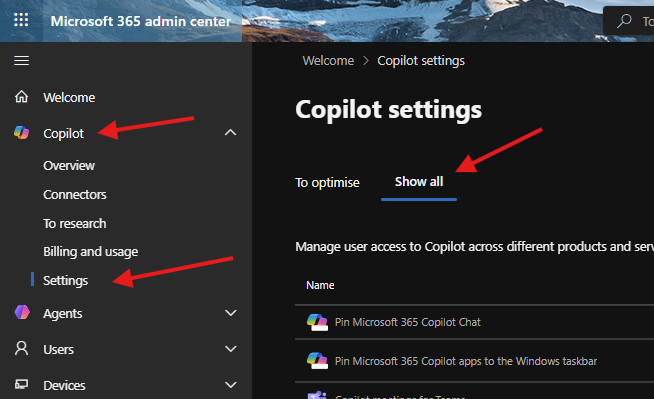
Show All Tab then scroll down and select Copilot Frontier: Then Select your access model:
- No access (default): Feature disabled.
- All users: Every licensed user in tenant gets Frontier access.
- Specific users: Only users in specified Entra ID security groups.
Save. Wait 3 hours for tenant-level setting propagation.
-
Authorize agent types (must-do step)
Go to Settings → Agents → Allowed agent types. Check the box: "Allow Microsoft-created apps and agents." This is separate from Frontier enablement. If this box is unchecked, Frontier agents remain blocked regardless of the Frontier toggle.
-
Approve external LLM providers (if needed)
If using Copilot Colleague or other agents that require Anthropic: Settings → AI provider settings → find Anthropic → click Approve. Document this in your compliance log. Approval is immediate; no propagation delay.
-
Deploy agents to users
Go to Agents → All agents. Select your target Frontier agent (e.g., Colleague). Click the Users tab. Add your Entra ID security group (not individuals; use groups for scale). Click Install. Optionally click Pin to surface in the Copilot app home.
PowerShell Automation: Bulk License Assignment + Group Creation
#!/usr/bin/env pwsh
# Frontier Pilot Enablement Script
# Assigns Copilot licenses and creates the Frontier security group
# Prerequisites: Install-Module Microsoft.Graph -Force
# Run as: Global Admin or M365 Apps Admin

Connect-MgGraph -Scopes "User.ReadWrite.All", "Group.Create", "Directory.ReadWrite.All"

### Step 1: Define your Copilot SKU
### Use Get-MgSubscribedSku to find exact SKU ID in your tenant
$copilotSku = Get-MgSubscribedSku -Filter "skuPartNumber eq 'MICROSOFT_365_COPILOT'" | Select-Object -First 1
if (-not $copilotSku) {
  Write-Error "Copilot license SKU not found. Verify tenant entitlement."
  exit 1
}

$skuId = $copilotSku.SkuId
Write-Host "Found Copilot SKU: $($copilotSku.SkuPartNumber) (ID: $skuId)"

### Step 2: Create Frontier pilot security group
$groupName = "Frontier-Pilots"
$existingGroup = Get-MgGroup -Filter "displayName eq '$groupName'" -ErrorAction SilentlyContinue

if ($existingGroup) {
  Write-Host "Group '$groupName' already exists (ID: $($existingGroup.Id))"
  $groupId = $existingGroup.Id
} else {
  $newGroup = New-MgGroup -DisplayName $groupName `
    -MailNickname "frontierpilots" `
    -GroupTypes @("Unified") `
    -SecurityEnabled:$true `
    -MailEnabled:$false
  $groupId = $newGroup.Id
  Write-Host "Created security group: $groupName (ID: $groupId)"
}

### Step 3: Bulk assign licenses to pilot users
### Example: replace with your actual user UPNs or CSV import
$pilotUsers = @(
  "alice@tenant.onmicrosoft.com",
  "bob@tenant.onmicrosoft.com",
  "charlie@tenant.onmicrosoft.com"
)

foreach ($upn in $pilotUsers) {
  $user = Get-MgUser -Filter "userPrincipalName eq '$upn'" -ErrorAction SilentlyContinue
  if (-not $user) {
    Write-Warning "User not found: $upn"
    continue
  }

  $assignedLicenses = @{
    addLicenses = @(
      @{
        skuId = $skuId
      }
    )
    removeLicenses = @()
  }

  Set-MgUserLicense -UserId $user.Id -AddLicenses $assignedLicenses.addLicenses -RemoveLicenses $assignedLicenses.removeLicenses
  Write-Host "Assigned Copilot license to $upn"

  ### Add user to Frontier pilot group
  New-MgGroupMember -GroupId $groupId -DirectoryObjectId $user.Id -ErrorAction SilentlyContinue
  Write-Host "Added $upn to group $groupName"
}

Write-Host ""
Write-Host "=== NEXT STEPS ==="
Write-Host "1. Wait 24 hours for license propagation."
Write-Host "2. In M365 Admin Center, go to Settings → Copilot → Frontier."
Write-Host "3. Select access model 'Specific users' and add group: $groupName."
Write-Host "4. Wait 3 hours for feature propagation."
Write-Host "5. In Agents → All agents, deploy Frontier agents to the group."
Write-Host ""
Write-Host "Group membership sync to admin center: ~15 minutes."
Write-Host "Feature visibility to users: ~3 hours."
Microsoft Graph API Reference: Verifying Frontier Status
Use the Microsoft Graph API to programmatically verify Frontier configuration state. This is useful for automated health checks and compliance audits.
### GET /admin/microsoft365apps/getTenantAdminCopilotSetting
### Retrieve current Frontier configuration

GET https://graph.microsoft.com/beta/admin/microsoft365apps/getTenantAdminCopilotSetting

// Response (example):
{
  "frontierAccessLevel": "specificUsers", // or "allUsers" or "noAccess"
  "targetedGroups": [
    {
      "id": "12345678-1234-1234-1234-123456789012",
      "displayName": "Frontier-Pilots"
    }
  ],
  "isCoilotForMicrosoft365Enabled": true,
  "isAiProvidersAllowed": true
}
To verify that a specific user has both the license and Frontier access:
### GET /users/{userId} with assignedLicenses expansion
GET https://graph.microsoft.com/v1.0/users/{userId}?$select=assignedLicenses,id,userPrincipalName

// Check response.assignedLicenses for skuId matching Copilot
// If assignedLicenses is empty or lacks Copilot SKU:
// → User will not see Frontier features (silent failure)
The Five Gotchas That Trap Everyone
Intune Integration: Cloud PCs with AI
If you're deploying Frontier to Windows 365 Cloud PCs, Intune is the management layer. Cloud PCs must be enrolled in the Windows Insider Beta channel, and AI activation happens via Intune device configuration policy.
### Intune: Deploy Windows Insider Beta ring to Cloud PCs
### This is a prerequisite for Cloud PC + AI features

// Use Windows Update for Business ring policy
// Assignment scope: Cloud PC device group
// Setting: "Update ring for Windows Insiders" = "Beta"

POST https://graph.microsoft.com/beta/deviceManagement/windowsUpdateForBusinessConfigurations

{
  "displayName": "Cloud PC Frontier Pilot - Windows Insider Beta",
  "description": "Enroll Cloud PCs in Beta channel for Frontier AI features",
  "featureUpdatesPaused": false,
  "microsoftUpdateServiceAllowed": true,
  "prereleaseFeatures": "settingsOnly",
  "businessReadyUpdatesOnly": false
}

### Then assign Intune device group containing your Cloud PCs
Monitoring & Health Verification Script
#!/usr/bin/env pwsh
# Frontier Health Check: Audit licensing, group membership, agent deployment

Connect-MgGraph -Scopes "User.Read.All", "Group.Read.All"

### 1. Verify Frontier tenant setting
Write-Host "[1] Checking Frontier tenant configuration..."
try {
  $frontierConfig = Invoke-MgGraphRequest -Method GET `
    -Uri "https://graph.microsoft.com/beta/admin/microsoft365apps/getTenantAdminCopilotSetting" `
    -ErrorAction Stop
  Write-Host "  Access level: $($frontierConfig.frontierAccessLevel)"
  Write-Host "  Target groups: $($frontierConfig.targetedGroups.displayName -join ', ')"
} catch {
  Write-Warning "  Could not retrieve Frontier config: $_"
}

### 2. Check pilot group membership
Write-Host ""
Write-Host "[2] Checking Frontier pilot group membership..."
$pilotGroup = Get-MgGroup -Filter "displayName eq 'Frontier-Pilots'" -ErrorAction SilentlyContinue
if ($pilotGroup) {
  $members = Get-MgGroupMember -GroupId $pilotGroup.Id | \
    Where-Object { $_.AdditionalProperties['@odata.type'] -eq '#microsoft.graph.user' }
  Write-Host "  Group: $($pilotGroup.displayName)"
  Write-Host "  Member count: $($members.Count)"
  Write-Host "  Members:"
  $members | ForEach-Object {
    Write-Host "    - $($_.AdditionalProperties['userPrincipalName'])"
  }
} else {
  Write-Warning "  Frontier-Pilots group not found"
}

### 3. Verify licenses on pilot users
Write-Host ""
Write-Host "[3] Checking Copilot license assignments..."
if ($pilotGroup) {
  $members | ForEach-Object {
    $userId = $_.Id
    $user = Get-MgUser -UserId $userId -Property "userPrincipalName,assignedLicenses"
    $hasCopilot = $user.assignedLicenses | \
      Where-Object { $_.skuId -match "84a8f78e" } // Copilot SKU pattern
    $licenseStatus = if ($hasCopilot) { "✓ HAS" } else { "✗ MISSING" }
    Write-Host "  $($user.userPrincipalName): $licenseStatus"
  }
}

Write-Host ""
Write-Host "=== Health Check Complete ==="
Write-Host "If any 'MISSING' licenses appear, licensing delay (24h) may not have elapsed."
Write-Host "If member count is 0, check group creation timestamp (should exist)."
Approval Timeline: When Features Actually Appear
| Configuration Step | Propagation Time | What Happens After | User-Facing Impact |
|---|---|---|---|
| Assign Copilot license | Up to 24 hours | User becomes eligible for Frontier | Silent delay; no notification |
| Enable Frontier (admin center) | Up to 3 hours | Tenant-level gate opens | Agents appear in store (if other conditions met) |
| Add user to security group | 15 minutes (Entra sync) | Group membership reflected in M365 | User's targeting in agent deployment recognized |
| Deploy agent to group | Immediate (admin action) | Agent available in store for group members | Agent appears in Copilot app home |
| Approve Anthropic model | Immediate (admin action) | External LLM access enabled tenant-wide | Colleague agent can execute Anthropic calls |
| Disable agent in Agents UI | Immediate | Agent removed from all users (overrides Frontier) | Agent disappears from store |
Security & Compliance Baseline
Frontier is a tenant-wide feature gate. Document approval in your change management system:
- Data residency: Confirm that Anthropic (if approved) respects your data residency requirements (US, EU, etc.). This is a compliance decision, not a technical one.
- Audit log: Frontier enablement and agent deployment are logged in M365 audit logs. Search for "Set-OrganizationConfig" events related to Frontier.
- Group-based access control: Use Entra ID security groups to enforce least-privilege access to Frontier agents. Do not enable "All users" without explicit business justification.
- Preview stability: Frontier features are in preview. Do not route production-critical workflows through Frontier agents without written SLA from Microsoft support.
Final Checklist: Deploy Frontier Confidently
- Global Admin or M365 Apps Admin account has Copilot license assigned
- Pilot user group (security group, not DL) created in Entra ID
- Pilot users have Copilot licenses assigned
- You've read the Microsoft Frontier overview docs
- External LLM approval (Anthropic) documented in compliance log
- Enable Frontier in Settings → Copilot → Frontier tab (select access model)
- Enable Microsoft agents in Settings → Agents → Allowed agent types
- Approve Anthropic in Settings → AI provider settings (if using Colleague)
- Deploy agents in Agents → All agents → Users tab (add security group)
- Set expectations with pilot users: 3-hour propagation before agents appear
- Don't use distribution lists for agent deployment
- Don't assume Frontier enables agents; verify agent status separately
- Don't skip the "Allowed agent types" approval step
- Don't deploy to all users on day 1; start with a pilot group
- Don't assume no error means success; audit Frontier logs after 3 hours
Frontier is powerful. Frontier is also silent when it fails. Use the scripts in this guide to automate verification. Check logs, not assumptions. And when a user reports that they don't see agents, work through the troubleshooting flow systematically—licensing, then agent state, then group assignment, then time.
