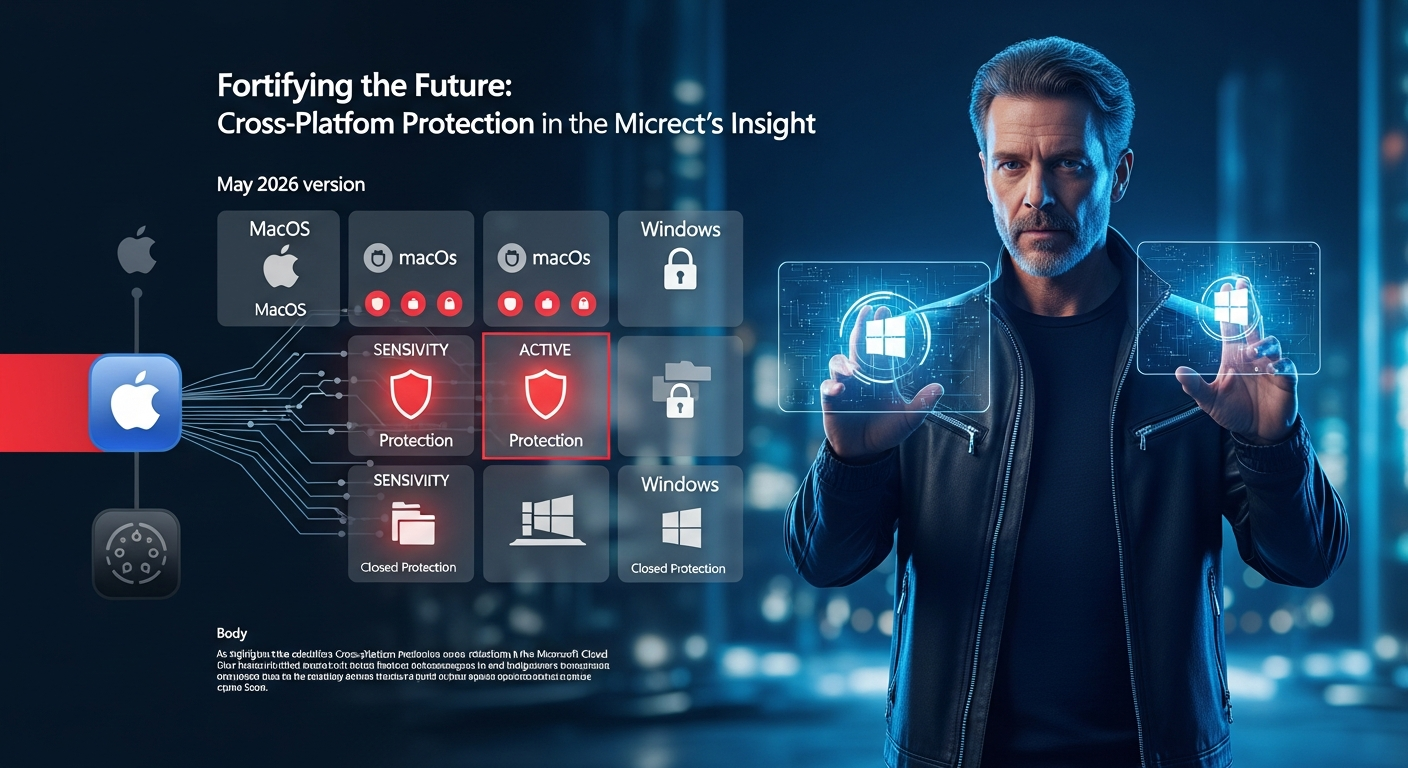
Sensitivity labeling has been a Windows-first feature for too long. Come May 2026, Microsoft is bringing the File Labeler and File Viewer applications to macOS, enabling organizations to enforce information protection consistently across platforms. Core functionality—right-click labeling, protected document viewing, and DLP policy enforcement—arrives in preview this month, with general availability in September 2026.
This is a significant capability gap closure for enterprises running mixed Mac-Windows environments. But like all macOS M365 features, the implementation carries platform-specific quirks. Let's dig into architecture, deployment, and the production gotchas you need to know.
Architecture Overview: How Purview Protection Works on macOS
The File Labeler and File Viewer sit between your labeled documents and the Azure RMS (Rights Management Service) backend. When a user applies a sensitivity label or opens a protected file, the macOS client must authenticate to Microsoft Entra ID, fetch label policies, and reach the RMS service to encrypt/decrypt content.
Prerequisites: What You Need Before Deployment
| Requirement | Details | Status |
|---|---|---|
| macOS Version | macOS 11 (Big Sur) and later; macOS 12+ recommended for optimal performance | ✓ Required |
| Licensing | Microsoft 365 E3/E5 or Purview Information Protection standalone | ✓ Required |
| Entra ID Sync | Device enrolled in Intune MDM; user has Entra ID identity | ✓ Required |
| Label Policies Published | Sensitivity labels configured in Purview portal; label policies assigned to users | ✓ Required |
| Unified Labeling | Must use unified labeling platform (not legacy Azure Information Protection) | ✓ Required |
| Network Connectivity | Outbound HTTPS to aadrm.com and *.aadrm.com; no proxy auth blocking | ✓ Required |
| .NET Runtime | Some File Viewer features require .NET components; bundled in installer | ✗ Auto-installed |
Installation & Deployment Patterns
Option 1: Intune Managed Distribution (Recommended)

Use Intune to deploy the Purview File Labeler and File Viewer as a line-of-business (LOB) app to macOS enrolled devices.
-
Download the macOS installer
Retrieve the installer package from the official Microsoft distribution endpoint:
# Official Microsoft Purview File Labeler & Viewer for macOS https://go.microsoft.com/fwlink/?linkid=2262440 -
Upload to Intune
In Microsoft Intune admin center, navigate to
Apps > macOS > Add, select "macOS app (DMG, PKG)" and upload the .pkg file. -
Configure Managed App Settings
Define app configuration via a Managed Device Mobile App Configuration policy (see PowerShell section below for automation). Key settings:
{ "com.microsoft.Purview.EnableLabeling": "true", "com.microsoft.Purview.LabelPolicyID": "YOUR-LABEL-POLICY-GUID", "com.microsoft.Purview.EnforceMandatoryLabeling": "true" } - Assign to macOS devices Create a device group (e.g., "All macOS") and assign the app to sync automatically on enrollment.
- Monitor installation Check Intune device compliance and app installation status. Labels should sync within 24 hours.
Option 2: Manual Installation via Package Manager
For BYOD scenarios or organizations using JAMF, Workspace ONE, or native package management:
# Download the .pkg installer
curl -L https://go.microsoft.com/fwlink/?linkid=2262440 -o PurviewInfoProtection.pkg

# Install via command line
sudo installer -pkg PurviewInfoProtection.pkg -target /

# Verify installation
ls -la /Applications/Microsoft\ Purview\ Information\ Protection.app/
Core Functionality: File Labeler
The File Labeler adds a "Classify" or "Apply Label" context menu option in Finder. When a user right-clicks a document (Office files, PDFs, generic formats), they can select a sensitivity label that encrypts the file with Azure RMS keys and applies metadata headers.
Supported File Formats
| File Type | Support Level | Notes |
|---|---|---|
| Office (.docx, .xlsx, .pptx) | ✓ Full | Native labeling in Office apps + standalone |
| ✓ Full | Encrypted via RMS; requires File Viewer to open | |
| Generic files (.txt, .csv, etc.) | ✓ Partial | Labeled via container encryption; limited DLP enforcement |
| Advanced protection (double encryption) | ✗ Not available | Windows-only feature; not in macOS preview |
File Viewer: Opening Protected Documents
The File Viewer is a native macOS application that decrypts and displays RMS-protected documents. It enforces label-based permissions (copy/print restrictions) and applies watermarks or footers based on the applied label.
File Viewer Capabilities
- Decryption: Automatically decrypts RMS-protected documents on open
- Watermarking: Displays label name as watermark (e.g., "CONFIDENTIAL" across pages)
- DLP Enforcement: Blocks copy-paste, printing, screenshot capture per label policy
- Version History: Shows document edit trail and who accessed the file
- Expiration Handling: Warns users if label or RMS protection expires
Deployment via PowerShell & Intune
The following script uses the Microsoft.Graph SDK v2+ (the Microsoft.Graph.Intune module is deprecated; use Install-Module Microsoft.Graph instead). It creates a macOS LOB app record in Intune and configures a separate managed app configuration policy. Note that actual binary upload requires a multi-step chunked upload process via the Graph contentVersions API — the script below handles app record creation and configuration; for production binary upload automation, refer to the macOSLobApp Graph API documentation.
#!/usr/bin/env pwsh
# Deploy Purview Information Protection to macOS via Intune
# Prerequisites: Microsoft.Graph PowerShell SDK v2+
#   Install-Module Microsoft.Graph -Scope CurrentUser
# Required roles: Intune Administrator or Global Administrator

param(
    [Parameter(Mandatory=$false)]
    [string]$AppDisplayName = "Purview Information Protection",

    [Parameter(Mandatory=$false)]
    [string]$InstallerURL = "https://go.microsoft.com/fwlink/?linkid=2262440"
)

$ErrorActionPreference = "Stop"

## Step 1: Connect to Microsoft Graph
Write-Host "[*] Connecting to Microsoft Graph..." -ForegroundColor Cyan
Connect-MgGraph -Scopes "DeviceManagementApps.ReadWrite.All", "DeviceManagementConfiguration.ReadWrite.All" -NoWelcome

## Step 2: Download installer locally
# Use TMPDIR on macOS/Linux; fall back to GetTempPath() for cross-platform compatibility
$tempDir = if ($env:TMPDIR) { $env:TMPDIR } else { [System.IO.Path]::GetTempPath() }
$installerPath = Join-Path $tempDir "PurviewInfoProtection.pkg"

Write-Host "[*] Downloading macOS installer to $installerPath..." -ForegroundColor Cyan
if (-not (Test-Path $installerPath)) {
    Invoke-WebRequest -Uri $InstallerURL -OutFile $installerPath -ErrorAction Stop
    Write-Host "[✓] Downloaded to $installerPath" -ForegroundColor Green
} else {
    Write-Host "[✓] Installer already cached" -ForegroundColor Green
}

## Step 3: Create macOS LOB app record in Intune
# '@odata.type' discriminator is required by the Graph API for LOB app creation.
# 'minimumSupportedOperatingSystem' requires the v2 odata type for macOS.
Write-Host "[*] Creating macOS LOB app record in Intune..." -ForegroundColor Cyan

$appBody = @{
    "@odata.type"        = "#microsoft.graph.macOSLobApp"
    displayName          = $AppDisplayName
    description          = "Sensitivity labeling and file protection for macOS"
    publisher            = "Microsoft Corporation"
    fileName             = "PurviewInfoProtection.pkg"
    minimumSupportedOperatingSystem = @{
        "@odata.type" = "#microsoft.graph.macOSMinimumOperatingSystem"
        v11_0         = $true
    }
} | ConvertTo-Json -Depth 5

$app = Invoke-MgGraphRequest -Method POST `
    -Uri "https://graph.microsoft.com/beta/deviceAppManagement/mobileApps" `
    -Body $appBody -ContentType "application/json"

$appId = $app.id
Write-Host "[✓] Created macOS LOB app record with ID: $appId" -ForegroundColor Green

## Step 4: Binary upload (multi-step chunked upload required)
# Full binary upload is a multi-step process:
#   1. POST /mobileApps/{id}/microsoft.graph.macOSLobApp/contentVersions
#   2. POST /contentVersions/{id}/files  (create file entity with file metadata)
#   3. GET  /contentVersions/{id}/files/{fileId}  (poll for azureStorageUri)
#   4. PUT  azureStorageUri  (upload binary in 6 MB chunks)
#   5. POST /files/{fileId}/commit  (commit the upload)
#   6. PATCH /mobileApps/{id}  (set committedContentVersion)
# See: https://learn.microsoft.com/en-us/graph/api/resources/intune-apps-macoslobapp
# For production automation, use the Intune admin center UI or the
# IntuneWinAppUtil tooling pattern for the chunked upload sequence.
Write-Host "[!] Binary upload requires chunked upload via Azure Storage SAS URI." -ForegroundColor Yellow
Write-Host "    See Microsoft docs for the full contentVersions upload sequence." -ForegroundColor Yellow

## Step 5: Create Managed Device Mobile App Configuration for label settings
# App configuration settings are deployed via managedDeviceMobileAppConfigurations,
# NOT via a 'managedAppSettings' property on the app object (which does not exist).
Write-Host "[*] Creating app configuration policy..." -ForegroundColor Cyan

$configBody = @{
    "@odata.type"  = "#microsoft.graph.managedDeviceMobileAppConfiguration"
    displayName    = "Purview IP - macOS Label Settings"
    description    = "Configures mandatory labeling and policy enforcement for Purview on macOS"
    targetedMobileApps = @($appId)
    settings = @(
        @{ appConfigKey = "com.microsoft.Purview.EnableLabeling";          appConfigKeyType = "stringType"; appConfigKeyValue = "true" },
        @{ appConfigKey = "com.microsoft.Purview.EnforceMandatoryLabeling"; appConfigKeyType = "stringType"; appConfigKeyValue = "true" },
        @{ appConfigKey = "com.microsoft.Purview.AllowDowngrade";           appConfigKeyType = "stringType"; appConfigKeyValue = "false" }
    )
} | ConvertTo-Json -Depth 5

$config = Invoke-MgGraphRequest -Method POST `
    -Uri "https://graph.microsoft.com/beta/deviceAppManagement/managedDeviceMobileAppConfigurations" `
    -Body $configBody -ContentType "application/json"

Write-Host "[✓] App configuration policy created: $($config.id)" -ForegroundColor Green

## Step 6: Create assignment filter (macOS 11+ devices)
Write-Host "[*] Creating device assignment filter..." -ForegroundColor Cyan

$filterBody = @{
    displayName = "macOS All Devices - Purview IP"
    description = "Targets all macOS 11+ enrolled devices"
    platform    = "macOS"
    rule        = '(device.osVersion -startsWith "11") or (device.osVersion -startsWith "12") or (device.osVersion -startsWith "13") or (device.osVersion -startsWith "14") or (device.osVersion -startsWith "15")'
} | ConvertTo-Json

$filter = Invoke-MgGraphRequest -Method POST `
    -Uri "https://graph.microsoft.com/beta/deviceManagement/assignmentFilters" `
    -Body $filterBody -ContentType "application/json"

$filterId = $filter.id
Write-Host "[✓] Created assignment filter: $filterId" -ForegroundColor Green

## Step 7: Assign app to all licensed users
Write-Host "[*] Assigning app to all licensed users..." -ForegroundColor Cyan

$assignmentBody = @{
    mobileAppAssignments = @(
        @{
            "@odata.type" = "#microsoft.graph.mobileAppAssignment"
            intent        = "available"
            target        = @{
                "@odata.type" = "#microsoft.graph.allLicensedUsersAssignmentTarget"
            }
            settings      = @{
                "@odata.type"           = "#microsoft.graph.macOsLobAppAssignmentSettings"
                uninstallOnDeviceRemoval = $false
            }
        }
    )
} | ConvertTo-Json -Depth 6

Invoke-MgGraphRequest -Method POST `
    -Uri "https://graph.microsoft.com/beta/deviceAppManagement/mobileApps/$appId/assign" `
    -Body $assignmentBody -ContentType "application/json"

Write-Host "[✓] App assigned to all licensed users" -ForegroundColor Green

Write-Host "`n[✓] Purview Information Protection deployment complete!" -ForegroundColor Green
Write-Host "    Monitor: Intune admin center > Apps > All Apps > $AppDisplayName" -ForegroundColor Cyan
Write-Host "    Note: Complete binary upload via Intune portal or chunked upload API before the app becomes installable." -ForegroundColor Yellow
Graph API: Fetch Label Policies Programmatically
To list all sensitivity labels published in your tenant, use the /beta/informationProtection/policy/labels endpoint. This returns tenant-scoped published labels. The /beta/security/informationProtection/sensitivityLabels path is user-delegated and returns labels scoped to the authenticated user — useful for user-context scenarios but requires a signed-in user token rather than application permissions.
# List all published tenant sensitivity labels (application or delegated permissions)
# Required permission: InformationProtectionPolicy.Read or InformationProtectionPolicy.ReadWrite
GET https://graph.microsoft.com/beta/informationProtection/policy/labels

# Response:
{
  "@odata.context": "https://graph.microsoft.com/beta/$metadata#informationProtection/policy/labels",
  "value": [
    {
      "id": "550e8400-e29b-41d4-a716-446655440000",
      "name": "Confidential",
      "description": "Internal use only",
      "color": "#FF0000",
      "sensitivity": 3,
      "tooltip": "Confidential information",
      "isActive": true,
      "parent": null
    },
    {
      "id": "660e8400-e29b-41d4-a716-446655440001",
      "name": "Internal",
      "sensitivity": 2,
      "isActive": true
    }
  ]
}

# Alternate: user-delegated context (returns labels for the signed-in user)
# Required permission: InformationProtectionPolicy.Read (delegated)
GET https://graph.microsoft.com/beta/security/informationProtection/sensitivityLabels
Production Gotchas: Real-World Issues You'll Hit
rm -rf ~/Library/Caches/Microsoft/Microsoft\ Purview/ to force immediate refresh.
aadrm.com, *.aadrm.com, and the RMS discovery endpoints over HTTPS. Corporate proxies that perform SSL inspection or require authentication may block RMS connectivity. Test from the client device:
# Test core RMS endpoint
curl -v https://aadrm.com/

# Test RMS API discovery endpoints
curl -v https://api.aadrm.com/
curl -v https://canary.aadrm.com/
Troubleshooting Commands
Use these macOS terminal commands to diagnose and resolve common issues:
## Verify installation
ls -la /Applications/Microsoft\ Purview\ Information\ Protection.app/

## Check system logs for errors
log stream --predicate 'process contains "Purview"' --level debug

## Clear label cache (forces re-sync from Purview portal)
rm -rf ~/Library/Caches/Microsoft/Microsoft\ Purview/
killall -9 "Microsoft Purview Information Protection"

## Test RMS connectivity
curl -v https://aadrm.com/
curl -v https://api.aadrm.com/
curl -v https://canary.aadrm.com/

## View Keychain stored RMS credentials
# Note: dump-keychain requires sudo; keychain path may vary by macOS version
sudo security dump-keychain /Library/Keychains/System.keychain | grep -i "aadrm"
# For user keychain:
security find-generic-password -s "aadrm" -g 2>&1

## Check Intune MDM enrollment status
sudo profiles status -type enrollment

## Monitor real-time logs for both File Labeler and File Viewer processes
log stream --predicate 'process == "Microsoft Purview Information Protection" or process == "Microsoft Purview File Viewer"' --level debug
Quick Reference: What's Supported vs. Not in May 2026
| Feature | May 2026 Preview | Sep 2026 GA (Expected) | Notes |
|---|---|---|---|
| Apply sensitivity labels | ✓ | ✓ | Right-click labeling in Finder |
| View protected documents | ✓ | ✓ | File Viewer for PDFs and Office files |
| DLP enforcement (copy/print) | ✓ | ✓ | Based on label policy settings |
| Watermarking & headers | ✓ | ✓ | Visual label indicators |
| Audit logging | ✓ | ✓ | Logs to Microsoft Purview Unified Audit Log |
| Advanced label-based protection | ✗ | ✗ (TBD) | Double encryption, policy-based redaction |
| Batch labeling | ✗ | ✗ (TBD) | Not available in macOS client |
| Integration with macOS Preview app | ✗ | ✗ (TBD) | Must use File Viewer for encrypted PDFs |
Timeline & What's Next
Microsoft Purview Information Protection for macOS is on a clear roadmap:
- May 2026 (NOW): File Labeler and File Viewer in public preview. Core functionality available; advanced features excluded.
- September 2026: General availability (GA). Expected to reach production-supported status with SLA.
- Post-GA: Advanced label-based protection and additional integrations (batch operations, third-party app extensions) under evaluation.
If you're in preview now, provide feedback through your TAM or the Microsoft 365 feedback portal. Production environments should wait for GA before full rollout unless you're piloting with a limited user group.
Closing Thoughts
Purview Information Protection on macOS closes a significant gap for organizations that embraced Apple devices without sacrificing security and compliance. The File Labeler and File Viewer bring the same sensitivity labeling and RMS protection capabilities to macOS that Windows users have had for years.
However, this is a platform feature parity release, not a feature expansion. Advanced encryption, batch operations, and tight integration with every macOS app are not included in the May 2026 preview. Plan your deployment accordingly, test thoroughly with your proxy and MDM infrastructure, and monitor the official Microsoft Purview roadmap for post-GA enhancements.
Deploy via Intune for centralized control, monitor label sync times, and communicate credential timeout behavior to your users. The macOS client is production-ready as of September 2026 GA, but pilot first if you have complex RMS or DLP policies.
