
What You'll Configure
Microsoft Learn exposes a search-backed RSS endpoint that surfaces new and updated documentation pages scoped to any product — including Intune. By the end of this walkthrough, you'll have one or more RSS URLs you can drop into an RSS reader like Feedly or Inoreader, or wire directly into a Power Automate flow that posts to a Teams channel whenever an Intune doc page is added or revised. No third-party scraping tools, no browser extensions, no polling scripts — just a stable API URL that does the heavy lifting.
This matters more than it sounds. Intune ships feature changes, policy deprecations, and configuration requirement updates embedded inside documentation revisions. If you're not watching the docs, you're finding out about breaking changes the hard way — after a pilot complaint or a failed compliance check in production.
Prerequisites:
- No special Microsoft 365 license is required — the Learn RSS endpoint is public and unauthenticated.
- An RSS reader (Feedly, Inoreader, Outlook, or any client that accepts a feed URL), or a Power Automate environment with the RSS connector available.
- Optionally: a Teams channel and a Power Automate license if you want automated notifications.
Step-by-Step Configuration
Step 1: Understand the Microsoft Learn RSS Endpoint
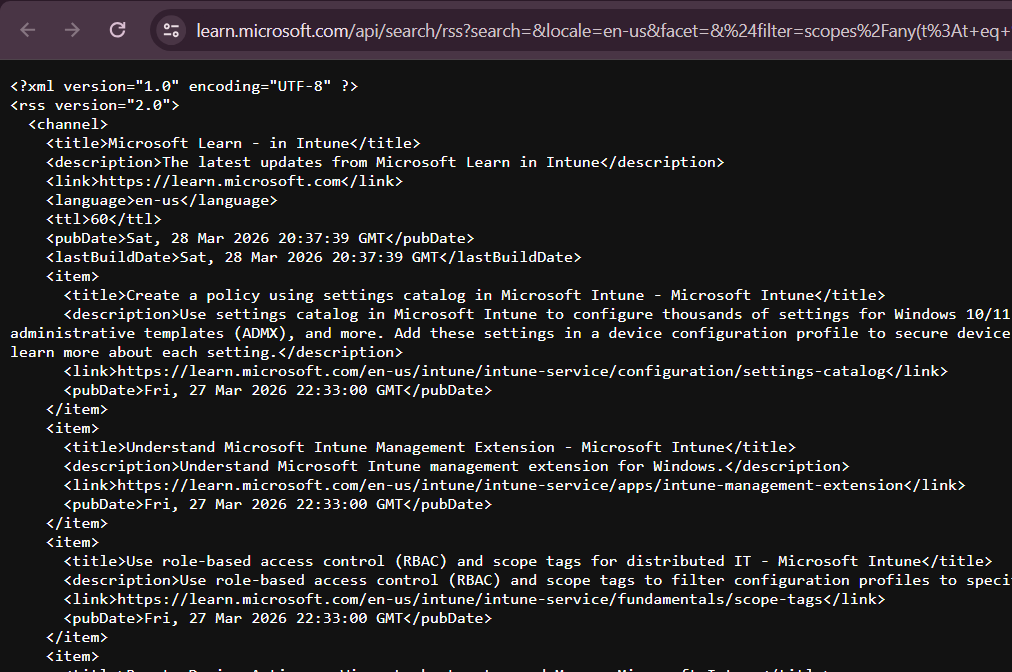
The foundation for everything here is Microsoft Learn's search API, which accepts an rss format parameter. The base pattern looks like this:
https://learn.microsoft.com/api/search/rss?search=&locale=en-us&facet=&%24filter=scopes%2Fany(t%3At+eq+%27Intune%27)
Breaking down the query string parameters:
- search= — The keyword query. Leave empty to return all results in scope, or add terms to narrow it down.
- locale=en-us — Controls the language of returned content. Change to
fr-fr,de-de, etc. if your team works in another locale. - facet= — Used for faceted search filtering; typically left empty for broad feeds.
- %24filter=scopes%2Fany(t%3At+eq+%27Intune%27) — This is the OData filter
$filter=scopes/any(t:t eq 'Intune'), URL-encoded. It restricts results to pages tagged with the Intune scope in Learn's content taxonomy.
That single URL, dropped into any RSS reader, will surface every Intune-scoped page that gets indexed or re-indexed after an update. The feed doesn't distinguish between a brand-new page and a revised one — both appear as new feed items. Your RSS client's deduplication logic (based on item GUID) handles the rest.
Step 2: Build a Targeted Feed Using the Learn Search UI
If the all-Intune feed is too noisy for your use case, the cleanest way to build a scoped URL is to let the Learn UI construct it for you. Microsoft documents this approach in the Intune fundamentals use-docs article.
- Navigate to https://learn.microsoft.com/en-us/intune/ and use the search box at the top of the page.
- Enter a query that matches the content area you care about. Examples:
Autopilot,compliance policy,configuration profile, orWhat's new. - Apply any filters available in the left-hand panel (product, content type, etc.) to tighten the scope.
- Scroll to the bottom of the search results page and locate the RSS link. Click it — your browser will either open the raw XML or prompt you to copy the URL.
- Copy that URL. It is a fully-formed
api/search/rssURL with your query, locale, and scope filters baked in.
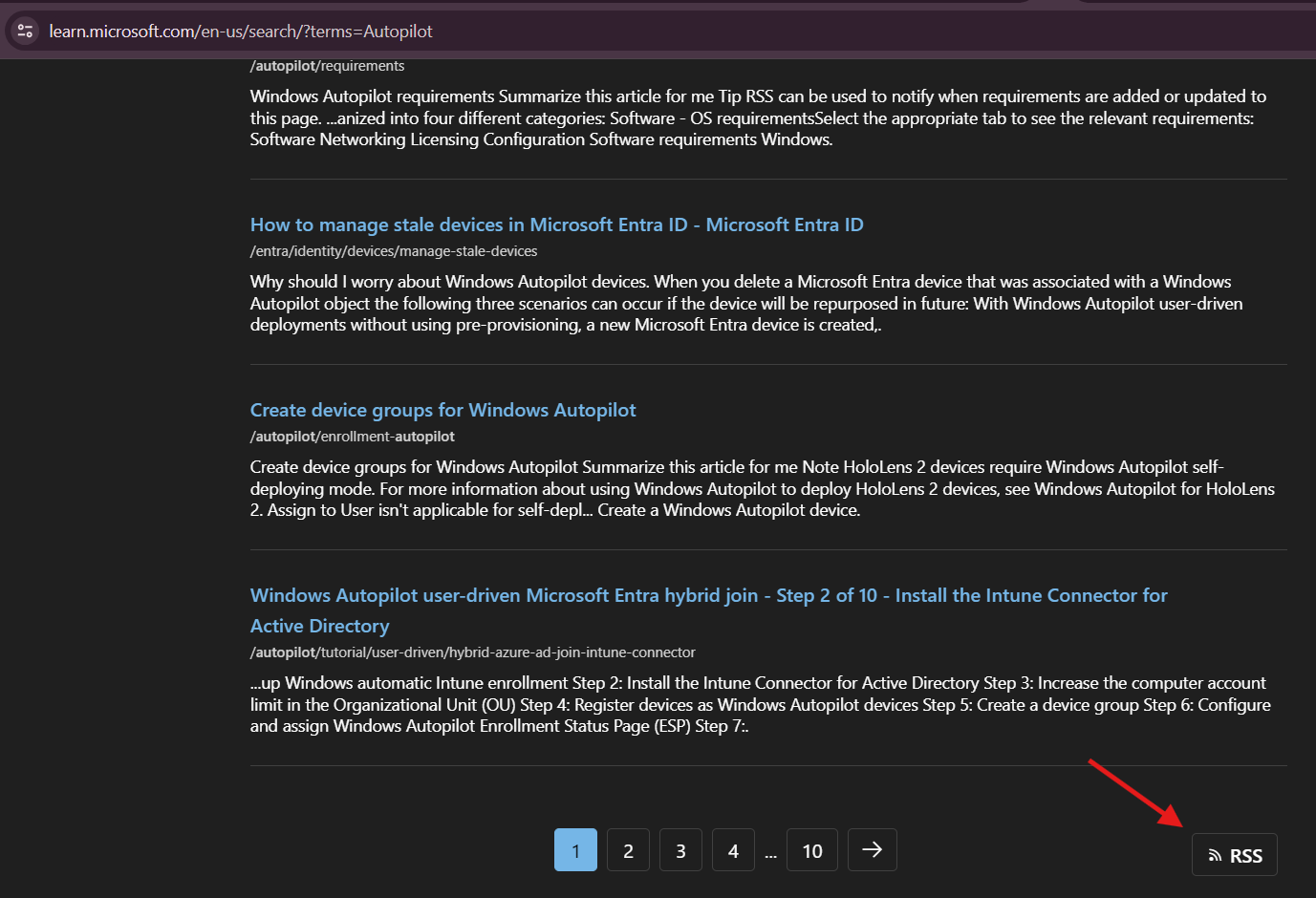
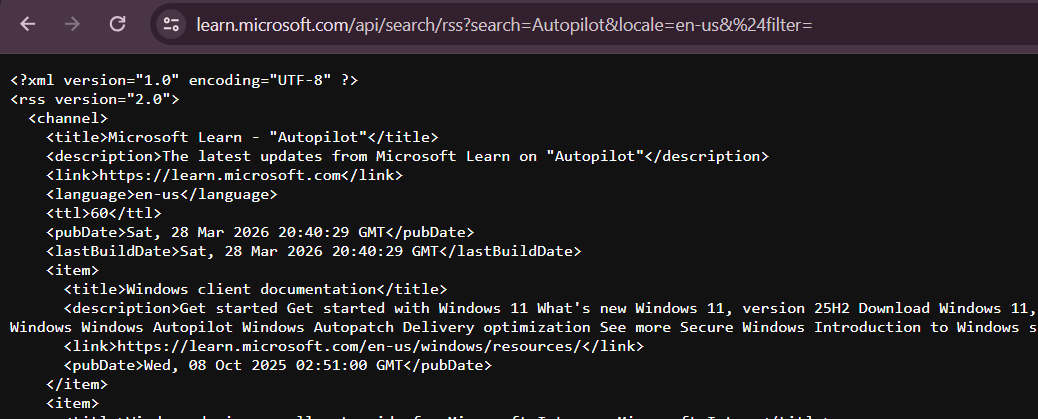
For example, Microsoft's own Intune docs page references this URL for tracking What's New content:
https://learn.microsoft.com/api/search/rss?search=%22What%27s+new+in+microsoft+intune%22%2B%22learn+what%27s+new%22&locale=en-us&facet=&%24filter=scopes%2Fany(t%3A+t+eq+%27Intune%27)
You can manually edit the search= parameter in that URL to swap in any keyword or phrase. URL-encode spaces as + and quotes as %22. Keep everything after &locale= intact.
Step 3: Subscribe in an RSS Reader
Paste the URL directly into your RSS client's "Add Feed" dialog. Every major reader (Feedly, Inoreader, Outlook, NetNewsWire) accepts a raw URL. The feed will populate with current results on first load, then surface new items as Learn re-indexes updated pages — typically within hours of a doc commit.
For team visibility, consider a shared RSS feed in Outlook or a group inbox rather than a personal reader. That way the entire team sees doc changes without relying on one person to forward items.
Step 4: Automate Notifications to Microsoft Teams via Power Automate
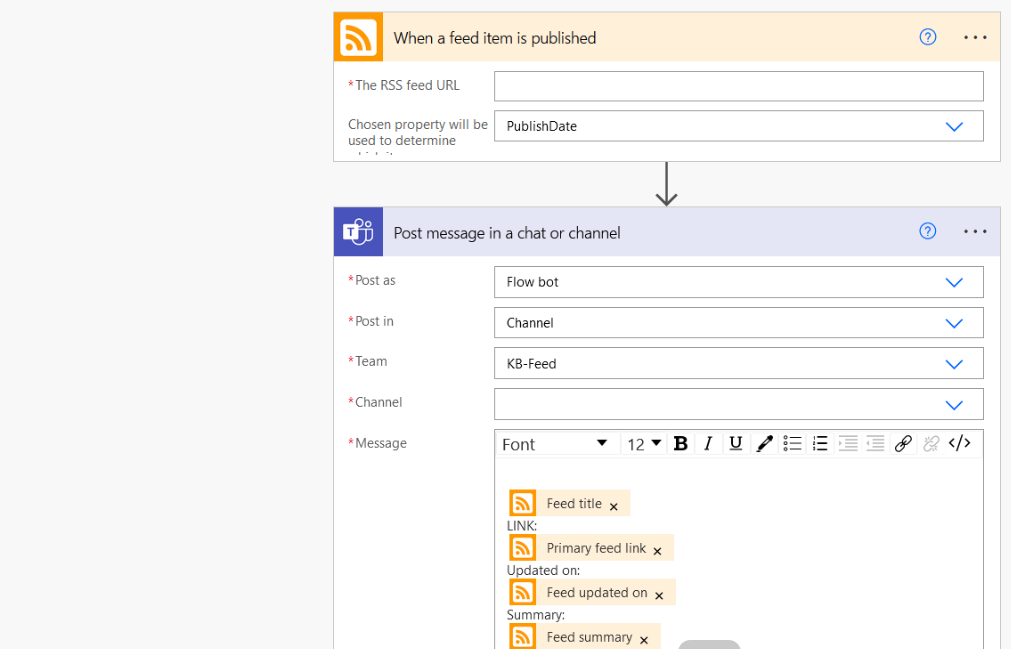
An RSS reader is useful, but a Teams notification is actionable. Here's the Power Automate pattern that works reliably in production:
- Create a new Automated cloud flow in Power Automate.
- Set the trigger to RSS — When a feed item is published.
- In the The RSS feed URL field, paste your scoped Learn RSS URL.
- Add a Microsoft Teams — Post a message in a chat or channel action.
- Set the message body to something like:
📄 Intune Doc Update
Title: @{triggerOutputs()?['body/title']}
Link: @{triggerOutputs()?['body/primaryLink']}
Published: @{triggerOutputs()?['body/publishDate']}
- Save and test the flow. Power Automate polls the RSS feed on a schedule (typically every 5–15 minutes depending on your plan) and fires the trigger on new items.
This pattern is well-documented in the community — Ugur Koc's write-up on tracking Intune documentation changes and sending them to Teams covers the Power Automate side in detail if you want additional context on message formatting.
Step 5: Build Custom Feed URLs for Specific Intune Areas
Here are ready-to-use feed URLs for common Intune sub-areas. Paste directly into your reader or Power Automate trigger:
All Intune documentation (broadest, most updates):
https://learn.microsoft.com/api/search/rss?search=&locale=en-us&facet=&%24filter=scopes%2Fany(t%3At+eq+%27Intune%27)
What's New in Intune only:
https://learn.microsoft.com/api/search/rss?search=%22what%27s+new+in+microsoft+intune%22&locale=en-us&facet=&%24filter=scopes%2Fany(t%3At+eq+%27Intune%27)
Windows Autopilot documentation:
https://learn.microsoft.com/api/search/rss?search=autopilot&locale=en-us&facet=&%24filter=scopes%2Fany(t%3At+eq+%27Intune%27)
Intune compliance policy:
https://learn.microsoft.com/api/search/rss?search=compliance+policy&locale=en-us&facet=&%24filter=scopes%2Fany(t%3At+eq+%27Intune%27)
Combine multiple keywords with + in the search= parameter. Avoid over-narrowing — if your search term is too specific, you may miss adjacent pages that contain relevant changes without using your exact phrase.
Verification
The simplest verification is opening the RSS URL in a browser. A healthy feed returns valid XML with <item> elements containing titles, links, and publish dates. If you see an empty <channel> with no items, the scope filter or search term returned zero results — check your URL encoding.
To verify programmatically using PowerShell, use Invoke-RestMethod which natively parses RSS/Atom feeds:
# Verify the Intune RSS feed returns items
$feedUrl = "https://learn.microsoft.com/api/search/rss?search=&locale=en-us&facet=&%24filter=scopes%2Fany(t%3At+eq+%27Intune%27)"

$feed = Invoke-RestMethod -Uri $feedUrl -Method Get

Write-Host "Total items returned: $($feed.Count)"

$feed | Select-Object -First 5 | ForEach-Object {
    [PSCustomObject]@{
        Title     = $_.title
        Link      = $_.link
        Published = $_.pubDate
    }
} | Format-Table -AutoSize
If the count comes back as 0 or the command throws an XML parsing error, the feed URL has a formatting issue. Run the URL through an online URL decoder first to confirm the OData filter looks correct before troubleshooting further.
For Power Automate flows, check the flow run history after saving. The first successful trigger execution confirms Power Automate can reach and parse the feed. If the flow shows "Succeeded" but no Teams message appeared, the issue is in the Teams action — check channel permissions and the service account used by the connection.
Common Issues
Feed returns no items despite a valid URL
The most common cause is a malformed OData filter. The %24filter parameter is URL-encoded $filter — if your RSS client or browser auto-decodes it before sending the request, the API may reject it. Always copy the URL from Learn's search results page rather than hand-crafting the filter from scratch. If you must build it manually, validate the decoded filter as $filter=scopes/any(t:t eq 'Intune') before re-encoding.
Feed is too noisy — receiving hundreds of items per day
The all-Intune scope is broad. Microsoft updates dozens of pages per week across the Intune content set. Add a search= keyword to narrow results, or split the feed into multiple targeted feeds (one for Autopilot, one for compliance, one for What's New) and subscribe to only the ones relevant to your role. Most RSS clients support filtering by title keyword as a secondary layer.
Power Automate flow not triggering on new items
Power Automate's RSS connector determines "new" based on the item's GUID or link element. If Microsoft Learn re-publishes an updated page with the same URL and no GUID change, Power Automate won't re-trigger. This is a known limitation of the RSS connector's deduplication logic — it's not a bug in the feed. For true change detection on specific pages, consider supplementing with a scheduled flow that uses Invoke-WebRequest against a specific page and compares a hash.
Locale mismatch — items appearing in wrong language
The locale=en-us parameter controls which localized version of a page the API indexes against. If you're seeing French or German titles in an English feed, confirm the locale parameter is correctly set and hasn't been stripped by your RSS client. Some clients modify query strings — paste the URL directly into a browser first to confirm the raw feed matches expectations before blaming the client.
Feed URL works in browser but fails in Power Automate
Power Automate's RSS connector expects the feed to return a valid Content-Type of application/rss+xml or text/xml. The Learn API does return proper content types, but corporate network proxies sometimes rewrite headers. If the connector shows a parsing error, test from a non-proxied environment first. Also confirm the flow's connection is using an account that isn't subject to Conditional Access policies that block non-interactive token flows — though since this feed is unauthenticated, authentication shouldn't be the issue.
