
Architectural Premise & The Real-World Challenge
Two findings surfaced during the Contoso Health Intune Health Check that look unrelated on the surface — Autopilot enrollment taking 34 minutes end-to-end, and a fleet sitting at only 66% currency on the latest cumulative update — but they are the same architectural failure pattern wearing different clothes. Both are cases of an admin trusting a scheduled, synchronous, all-or-nothing execution model to do the job of an asynchronous, condition-based one.
The Enrollment Status Page (ESP) is not a progress bar. It is a blocking gate built on top of the Intune Management Extension's (IME) sequential app targeting engine, and every app you mark as "blocking" is a serialized dependency in that gate's critical path. Contoso's build had Rapid7, Company Portal, and a community-sourced Autopilot Branding script all configured as required-before-desktop apps, stacked behind Crowdstrike. The architectural trade-off Microsoft doesn't spell out clearly in the docs: ESP blocking apps do not run in parallel by default, they inherit whatever install sequencing IME determines from Win32 app dependency chains and detection rule evaluation, and a single slow MSI, a licensing handshake to a third-party console, or a script waiting on a REST callback will hold the entire OOBE hostage — even if every other app on the list installed cleanly in 90 seconds.
Windows Update rings have an equally deceptive premise. "Auto install and restart at a scheduled time" reads like a guarantee. It is a conditional guarantee: the device must be powered on, unlocked or logged in appropriately, and network-reachable at the exact configured moment, or the entire cycle silently defers to the following week. There's no compensating control in that policy branch for devices that sleep, hibernate, or get shut off at 5 PM — which describes the vast majority of a mobile knowledge-worker fleet. Combine a rigid weekly cadence with zero power management policy and you get exactly what the health check found: policy applied correctly, compliance state green, and the device still 34 days and ~25 updates behind.
Under the Hood: Execution Engine & Mechanics
ESP Blocking App Execution Path
When a User-Driven Microsoft Entra ID Autopilot device hits OOBE, the ESP tracking is driven by the MDM_EnrollmentStatusTracking CSP surfaced through root\cimv2\mdm\dmmap on the client. The ESP profile (Settings Catalog-backed under the hood, delivered via OMA-DM SyncML during the device's periodic check-in) tells the client which app GUIDs and which policy CSPs must report a "Success" state before the desktop unlocks. Win32 apps, unlike Configuration Profiles which land through the native OMA-DM channel, are handled entirely by the Intune Management Extension — a separate Win32 service (IntuneManagementExtension.exe) that polls Intune via its own sync loop, downloads content from Azure Blob storage, executes install/detection scripts under the SYSTEM context, and writes status back through the AppWorkload provider, which the ESP tracking CSP then reads to decide gate progression.
Here's the part that catches architects off guard: IME's Win32 app targeting isn't fully parallelized. Detection rule evaluation, dependency resolution, and the sequential nature of how IME processes its work queue mean that three blocking apps rarely install concurrently in practice — especially when one of them (an EDR agent, a branding script invoking Restart-Computer staging, or a third-party AV requiring cloud policy sync before it reports "installed") has an inherent activation delay baked into its own install logic. The ESP simply blocks on whichever app finishes last.
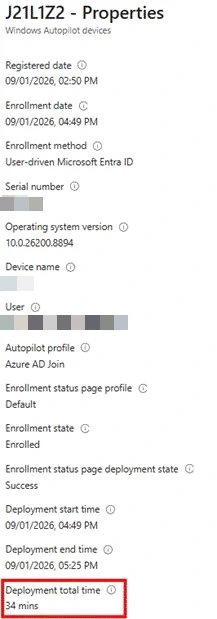
As shown in Figure 1 below, the baseline test — Rapid7, Company Portal, and the AutopilotBranding script all configured as blocking apps alongside Crowdstrike — produced a 34-minute deployment window from first contact to desktop.
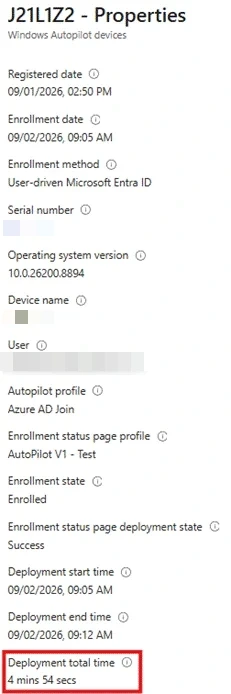
As illustrated in Figure 2 below, stripping the ESP down to a single blocking app (Crowdstrike only, since it is the sole security-critical agent that must be present before the user reaches the desktop) collapsed the same enrollment to 4 minutes 54 seconds — a 29-minute reduction with zero change to the underlying hardware, network path, or tenant configuration. This is the ESP tracking CSP no longer waiting on IME's serialized processing of low-priority, non-security apps.
Windows Update Ring Execution Path
Update rings publish through the Policy CSP (Update/ area) via standard OMA-DM SyncML, landing on the client as registry state under HKLM\SOFTWARE\Microsoft\PolicyManager\current\device\Update. The Update Orchestrator service (UsoSvc) reads these values to schedule its maintenance windows, but it does not own power state — that's arbitrated separately by the Power Policy CSP and the underlying Task Scheduler "Automatic Maintenance" idle task, which is gated by AutomaticMaintenanceWakeUp. Absent that flag and an aligned sleep/hibernate policy, UsoSvc will schedule the install job correctly every single week — the job simply never fires because the device is in S3 sleep or fully powered off at 3 AM Thursday.
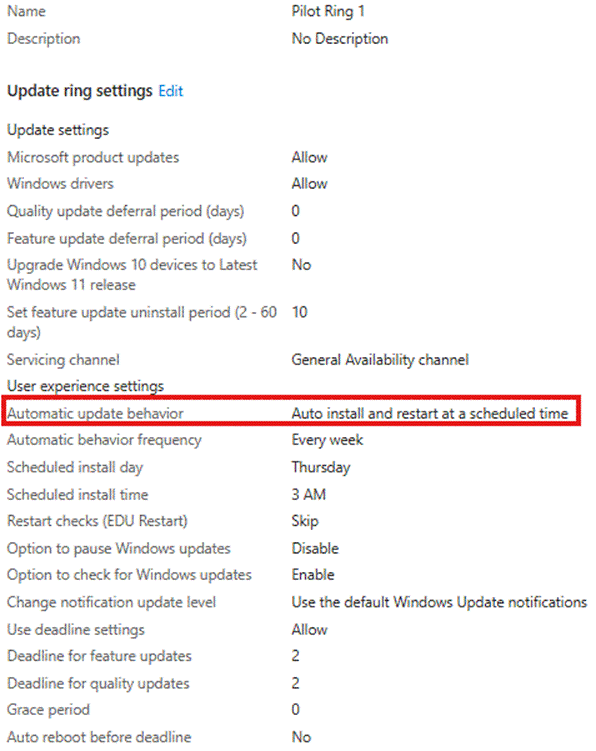
As shown in Figure 3 below, Pilot Ring 1's configuration confirms the rigid architecture: Automatic update behavior set to "Auto install and restart at a scheduled time," weekly frequency, Thursday 3 AM install window, a 2-day deadline for both feature and quality updates, and a 0-day grace period with auto-reboot before deadline disabled.
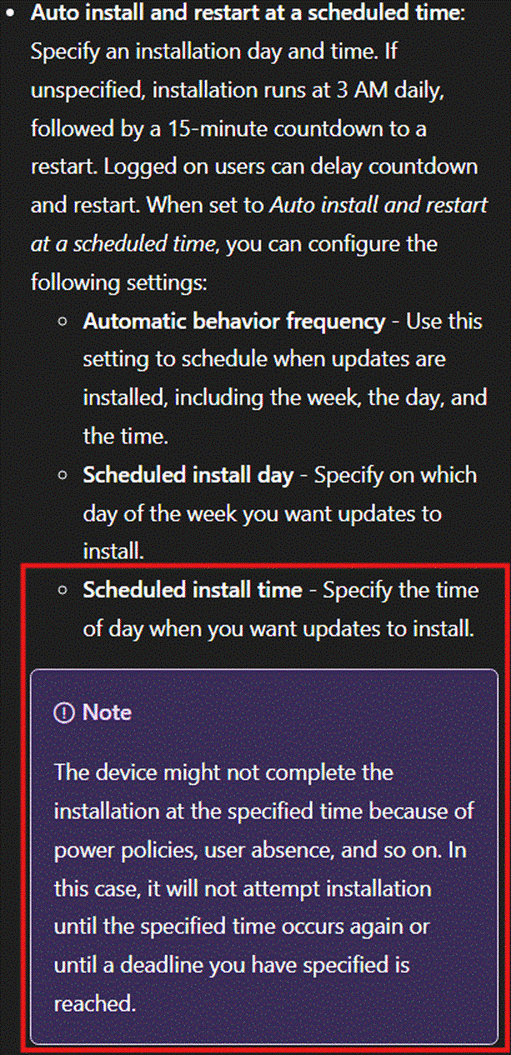
Microsoft's own documentation is explicit about the failure mode here, even if it's easy to miss in the console. As shown in Figure 4 below, the "Auto install and restart at a scheduled time" policy's own Note callout states plainly that the device may not complete installation at the specified time due to power policies or user absence, and will simply retry at the next scheduled window or defer to the configured deadline — there is no built-in wake escalation unless AutomaticMaintenanceWakeUp and a compatible power policy are layered on top.
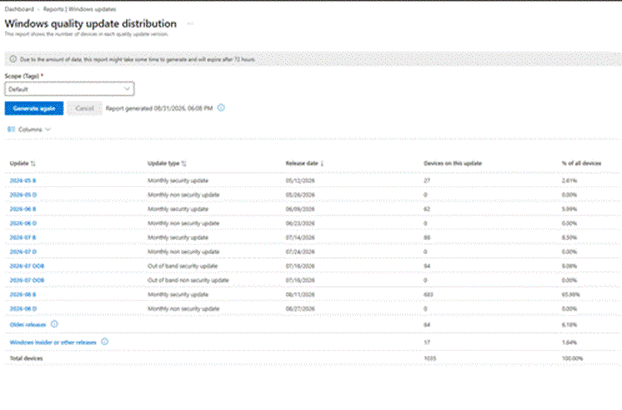
The downstream evidence of this gap is visible in the fleet-wide quality update distribution. As shown in Figure 5 below, only 65.99% of the 1,035 managed devices had progressed to the 2026-08 B monthly security update at the time of the report, with 9.08% still sitting on the July out-of-band security release and 6.18% on releases older than that — a direct, measurable consequence of the scheduled-time-only update behavior colliding with unmanaged device power states.
Enterprise Edge Cases & Scale Gotchas
At Contoso Health's scale (~1,035 managed endpoints) these mechanics compound in predictable but expensive ways:
- ESP blocking app timeout ceiling: The ESP has a hard default timeout (60 minutes per Settings Catalog for the ESP profile, extendable). Every additional blocking app doesn't just add its own install time — it adds risk surface. A single Win32 app with a flaky detection rule (e.g., a registry key that intermittently fails to write before the detection scan runs) can push the entire population past the ESP timeout ceiling at scale, triggering a wave of "ESP failure, allow device use" fallbacks across a large deployment wave — which defeats the entire purpose of a blocking gate.
- Serialized IME queue under fleet-wide rollout pressure: When hundreds of devices enroll concurrently during a hardware refresh, IME on each device independently polls and downloads Win32 app content from Azure Blob storage. Bandwidth-constrained sites (VPN-backed remote workers, satellite clinics) will see ESP times balloon further, since blocking apps queue behind content download throttling, not just install execution.
- Hybrid Entra Join vs. Cloud Native nuance: On Hybrid Entra Join Autopilot profiles, the ESP additionally blocks on the domain join and Entra Connect sync round-trip before Win32 apps even begin processing — meaning the same blocking-app overhead observed here compounds on top of an already longer baseline. Cloud Native (Entra ID Join) devices, as tested here, skip that domain join dependency entirely, which is part of why the 4-minute-54-second result was achievable.
- Update deadline vs. grace period math: With Grace Period set to 0 days and Deadline set to 2 days, a device that misses its scheduled window has only 2 calendar days before Windows forces the install/restart regardless of user activity — but that clock only starts once the *previous* update was detected as applicable, and a sleeping device may not even have checked in to start that clock. This is why "deadline enforcement" alone does not solve the currency gap; it only bounds the worst case for devices that are at least occasionally online.
- Windows Autopatch as the long-term structural fix: Autopatch replaces the rigid scheduled-time model with deadline-and-grace-period-driven orchestration by default and actively remediates devices that fall behind, removing the dependency on precise wake timing entirely — this is the architectural escape hatch, not a patch on top of the existing ring model.
| Setting / CSP Node | Location | Baseline (Finding) | Recommended |
|---|---|---|---|
| Automatic update behavior | Update rings > Pilot/Production | Auto install and restart at a scheduled time | Auto install and restart at maintenance time |
| AutomaticMaintenanceWakeUp | Settings Catalog (Power CSP) | ✗ Not configured | ✓ Enabled for AC-powered devices |
| Sleep/hibernate timeout alignment | Power CSP / Settings Catalog | ✗ Not configured | ✓ Aligned to maintenance window |
| Grace period | Update rings | 0 days | Retain 0–1 days, rely on deadline |
| Deadline (feature/quality) | Update rings | 2 days | Retain — enforces stragglers |
| ESP blocking apps | Enrollment Status Page profile | Rapid7, Company Portal, AP Branding, Crowdstrike (4 apps) | Crowdstrike only (security-critical) |
| Autopilot Branding script | Win32 app (community, mtniehaus/AutopilotBranding) | Legacy version, unverified Win11 support | Update to latest release or replace with native config |
Production Implementation & Automation
The remediation splits into two independent Graph-driven changes: (1) trimming the ESP-required app list, and (2) re-provisioning the update ring policy body plus a companion Settings Catalog power policy for wake-on-maintenance. Both are shown below as idempotent, ShouldProcess-aware scripts suitable for a change-controlled production rollout.
DeviceManagementConfiguration.ReadWrite.All, DeviceManagementServiceConfig.ReadWrite.All, DeviceManagementApps.ReadWrite.AllStep 1 — Audit and Trim ESP Required Apps
selectedMobileAppIds array from the target ESP profile (deviceEnrollmentConfigurations of type #microsoft.graph.windows10EnrollmentCompletionPageConfiguration).-WhatIf-gated ShouldProcess, validate against a pilot Autopilot group, then promote to production assignment.<#
.SYNOPSIS
Audits Intune Enrollment Status Page (ESP) profiles and trims non-security
blocking apps down to an approved security baseline using -WhatIf support.
#>
[CmdletBinding(SupportsShouldProcess = $true, ConfirmImpact = 'High')]
param(
[Parameter(Mandatory)]
[string]$EspProfileDisplayName,
[Parameter(Mandatory)]
[string[]]$ApprovedSecurityAppIds
)
Connect-MgGraph -Scopes @(
'DeviceManagementConfiguration.ReadWrite.All',
'DeviceManagementServiceConfig.ReadWrite.All',
'DeviceManagementApps.ReadWrite.All'
) -NoWelcome
$espUri = 'https://graph.microsoft.com/beta/deviceManagement/deviceEnrollmentConfigurations'
$configs = (Invoke-MgGraphRequest -Method GET -Uri $espUri).value |
Where-Object {
$_.'@odata.type' -eq '#microsoft.graph.windows10EnrollmentCompletionPageConfiguration' -and
$_.displayName -eq $EspProfileDisplayName
}
foreach ($esp in $configs) {
$currentIds = @($esp.selectedMobileAppIds)
$trimmedIds = @($currentIds | Where-Object { $_ -in $ApprovedSecurityAppIds })
$removedIds = @($currentIds | Where-Object { $_ -notin $ApprovedSecurityAppIds })
Write-Host "[ESP] Profile: $($esp.displayName) ($($esp.id))" -ForegroundColor Cyan
Write-Host " Current blocking apps : $($currentIds.Count)"
Write-Host " Trimmed blocking apps : $($trimmedIds.Count)"
Write-Host " Moved to post-ESP req : $($removedIds.Count)" -ForegroundColor Yellow
if ($removedIds.Count -eq 0) { continue }
$patchBody = @{
'@odata.type' = '#microsoft.graph.windows10EnrollmentCompletionPageConfiguration'
selectedMobileAppIds = $trimmedIds
} | ConvertTo-Json -Depth 4
$patchUri = "$espUri/$($esp.id)"
if ($PSCmdlet.ShouldProcess($esp.displayName, 'Update ESP blocking selectedMobileAppIds')) {
Invoke-MgGraphRequest -Method PATCH -Uri $patchUri -Body $patchBody -ContentType 'application/json'
Write-Host "[OK] Updated ESP blocking app allowlist." -ForegroundColor Green
}
}Step 2 — Remediate Update Ring Behavior + Deploy Wake-on-Maintenance Power Policy
windows10UpdateForBusinessConfiguration policy for Pilot Ring 1 and Production rings by display name.automaticUpdateMode from autoInstallAtMaintenanceTime scheduling logic (replacing the rigid scheduledInstallDay/scheduledInstallTime combination), retaining the existing 2-day deadline and 0-day grace period enforcement values.AutomaticMaintenanceWakeUp, and setting AC-powered sleep timeouts long enough to guarantee the nightly maintenance window fires.<#
.SYNOPSIS
Switches an Intune Windows Update Ring from scheduled install time to
maintenance-time orchestration and deploys a Settings Catalog Power Wake profile.
#>
[CmdletBinding(SupportsShouldProcess = $true)]
param(
[Parameter(Mandatory)]
[string]$UpdateRingName,
[Parameter(Mandatory)]
[string]$TargetEntraGroupId
)
Connect-MgGraph -Scopes @(
'DeviceManagementConfiguration.ReadWrite.All'
) -NoWelcome
# 1. Switch Update Ring behavior to autoInstallAtMaintenanceTime while retaining deadlines
$ringsUri = 'https://graph.microsoft.com/beta/deviceManagement/deviceConfigurations'
$ring = (Invoke-MgGraphRequest -Method GET -Uri $ringsUri).value |
Where-Object {
$_.'@odata.type' -eq '#microsoft.graph.windowsUpdateForBusinessConfiguration' -and
$_.displayName -eq $UpdateRingName
} | Select-Object -First 1
if ($ring) {
$ringPatch = @{
'@odata.type' = '#microsoft.graph.windowsUpdateForBusinessConfiguration'
automaticUpdateMode = 'autoInstallAtMaintenanceTime'
qualityUpdatesDeferralPeriodInDays = $ring.qualityUpdatesDeferralPeriodInDays
featureUpdatesDeferralPeriodInDays = $ring.featureUpdatesDeferralPeriodInDays
deadlineForQualityUpdatesInDays = 2
deadlineForFeatureUpdatesInDays = 2
deadlineGracePeriodInDays = 0
autoRestartNotificationDismissal = 'notConfigured'
} | ConvertTo-Json -Depth 5
if ($PSCmdlet.ShouldProcess($ring.displayName, 'Set automaticUpdateMode=autoInstallAtMaintenanceTime')) {
Invoke-MgGraphRequest -Method PATCH -Uri "$ringsUri/$($ring.id)" -Body $ringPatch -ContentType 'application/json'
Write-Host "[OK] Updated ring '$($ring.displayName)'." -ForegroundColor Green
}
}
# 2. Deploy Settings Catalog profile enabling AC Wake Timers & AutomaticMaintenanceWakeUp
$policyPayload = @{
name = 'Win11 - Power Wake-on-Maintenance (AC)'
description = 'Enables AutomaticMaintenanceWakeUp and AC wake timers for Windows Update rings.'
platforms = 'windows10'
technologies = 'mdm'
settings = @(
@{
'@odata.type' = '#microsoft.graph.deviceManagementConfigurationSetting'
settingInstance = @{
'@odata.type' = '#microsoft.graph.deviceManagementConfigurationChoiceSettingInstance'
settingDefinitionId = 'device_vendor_msft_policy_config_power_enablewktimerspluggedin'
choiceSettingValue = @{
'@odata.type' = '#microsoft.graph.deviceManagementConfigurationChoiceSettingValue'
value = 'device_vendor_msft_policy_config_power_enablewktimerspluggedin_1'
}
}
}
)
} | ConvertTo-Json -Depth 8
if ($PSCmdlet.ShouldProcess('Win11 - Power Wake-on-Maintenance (AC)', 'Create and assign Settings Catalog policy')) {
$created = Invoke-MgGraphRequest -Method POST `
-Uri 'https://graph.microsoft.com/beta/deviceManagement/configurationPolicies' `
-Body $policyPayload -ContentType 'application/json'
$assignBody = @{
assignments = @(
@{
target = @{
'@odata.type' = '#microsoft.graph.groupAssignmentTarget'
groupId = $TargetEntraGroupId
}
}
)
} | ConvertTo-Json -Depth 5
Invoke-MgGraphRequest -Method POST `
-Uri "https://graph.microsoft.com/beta/deviceManagement/configurationPolicies/$($created.id)/assign" `
-Body $assignBody -ContentType 'application/json'
Write-Host "[OK] Assigned Power Wake profile '$($created.id)' to group $TargetEntraGroupId." -ForegroundColor Green
}Architectural Takeaways & Decision Matrix
The pattern to internalize: ESP blocking apps and Windows Update scheduled-time behavior both fail the same way at scale — they assume a deterministic device state (online, awake, idle) that a real mobile fleet does not reliably provide. The fix in both cases is the same architectural shift — move from rigid, time-boxed, all-or-nothing gates to condition-based, deadline-enforced, retry-capable mechanisms.
| Mechanism | Use When | Avoid When |
|---|---|---|
| ESP Blocking Apps | App is security/compliance critical and must exist before first login (EDR, disk encryption agent) | App is nice-to-have branding/UX polish or has unpredictable install latency |
| Non-blocking Required Apps (post-ESP) | App can tolerate arriving 30–60 minutes after desktop unlock | App is a hard compliance/CA prerequisite |
| Scheduled-time Update Behavior | Fixed on-prem desktops with guaranteed uptime (kiosks, VDI) | Mobile laptop fleets with variable power state |
| Maintenance-time Update Behavior + Wake CSP | Mixed mobile/desktop fleet needing patch currency without user disruption | Devices with no reliable AC power source (rare mobile-only use cases) |
| Windows Autopatch | Enterprise wants automated ring management, remediation, and reporting without hand-tuned CSPs | Highly customized update logic tied to line-of-business compatibility gating |
Community-sourced customization scripts, like the legacy AutopilotBranding project referenced in the health check, deserve the same architectural scrutiny as blocking apps. If Windows 11's native Settings Catalog and Config profiles can already achieve the start menu layout, background, and debloat outcomes the script was written for, the script isn't providing capability anymore — it's providing technical debt with an unverified compatibility surface. Either update it to the current supported release or retire it in favor of native CSP-backed configuration.