Architectural Premise & The Real-World Challenge
The 0xc1900201 error code is a perennial thorn in the side of IT administrators attempting to maintain a healthy Windows update cadence. While often vaguely attributed to 'insufficient disk space,' the underlying architectural reality is frequently more nuanced and insidious, particularly concerning the EFI System Partition (ESP). This critical, often overlooked partition, typically 100-500MB, can become a dumping ground for OEM firmware updates (e.g., HP DEVFW), diagnostic logs, and other bloatware. When the ESP saturates, Windows Update, especially for feature updates, encounters a hard stop because it cannot stage necessary boot-time components, leading directly to the dreaded 0xc1900201.
Standard disk cleanup utilities ignore the ESP. Manual intervention is cumbersome, requiring elevated privileges, precise mountvol commands, and careful file deletion to avoid bricking a system. At scale, this becomes an operational nightmare. The architectural trade-off here is clear: rely on reactive, manual remediation for individual endpoints, or engineer a proactive, automated solution capable of diagnosing and self-healing these low-level OS issues without user intervention.
This article dissects a two-stage PowerShell toolkit designed for this very challenge: a fast, read-only detection script, and a targeted, safe remediation script. Both are engineered to execute reliably in the critical NT AUTHORITY\SYSTEM context, ensuring the necessary privileges to manipulate core OS components, including the EFI partition.
Under the Hood: Execution Engine & Mechanics
Addressing the root causes of Windows Update failures requires deep system access. Our scripts leverage the NT AUTHORITY\SYSTEM account, which is paramount for tasks such as mounting the EFI System Partition (ESP) using mountvol and interacting with low-level disk and service management APIs. This execution context is non-negotiable for the required operations.
The toolkit comprises two distinct scripts, each serving a critical function in the update health lifecycle:
-
Detection-UpdateHealth.ps1: This script operates in a fast, read-only mode, typically completing in under 30 seconds. Its purpose is purely diagnostic. It performs the following checks:
- System Drive (C:) Health: Assesses free space and potential issues on the primary OS drive.
- EFI System Partition (ESP) Analysis: Critically, it attempts to mount and analyze the ESP for bloatware, specifically targeting common culprits like OEM firmware update packages and excessive log files that consume precious space.
- Critical Update Services: Verifies the operational status of essential Windows Update services (e.g.,
wuauserv,BITS,CryptSvc). - Recent Event Log Errors: Scans event logs for recent update-related error codes, providing immediate context for potential issues.
The script outputs a simple exit code:
0for healthy,1for unhealthy. This binary output is ideal for integration with automated remediation platforms. -
Remediation-UpdateHealth.ps1: This script is the active intervention component. It executes targeted fixes based on common update failure patterns:
- Secure EFI Space Reclamation: Safely unmounts, cleans, and remounts the ESP. Crucially, it includes a local backup mechanism for any deleted files, providing a crucial rollback point in case of unforeseen issues. This addresses the
0xc1900201error at its source. - Temporary Storage Cleanup: Purges corrupted Windows Update caches and other temporary files that can impede the update process.
- Network Stack Reset: Resets the network adapter and transport stack, resolving potential connectivity issues that block update downloads.
- Update Service Restart: Ensures all critical Windows Update services are in a healthy, running state, restarting them if necessary.
This script is designed to be idempotent and robust, ensuring that repeated executions do not cause harm and that remediation steps are applied only when necessary.
- Secure EFI Space Reclamation: Safely unmounts, cleans, and remounts the ESP. Crucially, it includes a local backup mechanism for any deleted files, providing a crucial rollback point in case of unforeseen issues. This addresses the
The end-user experience of these issues is often a stalled update, as depicted below. The system reports an error, but the underlying cause, such as an overstuffed EFI partition, is not immediately apparent to the user or even basic troubleshooting tools.
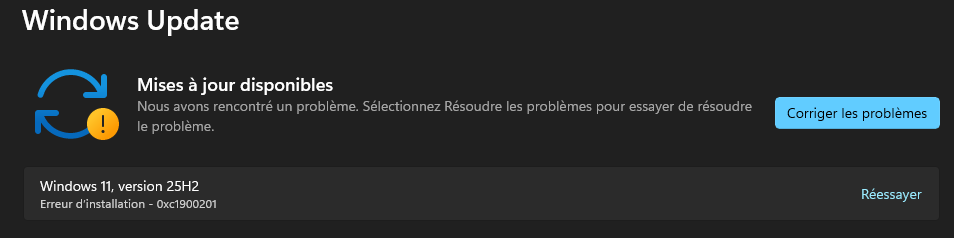
Figure 1: Windows Settings > Windows Update. This screen displays an installation error (0xc1900201) for Windows 11, version 25H2, indicating a problem with available updates. Users are presented with options to 'Corriger les problèmes' (Fix problems) or 'Réessayer' (Retry) the update installation.
Enterprise Edge Cases & Scale Gotchas
Deploying such low-level remediation at scale introduces several considerations. The reliability of mountvol operations, especially across diverse OEM hardware, is paramount. While the script is designed for robustness, variations in EFI partition layouts or specific OEM boot configurations could theoretically introduce edge cases. The backup mechanism mitigates significant risk, but thorough testing on representative hardware is always recommended.
Another common gotcha involves the timing of remediation. If a device is constantly struggling with updates, a single remediation might not be enough. Implementing these scripts within a platform like Intune Proactive Remediations allows for continuous monitoring and re-application of fixes until the desired state is achieved, addressing transient network drops or subsequent re-accumulation of bloat.
| Prerequisite / Context | Description | Status |
|---|---|---|
| PowerShell Version | PowerShell 5.1 (Windows built-in) or higher. | ✓ |
| Execution Context | NT AUTHORITY\SYSTEM account is mandatory for ESP mounting and critical service control. |
✓ |
| Operating System | Windows 10 / Windows 11 (all supported versions). | ✓ |
| Disk Configuration | Standard UEFI/GPT partition scheme with a dedicated EFI System Partition. | ✓ |
| Network Connectivity | Required for downloading updates post-remediation, but not for script execution itself. | ✗ |
Production Implementation & Automation
The true power of this toolkit lies in its ability to be deployed and managed at scale through modern endpoint management platforms. Both Microsoft Intune's Proactive Remediations and RMM solutions like NinjaRMM are excellent candidates for orchestrating these scripts.
Script 1: Detection-UpdateHealth.ps1
This script serves as the diagnostic engine. It should be deployed as a detection script, returning an exit code of 0 for a healthy system and 1 for a system requiring remediation. This binary output is crucial for automating the trigger of the remediation script.
<#
.SYNOPSIS
Targeted Windows Update & EFI health detection scoped to pre-25H2 devices.
.OUTPUTS
Exit 0 = Compliant (Already 25H2 or no blocking issues detected)
Exit 1 = Non-compliant (Pre-25H2 device with EFI or WU stack failure)
#>
[CmdletBinding()]
param(
[string]$TargetVersion = '25H2',
[int]$TargetBuild = 26200
)
$ErrorActionPreference = 'SilentlyContinue'
# --- 1. OS GATE: Immediate exit if already on target version ---
$cv = Get-ItemProperty 'HKLM:\SOFTWARE\Microsoft\Windows NT\CurrentVersion'
$currentDisplay = [string]$cv.DisplayVersion
$currentBuild = 0
try { $currentBuild = [int]$cv.CurrentBuildNumber } catch {}
if ($currentDisplay -eq $TargetVersion -or $currentBuild -ge $TargetBuild) {
Write-Output "STATUS=HEALTHY: Device is already running $TargetVersion (Build $currentBuild)"
exit 0
}
# --- 2. Diagnostics for upgrade-eligible devices ---
$IssuesFound = [System.Collections.Generic.List[string]]::new()
# Drive C: free space check
$SystemDrive = Get-CimInstance Win32_LogicalDisk -Filter "DeviceID='$env:SystemDrive'"
$FreeGB = [math]::Round($SystemDrive.FreeSpace / 1GB, 2)
if ($FreeGB -lt 15) {
$IssuesFound.Add("LOW_DISK_SPACE: ${FreeGB}GB remaining on C:")
}
# EFI System Partition (ESP) inspection & HP DEVFW check
$EspDrive = "Z:"
try {
& mountvol $EspDrive /s | Out-Null
if (Test-Path $EspDrive) {
$EspDisk = Get-CimInstance Win32_LogicalDisk -Filter "DeviceID='$EspDrive'"
$EspFreeMB = [math]::Round($EspDisk.FreeSpace / 1MB, 2)
if ($EspFreeMB -lt 25) {
$IssuesFound.Add("LOW_EFI_SPACE: ${EspFreeMB}MB remaining on EFI")
}
$HpFwPath = Join-Path $EspDrive "EFI\HP\DEVFW"
if ((Test-Path $HpFwPath) -and (Get-ChildItem $HpFwPath -File).Count -gt 0) {
$IssuesFound.Add("HP_DEVFW_BLOAT_DETECTED: Stale firmware files present in ESP")
}
}
}
finally {
if (Test-Path $EspDrive) {
& mountvol $EspDrive /d | Out-Null
}
}
# Core Windows Update services check
$CriticalServices = @('wuauserv', 'bits', 'cryptsvc', 'dosvc', 'UsoSvc')
foreach ($svc in $CriticalServices) {
$serviceObj = Get-Service -Name $svc -ErrorAction SilentlyContinue
if (-not $serviceObj) {
$IssuesFound.Add("SERVICE_MISSING: $svc")
} elseif ($serviceObj.StartType -eq 'Disabled') {
$IssuesFound.Add("SERVICE_DISABLED: $svc")
}
}
# Operational event log analysis (last 48h)
$Since = (Get-Date).AddHours(-48)
$Events = Get-WinEvent -FilterHashtable @{
LogName = 'Microsoft-Windows-WindowsUpdateClient/Operational'
StartTime = $Since
Level = @(1, 2, 3)
} -MaxEvents 50 -ErrorAction SilentlyContinue
$KnownErrors = @('0XC1900201', '0X80070070', '0X8024', '0X80073D02')
foreach ($evt in $Events) {
foreach ($errCode in $KnownErrors) {
if ($evt.Message -match "(?i)$errCode") {
$IssuesFound.Add("RECENT_UPDATE_ERROR: Error code $errCode detected ($($evt.TimeCreated))")
break
}
}
}
# --- 3. Verdict ---
if ($IssuesFound.Count -gt 0) {
Write-Output "STATUS=REMEDIATION_REQUIRED (OS: $currentDisplay / Build: $currentBuild)"
$IssuesFound | Select-Object -Unique | ForEach-Object { Write-Output "ISSUE=$_" }
exit 1
} else {
Write-Output "STATUS=HEALTHY"
exit 0
}Following the primary detection logic, the script concludes with a clear exit code:
__POWERSHELL_BLOCK_1__Script 2: Remediation-UpdateHealth.ps1
This is the workhorse of the toolkit, performing the actual fixes. It should be deployed as the remediation script, triggered only when the detection script indicates an unhealthy state.
<#
.SYNOPSIS
Automated remediation for EFI capacity constraints and Windows Update agent health.
#>
[CmdletBinding()]
param(
[string]$TargetVersion = '25H2',
[int]$TargetBuild = 26200
)
$ErrorActionPreference = 'Continue'
$LogFile = "$env:ProgramData\UpdateRemediation.log"
$ActionsDone = [System.Collections.Generic.List[string]]::new()
function Log-Action([string]$msg) {
$line = "[{0}] {1}" -f (Get-Date -Format 'yyyy-MM-dd HH:mm:ss'), $msg
Add-Content -Path $LogFile -Value $line -Force -Encoding UTF8
Write-Output $line
}
# OS gate check: Do not execute on devices already running the target version
$cv = Get-ItemProperty 'HKLM:\SOFTWARE\Microsoft\Windows NT\CurrentVersion'
$currentDisplay = [string]$cv.DisplayVersion
$currentBuild = 0
try { $currentBuild = [int]$cv.CurrentBuildNumber } catch {}
if ($currentDisplay -eq $TargetVersion -or $currentBuild -ge $TargetBuild) {
Log-Action "Device already running $TargetVersion (Build $currentBuild). Remediation skipped."
Write-Output "RESULT=ALREADY_COMPLIANT"
exit 0
}
Log-Action "Starting remediation sequence for $currentDisplay ($currentBuild)..."
# 1. ESP remediation (Fixes 0xc1900201 by backing up HP DEVFW & clearing orphan logs)
$EspDrive = "Z:"
try {
& mountvol $EspDrive /s | Out-Null
if (Test-Path $EspDrive) {
$HpFwPath = Join-Path $EspDrive "EFI\HP\DEVFW"
if (Test-Path $HpFwPath) {
$BackupDir = "$env:SystemDrive\ProgramData\OEM_Firmware_Backup\HPDEVFW"
if (-not (Test-Path $BackupDir)) {
New-Item -Path $BackupDir -ItemType Directory -Force | Out-Null
}
Move-Item -Path "$HpFwPath\*" -Destination $BackupDir -Force -ErrorAction SilentlyContinue
Log-Action "Moved HP DEVFW files to $BackupDir."
$ActionsDone.Add("HP_DEVFW_PURGED")
}
# Clear orphaned vendor logs older than 30 days
Get-ChildItem -Path "$EspDrive\EFI" -Recurse -File -ErrorAction SilentlyContinue |
Where-Object { $_.Extension -match '\.log|\.bak|\.old' -and $_.LastWriteTime -lt (Get-Date).AddDays(-30) } |
Remove-Item -Force -ErrorAction SilentlyContinue
}
}
catch {
Log-Action "ESP Error: $($_.Exception.Message)"
}
finally {
if (Test-Path $EspDrive) {
& mountvol $EspDrive /d | Out-Null
}
}
# 2. Reset update transport and services
$Services = @('UsoSvc', 'wuauserv', 'bits', 'dosvc', 'cryptsvc')
foreach ($svc in $Services) {
try {
Set-Service -Name $svc -StartupType Manual -ErrorAction SilentlyContinue
Stop-Service -Name $svc -Force -ErrorAction SilentlyContinue
} catch {}
}
# Remove dead BITS jobs
try {
Get-BitsTransfer -AllUsers | Where-Object { $_.JobState -match 'Error|TransientError' } | Remove-BitsTransfer
$ActionsDone.Add("BITS_CLEARED")
} catch {}
# Clear corrupted datastores
$Timestamp = Get-Date -Format 'yyyyMMddHHmmss'
if (Test-Path "$env:SystemRoot\SoftwareDistribution") {
try {
Rename-Item -Path "$env:SystemRoot\SoftwareDistribution" -NewName "SoftwareDistribution.old.$Timestamp" -ErrorAction Stop
$ActionsDone.Add("SOFTWAREDISTRIBUTION_RESET")
} catch {}
}
if (Test-Path "$env:SystemRoot\System32\catroot2") {
try {
Rename-Item -Path "$env:SystemRoot\System32\catroot2" -NewName "catroot2.old.$Timestamp" -ErrorAction Stop
$ActionsDone.Add("CATROOT2_RESET")
} catch {}
}
# Clear DO and system Temp files
try {
if (Get-Command Delete-DeliveryOptimizationCache -ErrorAction SilentlyContinue) {
Delete-DeliveryOptimizationCache -Force | Out-Null
$ActionsDone.Add("DO_CACHE_CLEARED")
}
} catch {}
try {
Get-ChildItem "$env:SystemRoot\Temp" -File -Force -ErrorAction SilentlyContinue |
Where-Object { $_.LastWriteTime -lt (Get-Date).AddDays(-3) } |
Remove-Item -Force -ErrorAction SilentlyContinue
$ActionsDone.Add("TEMP_PURGED")
} catch {}
# 3. Restart services and trigger scan
foreach ($svc in @('cryptsvc', 'dosvc', 'bits', 'wuauserv', 'UsoSvc')) {
try { Start-Service -Name $svc -ErrorAction SilentlyContinue } catch {}
}
try {
$Uso = "$env:SystemRoot\System32\UsoClient.exe"
if (Test-Path $Uso) {
& $Uso StartScan
$ActionsDone.Add("WU_SCAN_TRIGGERED")
}
} catch {}
$Summary = "ACTIONS=" + ($ActionsDone -join ';')
Log-Action $Summary
Write-Output $Summary
exit 0The remediation script concludes with an exit code indicating success or failure:
__POWERSHELL_BLOCK_2__C:\Temp\EFI_Backup) is accessible and has sufficient space, although EFI files are typically small.
Deploying with Microsoft Intune Proactive Remediations
Intune Proactive Remediations (part of Endpoint Analytics) is the ideal platform for deploying this toolkit. It allows for scheduled detection and conditional remediation, ensuring devices are self-healing.
Step 1: Navigate to Proactive Remediations.
In the Microsoft Intune admin center, go to Reports > Endpoint analytics > Proactive remediations.
Step 2: Create a new script package.
Click Create script package.
Step 3: Configure Basic Settings.
Provide a descriptive Name (e.g., Windows Update Health Remediation (EFI & Cache)) and Description.
Step 4: Upload Detection and Remediation Scripts.
On the Settings page:
- For Detection script file, upload
Detection-UpdateHealth.ps1. - For Remediation script file, upload
Remediation-UpdateHealth.ps1. - Set Run script in 64-bit PowerShell to Yes.
- Set Run this script using the logged-on credentials to No. This is critical to ensure the script runs under
NT AUTHORITY\SYSTEM.
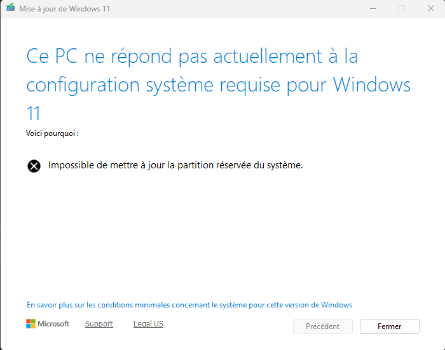
Figure 2: Administrative configuration in Microsoft Intune for Proactive Remediations, showing script upload and crucial execution context settings.
Step 5: Assign to a Group.
Assign the script package to the appropriate Azure AD device group (e.g., Contoso_All_Windows_Devices). Start with a pilot group for thorough testing.
Step 6: Set Schedule.
Configure the schedule for when the detection script should run. A daily or twice-daily schedule is often appropriate for update health. The remediation script will only run if detection indicates a problem.
Step 7: Review and Create.
Review your settings and click Create.
Deploying with NinjaRMM
NinjaRMM (or similar RMM platforms) offers similar capabilities for deploying these scripts. The key is ensuring the execution context is set correctly.
Step 1: Create a new script.
In NinjaRMM, navigate to the Scripts section and add a new PowerShell script.
Step 2: Upload Detection-UpdateHealth.ps1.
Upload the detection script and configure it to run under the NT AUTHORITY\SYSTEM account.
Step 3: Upload Remediation-UpdateHealth.ps1.
Upload the remediation script, also configured to run under the NT AUTHORITY\SYSTEM account.
Step 4: Create a Scheduled Script or Remediation Trigger.
Depending on your NinjaRMM setup, you can either:
- Scheduled Script: Schedule the detection script to run periodically. Based on its output (e.g., if it writes a specific log entry or returns a non-zero exit code), you can then manually or automatically trigger the remediation script.
- Remediation Trigger: If NinjaRMM offers a remediation or policy engine, configure it to run the detection script, and if it fails (returns
1), automatically execute the remediation script.
Architectural Takeaways & Decision Matrix
The proactive management of Windows Update health, particularly addressing issues like EFI partition bloat and corrupted caches, is a critical component of maintaining a stable and secure endpoint environment. This PowerShell toolkit offers a robust, scalable solution that goes beyond basic troubleshooting, diving into the architectural underpinnings of update failures.
When considering this approach versus alternative Intune mechanisms:
- Settings Catalog / Configuration Profiles: Ideal for declarative, policy-driven settings (e.g., enabling specific Windows Update rings). They are not suitable for complex, conditional logic or low-level OS manipulation like EFI cleanup.
- Custom OMA-URI: Useful for configuring CSPs not exposed in the Settings Catalog. While powerful, OMA-URI is also declarative and lacks the conditional execution logic needed for dynamic detection and remediation.
- Win32 App Deployment (Scripts): Can deploy and run scripts, but lacks the integrated detection/remediation loop and reporting of Proactive Remediations.
- Intune Proactive Remediations (this solution): The superior choice for this scenario. It combines the power of PowerShell scripting with an intelligent detection-remediation loop, robust reporting, and the ability to target specific device groups, ensuring that complex, conditional fixes are applied precisely when and where they are needed.
By integrating these scripts into your modern management strategy, you shift from a reactive, break-fix model to a proactive, self-healing one, significantly reducing helpdesk tickets related to Windows Update failures and ensuring your endpoints remain patched and compliant.
