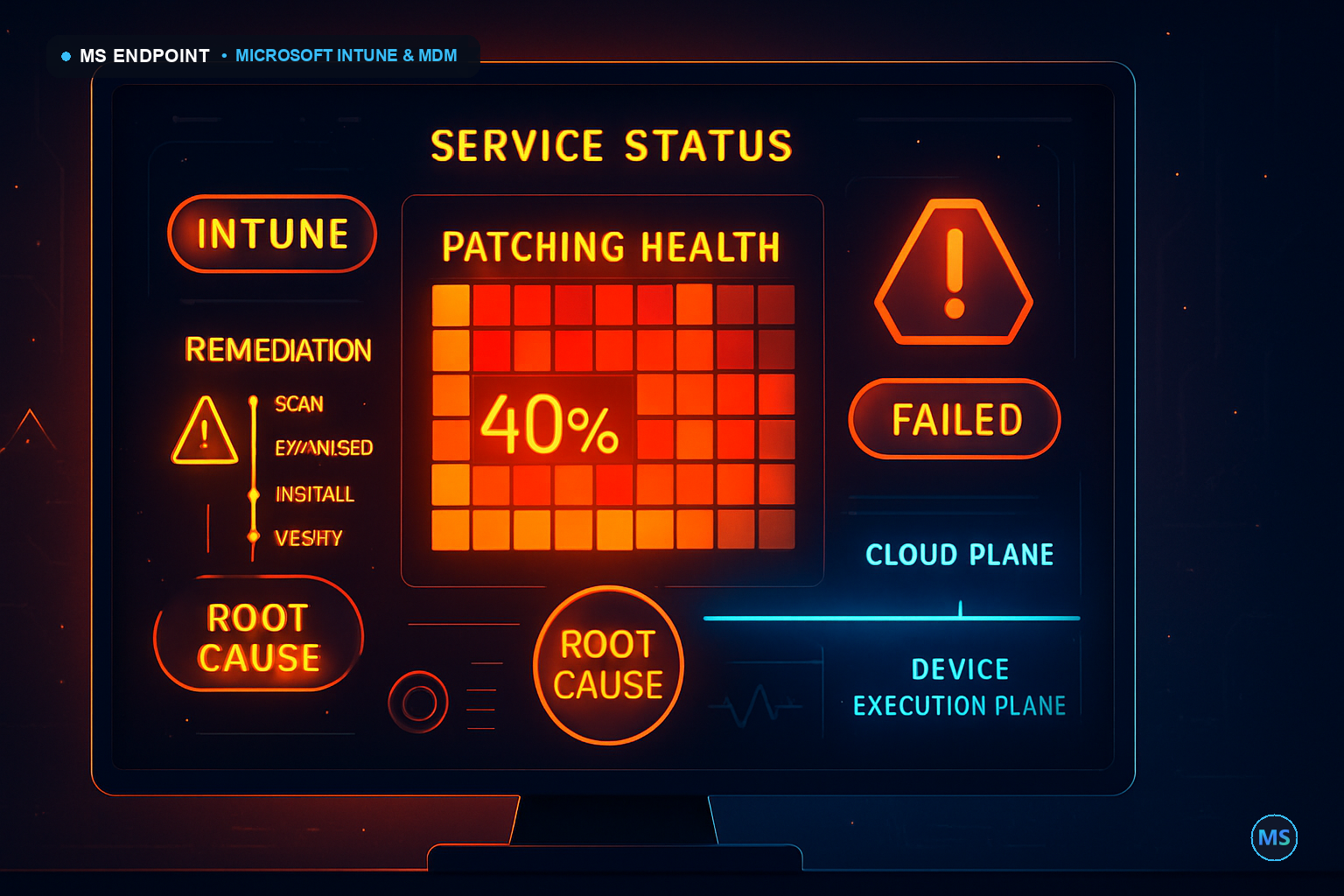
Auto-restart failures are one of the most insidious patching problems in enterprise Intune deployments because they're silent. Updates stage cleanly, compliance dashboards flash green, and then nothing restarts. Six weeks later, a CVE that should have been patched two patch Tuesdays ago is still sitting on 40% of your fleet — partially applied, waiting for a reboot that policy technically demanded but the stack never executed. The failure isn't random. It's architectural, and it traces through four distinct root causes with predictable prevalence ordering across every mixed-topology environment I've worked in at scale.
The core tension is this: Windows Update for Business (WUfB) is a cloud-native signaling system, but the actual restart enforcement runs entirely on-device through a chain of local OS services and scheduled tasks. Intune delivers intent via OMA-DM. The device is responsible for execution. When that local execution chain breaks — whether from a conflicting GPO, a missing deadline value, a degraded WaaSMedicSvc, or a scope sync gap — the cloud policy is irrelevant. You'll spend hours in the Intune portal looking at "assigned" status while the device sits unmoved.
Architectural Premise & The Real-World Challenge
The WUfB + Intune stack creates a two-plane enforcement model that Microsoft documentation consistently under-explains. The cloud plane (Intune, Graph, Entra ID) is responsible for policy definition and delivery. The device plane (OMA-DM client, Update Ring CSP, WaaSMedicSvc, UpdateOrchestrator scheduled tasks) is responsible for execution. These planes are loosely coupled through a polling-based sync channel — not a push model. That polling interval is 8 hours by default in steady state, dropping to roughly 15 minutes post-enrollment. In a 10,000-device hybrid fleet, that loose coupling is where your MTTR bleeds out.
The mistake most engineers make is treating this as a single system. They check the Intune portal, see "Assigned," and assume the device will comply. What they haven't verified is whether the registry values that WaaSMedicSvc actually reads were ever written correctly — or whether an on-prem GPO overwrote them 20 minutes after the MDM CSP set them. The registry path at HKLM\SOFTWARE\Policies\Microsoft\Windows\WindowsUpdate is a contested battlefield in hybrid environments. Both GPMC and the MDM CSP write to overlapping keys there. Last writer wins, and Group Policy refresh runs every 90 minutes with a random offset — meaning the GPO can silently clobber your cloud policy on a schedule.
HKLM\SOFTWARE\Policies\Microsoft\Windows\WindowsUpdate. MDM enrollment does NOT automatically suppress conflicting GPO writes unless you explicitly set the MDMWinsOverGP registry value or deploy the ControlPolicyConflict/MDMWinsOverGP CSP node. Without that, your cloud deadline configuration is being silently overwritten twice per hour.
The four root causes I'm working through here are ordered by production prevalence across mixed-topology environments. In my experience across tenants ranging from 2,000 to 85,000 seats, missing deadline configuration is the single most common culprit — a policy with deferral settings but no deadline values enforces nothing. Scope sync delays are second. GPO conflict is third, almost exclusively in Hybrid Entra Join scenarios. Service state issues round out the list at a distant fourth — they're real, but they're usually downstream of the other three triggering a cascade.
Under the Hood: Execution Engine & Mechanics
The OMA-DM sync channel is the entry point. When the Windows 10/11 MDM client (hosted by the DM client service, dmclient.exe) polls the Intune management endpoint, it receives SyncML payloads containing the Update/UpdateServiceUrl CSP nodes and the Windows/WindowsUpdate policy CSP. The specific CSP path for deadline configuration is:
// CSP nodes written by Intune Update Ring policy
./Vendor/MSFT/Policy/Config/Update/ConfigureDeadlineForQualityUpdates
./Vendor/MSFT/Policy/Config/Update/ConfigureDeadlineForFeatureUpdates
./Vendor/MSFT/Policy/Config/Update/ConfigureDeadlineGracePeriod
./Vendor/MSFT/Policy/Config/Update/AutoRestartBeforeDeadline
./Vendor/MSFT/Policy/Config/Update/ConfigureDeadlineNoAutoReboot
These CSP writes translate directly to registry values under HKLM\SOFTWARE\Policies\Microsoft\Windows\WindowsUpdate\AU and the parent WindowsUpdate key. The WaaSMedicSvc service reads these registry values — not the CSP nodes — to determine enforcement behavior. This is a critical architectural detail: the CSP is a write-only input channel. The service reads from registry. If anything breaks the CSP-to-registry write path, the service operates on stale or default values.
WaaSMedicSvc is a protected service. It runs as LocalSystem, has tamper protection enabled by default in Windows 11 22H2+, and restores itself if stopped — but "restores itself" doesn't mean it's operating correctly. A service can be in Running state while its internal state machine is broken due to a corrupted update session database at %windir%\SoftwareDistribution\DataStore\DataStore.edb. This is the scenario that produces the most frustrating symptom: service running, policy applied, deadline elapsed, no restart.
The UpdateOrchestrator scheduled tasks under Microsoft\Windows\UpdateOrchestrator in Task Scheduler are equally important. The Reboot task is what fires the actual restart. It reads the deadline from registry, compares to system time, and schedules the reboot. If this task is disabled — which some CIS Benchmark hardening scripts do — the reboot never happens regardless of what WaaSMedicSvc signals.
Microsoft\Windows\UpdateOrchestrator\Reboot status before anything else on devices that stage updates but never restart.
The MDM diagnostic log pipeline is your primary forensic surface. The key log file to start with is %ProgramData%\Microsoft\IntuneManagementExtension\Logs\IntuneManagementExtension.log for IME-delivered policy. For the OMA-DM/CSP channel specifically, the diagnostic channel is:
// Event channel for MDM CSP policy application
Microsoft-Windows-DeviceManagement-Enterprise-Diagnostics-Provider/Admin

// WU-specific event channel
Microsoft-Windows-WindowsUpdateClient/Operational

// UpdateOrchestrator restart scheduling
Microsoft-Windows-UpdateOrchestrator/Operational
Event ID 854 in the DeviceManagement-Enterprise-Diagnostics-Provider/Admin channel signals successful CSP node write. Event ID 404 signals a failed write with error detail. For UpdateOrchestrator, Event ID 25 indicates a reboot was scheduled; Event ID 26 is the reboot execution trigger. Absence of Event IDs 25 and 26 on a device that should have hit its deadline is definitive confirmation that the orchestrator execution chain is broken.
Enterprise Edge Cases & Scale Gotchas
At scale — 10,000+ endpoints — two problems amplify everything. First, group membership sync latency. Entra ID group membership changes (adding devices to a dynamic or assigned group that's targeted by the update ring) can take 15–45 minutes to propagate to the Intune policy targeting engine. At 85,000 devices, I've seen this lag extend past 90 minutes during peak hours. Devices that enrolled or moved groups during that window receive no policy until the next full sync cycle. Second, the 8-hour steady-state MDM polling interval means a device that misses its first policy delivery window doesn't get another attempt for hours — and the deadline clock isn't running on those devices at all.
The MDMWinsOverGP flag deserves its own entry in every hybrid environment runbook. Without it, the MDM CSP writes deadline values, and 90 minutes later, Group Policy refresh either overwrites them (if the GPO configures those keys) or leaves orphaned partial configurations (if the GPO configures some but not all WU keys). The result is a Frankenstein registry state that neither policy stack fully owns.
| Environment Topology | Primary Failure Mode | Registry Key in Contention | MDMWinsOverGP Required | Prevalence |
|---|---|---|---|---|
| Hybrid Entra Joined + On-Prem AD | GPO clobbers CSP deadline keys | HKLM\SOFTWARE\Policies\Microsoft\Windows\WindowsUpdate |
✓ Required | High |
| Cloud-Native (Entra Joined Only) | NULL deadline / scope sync lag | HKLM\SOFTWARE\Microsoft\PolicyManager\current\device\Update |
✗ N/A | Medium |
| WSUS/SCCM Co-Managed (Workloads Split) | Competing update source; WUfB disabled by WSUS GPO | HKLM\SOFTWARE\Policies\Microsoft\Windows\WindowsUpdate\AU\UseWUServer |
✓ Required | High |
| Entra Registered (Workgroup) | Incomplete MDM enrollment; CSP nodes not applied | N/A — CSP channel not established | ✗ N/A | Low |
| VPN-Dependent Remote Workers | restartChecks blocks restart (no network at enforce time) | HKLM\SOFTWARE\Policies\Microsoft\Windows\WindowsUpdate — SetEDURestart |
✗ N/A | Medium |
| Co-Management (CM Controls WU Workload) | ConfigMgr holds WU client workload; Intune policy ignored | ConfigMgr WUAgent policy path | ✗ N/A | High |
The co-management workload split is a particularly nasty gotcha. In ConfigMgr co-management, the Windows Update client workload can be assigned to either SCCM or Intune. If it's assigned to SCCM (the default), Intune update ring policies are delivered to the device but produce no effect on the WU client behavior. The policies show as "Assigned" in the Intune portal, compliance reports look fine, and the device ignores every deadline. Checking co-management workload assignment should be step zero for any co-managed device showing this symptom.
| CSP / Registry Key | Purpose | Expected Value (Enforcement Config) | GPO Override Risk |
|---|---|---|---|
Update/ConfigureDeadlineForQualityUpdates |
Days before quality update forced install | 3–7 (integer) | High |
Update/ConfigureDeadlineForFeatureUpdates |
Days before feature update forced install | 7–14 (integer) | High |
Update/ConfigureDeadlineGracePeriod |
Grace period after deadline before forced restart | 2 (integer, days) | High |
Update/AutoRestartBeforeDeadline |
Permits restart before deadline if no active user | 1 (DWORD, TRUE) | High |
Update/ConfigureDeadlineNoAutoReboot |
Disables auto-reboot if set — often misconfigured | 0 (DWORD, FALSE — must NOT be 1) | High |
HKLM\SOFTWARE\Policies\Microsoft\Windows\WindowsUpdate\MDMWinsOverGP |
MDM policy takes precedence over GPO for WU settings | 1 (DWORD) | N/A — this IS the control |
HKLM\SOFTWARE\Policies\Microsoft\Windows\WindowsUpdate\AU\UseWUServer |
Forces device to WSUS; blocks WUfB when set to 1 | 0 (DWORD) — must be 0 for WUfB | High (WSUS GPO) |
Production Implementation & Automation
The decision matrix here is explicit: validate cloud-side configuration via Graph API before touching a single device. Graph validation eliminates the null deadline and scope assignment failure classes in under 5 minutes. Only after cloud configuration is confirmed clean do you move to device-level log analysis. This sequencing reduces MTTR by approximately 60% because the majority of fleet-wide restart failures have a single cloud-side root cause that a targeted Graph query surfaces immediately.
-
Enumerate all Update Ring configurations via Graph and validate deadline values are non-null
Target:GET /beta/deviceManagement/updateRingConfigurations. Any ring with null deadline values is not enforcing restart regardless of how many devices it's assigned to. -
Validate device group membership and policy assignment status
Cross-reference device group membership in Entra ID against the groups targeted by each update ring. Devices not in the target group receive no policy. Entra ID group membership report viaGET /v1.0/groups/{groupId}/members. -
Check device last check-in time and compliance state
Devices withlastSyncDateTimeolder than 24 hours are operationally offline from Intune's perspective. No policy refresh has occurred. -
On affected devices, validate registry state matches expected CSP output
Compare registry values atHKLM\SOFTWARE\Policies\Microsoft\Windows\WindowsUpdateagainst expected values. Discrepancies indicate GPO override or failed CSP write. -
Validate WaaSMedicSvc state and UpdateOrchestrator task status
Service must be Running; Reboot and ScheduledReboot tasks must be Ready/Running, not Disabled. -
Review MDM diagnostic event log for CSP write failures
Pull Event ID 404 from Microsoft-Windows-DeviceManagement-Enterprise-Diagnostics-Provider/Admin. Each 404 contains the specific CSP node path and HRESULT error code. -
Force MDM sync and re-validate
After any remediation, trigger immediate MDM sync and verify CSP nodes re-apply cleanly within 5 minutes.
The following script handles the full cloud-side validation workflow. It enumerates all update rings, flags rings with missing deadline configuration, and then produces a per-device compliance report cross-referencing last sync time and update ring assignment status.
#Requires -Modules Microsoft.Graph.DeviceManagement, Microsoft.Graph.Groups
# ================================================================
# Intune Auto-Restart Validation: Cloud-Side Triage
# Author: msendpoint.com
# Required Scopes: DeviceManagementConfiguration.Read.All
#                  DeviceManagementManagedDevices.Read.All
#                  Group.Read.All
#                  DeviceManagementConfiguration.ReadWrite.All (for remediation)
# ================================================================

[CmdletBinding(SupportsShouldProcess)]
param(
    [Parameter(Mandatory = $false)]
    [switch]$RemediateNullDeadlines,

    [Parameter(Mandatory = $false)]
    [int]$DefaultQualityDeadlineDays = 5,

    [Parameter(Mandatory = $false)]
    [int]$DefaultFeatureDeadlineDays = 10,

    [Parameter(Mandatory = $false)]
    [int]$DefaultGracePeriodDays = 2,

    [Parameter(Mandatory = $false)]
    [string]$ExportPath = "$env:TEMP\WUfB_Validation_$(Get-Date -Format 'yyyyMMdd_HHmmss').csv"
)

# ── Authentication ────────────────────────────────────────────────
try {
    Connect-MgGraph -Scopes @(
        "DeviceManagementConfiguration.Read.All",
        "DeviceManagementManagedDevices.Read.All",
        "Group.Read.All",
        "DeviceManagementConfiguration.ReadWrite.All"
    ) -ErrorAction Stop
    Write-Verbose "[AUTH] Connected to Microsoft Graph"
} catch {
    Write-Error "[AUTH FAIL] Unable to connect to Microsoft Graph: $_"
    exit 1
}

# ── Step 1: Enumerate Update Ring configurations ──────────────────
Write-Host "[*] Enumerating Update Ring configurations..." -ForegroundColor Cyan

try {
    $updateRings = Invoke-MgGraphRequest `
        -Method GET `
        -Uri "https://graph.microsoft.com/beta/deviceManagement/updateRingConfigurations?`$select=id,displayName,deadlineForQualityUpdatesInDays,deadlineForFeatureUpdatesInDays,deadlineGracePeriodInDays,autoRestartBeforeDeadline,deadlineNoAutoReboot,assignments" `
        -OutputType PSObject -ErrorAction Stop

    $rings = $updateRings.value
} catch {
    Write-Error "[GRAPH FAIL] Unable to retrieve Update Ring configurations: $_"
    exit 1
}

# ── Step 2: Identify misconfigured rings ──────────────────────────
$ringReport = [System.Collections.Generic.List[PSCustomObject]]::new()

foreach ($ring in $rings) {
    $issues = [System.Collections.Generic.List[string]]::new()

    if ($null -eq $ring.deadlineForQualityUpdatesInDays) { $issues.Add("NULL_QUALITY_DEADLINE") }
    if ($null -eq $ring.deadlineForFeatureUpdatesInDays) { $issues.Add("NULL_FEATURE_DEADLINE") }
    if ($null -eq $ring.deadlineGracePeriodInDays)       { $issues.Add("NULL_GRACE_PERIOD") }
    if ($ring.autoRestartBeforeDeadline -ne $true)        { $issues.Add("AUTO_RESTART_DISABLED") }
    if ($ring.deadlineNoAutoReboot -eq $true)             { $issues.Add("NO_AUTO_REBOOT_SET") }

    $ringRecord = [PSCustomObject]@{
        RingId                      = $ring.id
        RingName                    = $ring.displayName
        QualityDeadlineDays         = $ring.deadlineForQualityUpdatesInDays
        FeatureDeadlineDays         = $ring.deadlineForFeatureUpdatesInDays
        GracePeriodDays             = $ring.deadlineGracePeriodInDays
        AutoRestartBeforeDeadline   = $ring.autoRestartBeforeDeadline
        DeadlineNoAutoReboot        = $ring.deadlineNoAutoReboot
        Issues                      = ($issues -join ", ")
        Compliant                   = ($issues.Count -eq 0)
    }

    $ringReport.Add($ringRecord)

    if ($issues.Count -gt 0) {
        Write-Warning "[RING ISSUE] $($ring.displayName): $($issues -join ', ')"

        # ── Optional remediation: patch NULL deadline rings ───────────
        if ($RemediateNullDeadlines -and $PSCmdlet.ShouldProcess($ring.displayName, "Patch NULL deadline values")) {
            $patchBody = @{}
            if ($null -eq $ring.deadlineForQualityUpdatesInDays) {
                $patchBody["deadlineForQualityUpdatesInDays"] = $DefaultQualityDeadlineDays
            }
            if ($null -eq $ring.deadlineForFeatureUpdatesInDays) {
                $patchBody["deadlineForFeatureUpdatesInDays"] = $DefaultFeatureDeadlineDays
            }
            if ($null -eq $ring.deadlineGracePeriodInDays) {
                $patchBody["deadlineGracePeriodInDays"] = $DefaultGracePeriodDays
            }
            if ($ring.autoRestartBeforeDeadline -ne $true) {
                $patchBody["autoRestartBeforeDeadline"] = $true
            }

            try {
                Invoke-MgGraphRequest `
                    -Method PATCH `
                    -Uri "https://graph.microsoft.com/beta/deviceManagement/updateRingConfigurations/$($ring.id)" `
                    -Body ($patchBody | ConvertTo-Json -Depth 3) `
                    -ContentType "application/json" `
                    -ErrorAction Stop

                Write-Host "  [REMEDIATED] $($ring.displayName)" -ForegroundColor Green
            } catch {
                Write-Warning "  [PATCH FAIL] $($ring.displayName): $_"
            }
        }
    }
}

# ── Step 3: Device compliance cross-reference ─────────────────────
Write-Host "[*] Pulling managed Windows device list..." -ForegroundColor Cyan

try {
    $devices = Invoke-MgGraphRequest `
        -Method GET `
        -Uri "https://graph.microsoft.com/v1.0/deviceManagement/managedDevices?`$filter=operatingSystem eq 'Windows'&`$select=id,deviceName,complianceState,lastSyncDateTime,joinType,managementAgent" `
        -OutputType PSObject -ErrorAction Stop
    $deviceList = $devices.value
} catch {
    Write-Error "[GRAPH FAIL] Unable to retrieve managed devices: $_"
    exit 1
}

$staleThreshold = (Get-Date).AddHours(-24)
$deviceReport   = [System.Collections.Generic.List[PSCustomObject]]::new()

foreach ($device in $deviceList) {
    $lastSync     = [datetime]$device.lastSyncDateTime
    $isStale      = $lastSync -lt $staleThreshold
    $syncAge      = [math]::Round(((Get-Date) - $lastSync).TotalHours, 1)

    $deviceRecord = [PSCustomObject]@{
        DeviceName      = $device.deviceName
        DeviceId        = $device.id
        ComplianceState = $device.complianceState
        JoinType        = $device.joinType
        ManagementAgent = $device.managementAgent
        LastSyncHoursAgo = $syncAge
        StaleSync       = $isStale
    }
    $deviceReport.Add($deviceRecord)

    if ($isStale) {
        Write-Warning "[STALE] $($device.deviceName) — last sync $syncAge hours ago"
    }
}

# ── Output ────────────────────────────────────────────────────────
Write-Host "`n[RING SUMMARY]" -ForegroundColor Yellow
$ringReport | Format-Table RingName, QualityDeadlineDays, FeatureDeadlineDays, AutoRestartBeforeDeadline, Issues, Compliant -AutoSize

Write-Host "[DEVICE SUMMARY — Stale Sync Only]" -ForegroundColor Yellow
$deviceReport | Where-Object { $_.StaleSync } | Format-Table DeviceName, JoinType, ManagementAgent, LastSyncHoursAgo -AutoSize

# Export full device report
$deviceReport | Export-Csv -Path $ExportPath -NoTypeInformation -Force
Write-Host "[*] Device report exported: $ExportPath" -ForegroundColor Cyan

Disconnect-MgGraph | Out-Null
exit 0
The device-level forensic script handles the on-device investigation layer. Run this remotely via Intune Remediations or directly via PowerShell when Graph validation confirms cloud config is clean but individual devices still aren't restarting.
#Requires -RunAsAdministrator
# ================================================================
# On-Device WUfB Restart Forensics
# Deploy via: Intune Proactive Remediations (Detection script)
# Or: Run directly with SYSTEM/admin context on affected device
# ================================================================

[CmdletBinding()]
param()

$report = [System.Collections.Generic.List[PSCustomObject]]::new()
$issuesFound = $false

# ── Registry: WU Policy values (MDM-written) ─────────────────────
$wuPolicyPath = "HKLM:\SOFTWARE\Policies\Microsoft\Windows\WindowsUpdate"
$wuAUPath     = "HKLM:\SOFTWARE\Policies\Microsoft\Windows\WindowsUpdate\AU"

function Get-RegValue {
    param($Path, $Name)
    try { return (Get-ItemProperty -Path $Path -Name $Name -ErrorAction Stop).$Name }
    catch { return $null }
}

$qualityDeadline  = Get-RegValue $wuPolicyPath "ConfigureDeadlineForQualityUpdates"
$featureDeadline  = Get-RegValue $wuPolicyPath "ConfigureDeadlineForFeatureUpdates"
$gracePeriod      = Get-RegValue $wuPolicyPath "ConfigureDeadlineGracePeriod"
$autoRestart      = Get-RegValue $wuPolicyPath "AutoRestartBeforeDeadline"
$noAutoReboot     = Get-RegValue $wuPolicyPath "ConfigureDeadlineNoAutoReboot"
$mdmWinsOverGP    = Get-RegValue $wuPolicyPath "MDMWinsOverGP"
$useWUServer      = Get-RegValue $wuAUPath "UseWUServer"

# ── Service state checks ──────────────────────────────────────────
$waasStatus        = (Get-Service -Name "WaaSMedicSvc" -ErrorAction SilentlyContinue)?.Status
$wuauservStatus    = (Get-Service -Name "wuauserv" -ErrorAction SilentlyContinue)?.Status

# ── Scheduled Task state ─────────────────────────────────────────
$rebootTask = Get-ScheduledTask -TaskPath "\Microsoft\Windows\UpdateOrchestrator" `
              -TaskName "Reboot" -ErrorAction SilentlyContinue
$rebootTaskState = $rebootTask?.State ?? "NOT FOUND"

# ── MDM enrollment validation ─────────────────────────────────────
$enrollmentPath = "HKLM:\SOFTWARE\Microsoft\Enrollments"
$enrollments    = Get-ChildItem $enrollmentPath -ErrorAction SilentlyContinue
$mdmEnrolled    = $enrollments | Where-Object {
    (Get-ItemProperty $_.PSPath -Name "EnrollmentType" -ErrorAction SilentlyContinue)?.EnrollmentType -eq 6
}

# ── Evaluate findings ─────────────────────────────────────────────
$checks = @(
    [PSCustomObject]@{ Check = "Quality Update Deadline";        Value = $qualityDeadline ?? "NULL"; Pass = ($null -ne $qualityDeadline) }
    [PSCustomObject]@{ Check = "Feature Update Deadline";        Value = $featureDeadline ?? "NULL"; Pass = ($null -ne $featureDeadline) }
    [PSCustomObject]@{ Check = "Grace Period";                   Value = $gracePeriod ?? "NULL";    Pass = ($null -ne $gracePeriod) }
    [PSCustomObject]@{ Check = "AutoRestartBeforeDeadline";      Value = $autoRestart ?? "NULL";    Pass = ($autoRestart -eq 1) }
    [PSCustomObject]@{ Check = "NoAutoReboot (must be 0)";       Value = $noAutoReboot ?? "NULL";   Pass = ($noAutoReboot -ne 1) }
    [PSCustomObject]@{ Check = "MDMWinsOverGP";                 Value = $mdmWinsOverGP ?? "NOT SET"; Pass = ($mdmWinsOverGP -eq 1) }
    [PSCustomObject]@{ Check = "UseWUServer (must be 0)";       Value = $useWUServer ?? "NULL";    Pass = ($useWUServer -ne 1) }
    [PSCustomObject]@{ Check = "WaaSMedicSvc";                  Value = $waasStatus ?? "NOT FOUND"; Pass = ($waasStatus -eq "Running") }
    [PSCustomObject]@{ Check = "UpdateOrchestrator Reboot Task"; Value = $rebootTaskState; Pass = ($rebootTaskState -in @("Ready", "Running")) }
    [PSCustomObject]@{ Check = "MDM Enrolled (Type 6)";          Value = ($null -ne $mdmEnrolled) ? "Yes" : "No"; Pass = ($null -ne $mdmEnrolled) }
)

$failedChecks = $checks | Where-Object { -not $_.Pass }

if ($failedChecks.Count -gt 0) {
    $issuesFound = $true
    Write-Host "[FAIL] $($failedChecks.Count) issue(s) detected:" -ForegroundColor Red
    $failedChecks | ForEach-Object {
        Write-Host "  [X] $($_.Check): $($_.Value)" -ForegroundColor Yellow
    }
} else {
    Write-Host "[PASS] All WUfB restart enforcement checks passed." -ForegroundColor Green
}

# ── Pull last 20 MDM CSP write events ────────────────────────────
Write-Host "`n[*] Recent MDM CSP events (Event ID 404 = write failure):" -ForegroundColor Cyan
try {
    Get-WinEvent -LogName "Microsoft-Windows-DeviceManagement-Enterprise-Diagnostics-Provider/Admin" `
        -MaxEvents 40 -ErrorAction Stop |
        Where-Object { $_.Id -in @(404, 854) } |
        Select-Object TimeCreated, Id, Message |
        Format-Table -AutoSize -Wrap
} catch {
    Write-Warning "[LOG] Unable to read MDM event log: $_"
}

# ── Return exit code for Intune Remediation detection context ─────
if ($issuesFound) { exit 1 } else { exit 0 }
DeviceManagement/SyncDevice Graph action and re-applies the MDMWinsOverGP registry key. This gives you fleet-wide automated detection and targeted remediation without manual intervention per device.
Architectural Takeaways & Decision Matrix
The choice between Update Rings, Settings Catalog WU policies, and custom OMA-URI is not aesthetic. Each mechanism has materially different behavior at the registry layer and different conflict surface area with GPO.
| Policy Mechanism | Registry Write Path | GPO Override Risk | Supports Deadline | Co-Management Compatible | Recommended For |
|---|---|---|---|---|---|
| Update Rings (WUfB) | HKLM\SOFTWARE\Policies\Microsoft\Windows\WindowsUpdate |
High without MDMWinsOverGP | ✓ Native | ✓ When WU workload = Intune | Cloud-native, simple fleet baseline |
| Settings Catalog (WU policies) | HKLM\SOFTWARE\Microsoft\PolicyManager\current\device\Update |
Lower (different hive) | ✓ Via CSP | ✓ | Granular control; co-existence with GPO |
| Custom OMA-URI | Depends on CSP node | Variable | ✓ Manual CSP paths | ✓ | Settings not exposed in UI; legacy configs |
| Proactive Remediations | Script-written (any path) | ✗ None | ✗ Not WU deadline | ✓ | Detection + remediation of broken states |
| ConfigMgr Software Update (co-mgmt) | WUAgent policy via WSUS endpoint | ✗ Not applicable | ✓ Maintenance Windows | ✓ When WU workload = CM | Phased co-management migration; WSUS dependency |
Settings Catalog WU policies write to a different registry hive than Update Rings. This is the least-understood split in the WUfB stack. Settings Catalog policies land in HKLM\SOFTWARE\Microsoft\PolicyManager\current\device\Update, which the MDM bridge then translates into effective policy via the PolicyManager service. Update Rings write directly to the classic HKLM\SOFTWARE\Policies\Microsoft\Windows\WindowsUpdate path. If you're running both mechanisms simultaneously targeting the same device, you have two policy sources writing to overlapping effective policy nodes — and the conflict resolution behavior between them is not clearly documented and varies by Windows build.
The MDMWinsOverGP flag belongs in every hybrid environment's baseline configuration. Deploy it via a Settings Catalog profile under MDM Wins Over GP or via a custom OMA-URI targeting ./Device/Vendor/MSFT/Policy/Config/ControlPolicyConflict/MDMWinsOverGP with value <enabled/>. It must be deployed to all hybrid Entra Joined devices before deploying any WUfB deadline configuration. Deploying deadline config without this flag in a hybrid environment is the single fastest path to the "policy assigned, no enforcement" symptom.
Finally, the co-management workload split check is not optional for co-managed fleets. Before any other troubleshooting on a co-managed device, verify the Windows Update workload is assigned to Intune in ConfigMgr's Co-management Properties. If it's still assigned to Configuration Manager, redirect your troubleshooting entirely to the SCCM Software Update maintenance window and deployment configuration. Intune's update ring is completely inert until that workload flip happens.
- Update Ring policy with explicit
deadlineForQualityUpdatesInDays: 5,deadlineForFeatureUpdatesInDays: 14,deadlineGracePeriodInDays: 2,autoRestartBeforeDeadline: true MDMWinsOverGP: 1deployed via Settings Catalog to all Hybrid Entra Joined devices as a prerequisite baseline- WSUS GPO removed or
UseWUServerset to 0 on all Intune-managed devices - UpdateOrchestrator Reboot task confirmed Enabled via Proactive Remediation detection sweep
- Co-management WU workload flipped to Intune before Update Ring assignment
